Last Updated: 1/09/2026
Applies to:
Brokers
Solution Overview:
This article will outline the steps to take in order for Brokers to generate a recurring Retainer Fee for their clients.
Step by Step:
Go to the Agreements Section and choose 3pl Services. Click Create New and follow the steps below.
Step 1: Fill in the required Header Information:
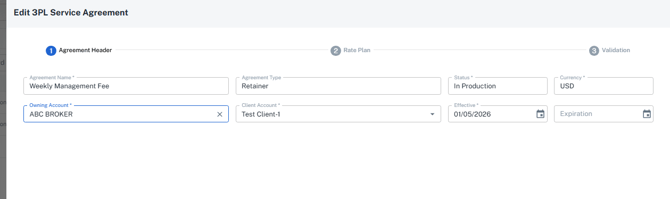
- Agreement Name: This is your preference as to how you want to refer to this in the system
- Agreement Type:
- Choose 'Retainer': Use this type for recurring fees charged to your customers. The frequency can be set as daily, specific day of week, monthly, yearly, or quarterly.
- Owning Account: This will always be the brokerage account
- Client Account: A client account from Engage must be selected. Currently, each individual client needs to have their own 3pl Service Agreement. You cannot add multiple clients to one retainer agreement.
- Set the effective dates as desired (These can be edited at anytime)
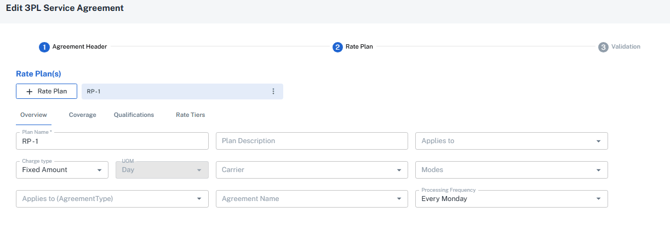
Step 2: Specify the specifics of the rate plan type you selected in step 1.
For a Retainer: Only these 3 fields need to be filled in:
- Plan Name: Default name is provided, this is only necessary if you wanted to set up different fees under the same 3PL Service Agreement for a customer such as one for TL and one for LTL.
- Charge Type (Fixed Amount or % of Spend): Use Fixed Amount if you plan to charge your customer a flat fee on a period basis. % of Spend would be utilized if you wanted the system calculate an amount based on the total freight spend in a given period.
- Processing Frequency: Set the frequency you want the invoice to be generated (If it is weekly, then choose the day of week). If any other frequency is selected, additional fields will appear allowing you to specify when the charge record should be created.
Step 3: Click Next to bypass the Coverage and Qualifications tab, until you are on the Rate Tiers Tab
- Enter the Amount you wish to charge
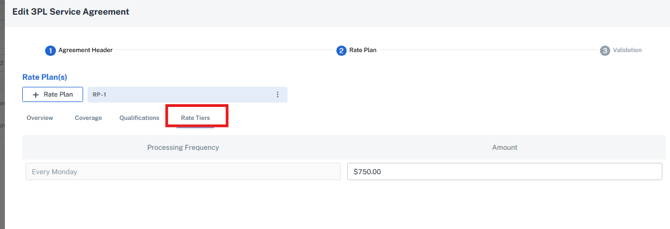
Step 4. After entering your amount, you will be asked to choose the status of the agreement. Set to In Production and click save.
You’ll now begin to see invoices generated for the specified client under the 3PL agreement you just set up. You can return to this screen at any time to update the agreement record.
Note: Edits made will only be applied to new charge records created after the edit. Historical charge records cannot be updated from the agreement.
Considerations:
- Where do these appear? These fees will appear in Settle > Invoices within the Expected Charges, Invoices, and Statements grid.
- How do you differentiate these from shipment invoices? Retainer fees will be identified with a Freight Type of “Third Party Service.” Standard shipment invoices will display a Freight Type of “Freight.”
- When will these be generated? Invoices will be generated according to the processing frequency you configured, shortly after 12:01 a.m. ET on the applicable processing date.