Last Updated: April 5, 2025
Applies to:
Shippers, Brokers, Carriers, and Partners
Solution Overview:
Commission Agreements offer a structured solution for a complex yet vital area of the business. G2Mint streamlines any commission scenario you may encounter, automating the process and significantly reducing the time spent on manual calculations. We provide customizable templates that can be assigned to specific accounts or agents, accommodating various commission methods such as percentage-based, fixed dollar amounts, revenue-based, activity-based, and Trickle-Down commission plans. Additionally, you can establish payment terms that suit your needs, whether weekly, monthly, quarterly, or annually. Our application enhances transparency and efficiency in managing financial compensation for all stakeholders in the transportation process, including brokers, co-brokers, agents, and other involved parties. You can save and reuse commission templates when setting up new agreements and easily link them to existing templates during the process.
The Header information in Commission Agreements is vital information that determines which accounts will utilize this particular agreement.
Create a Commission Agreement
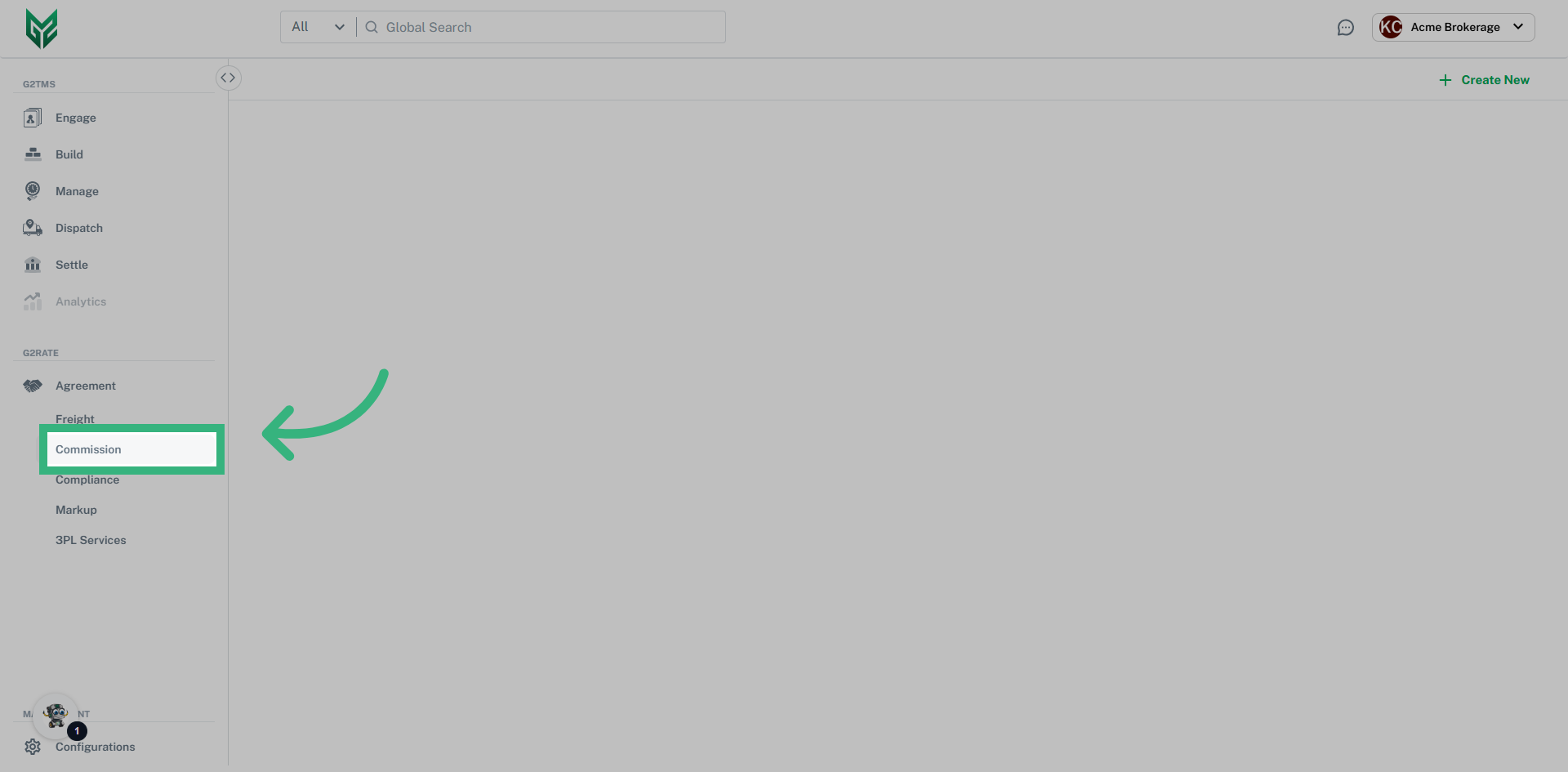
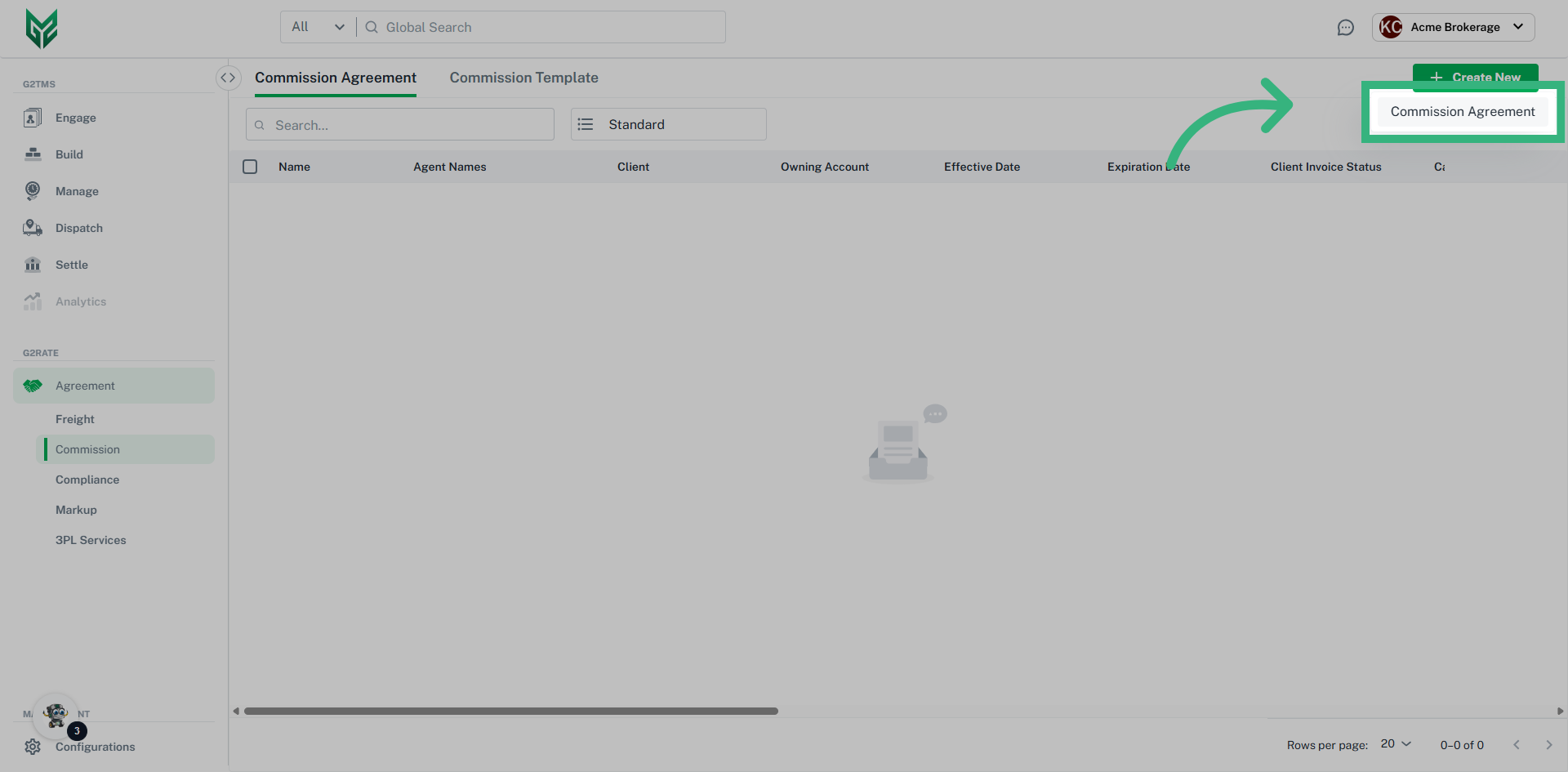
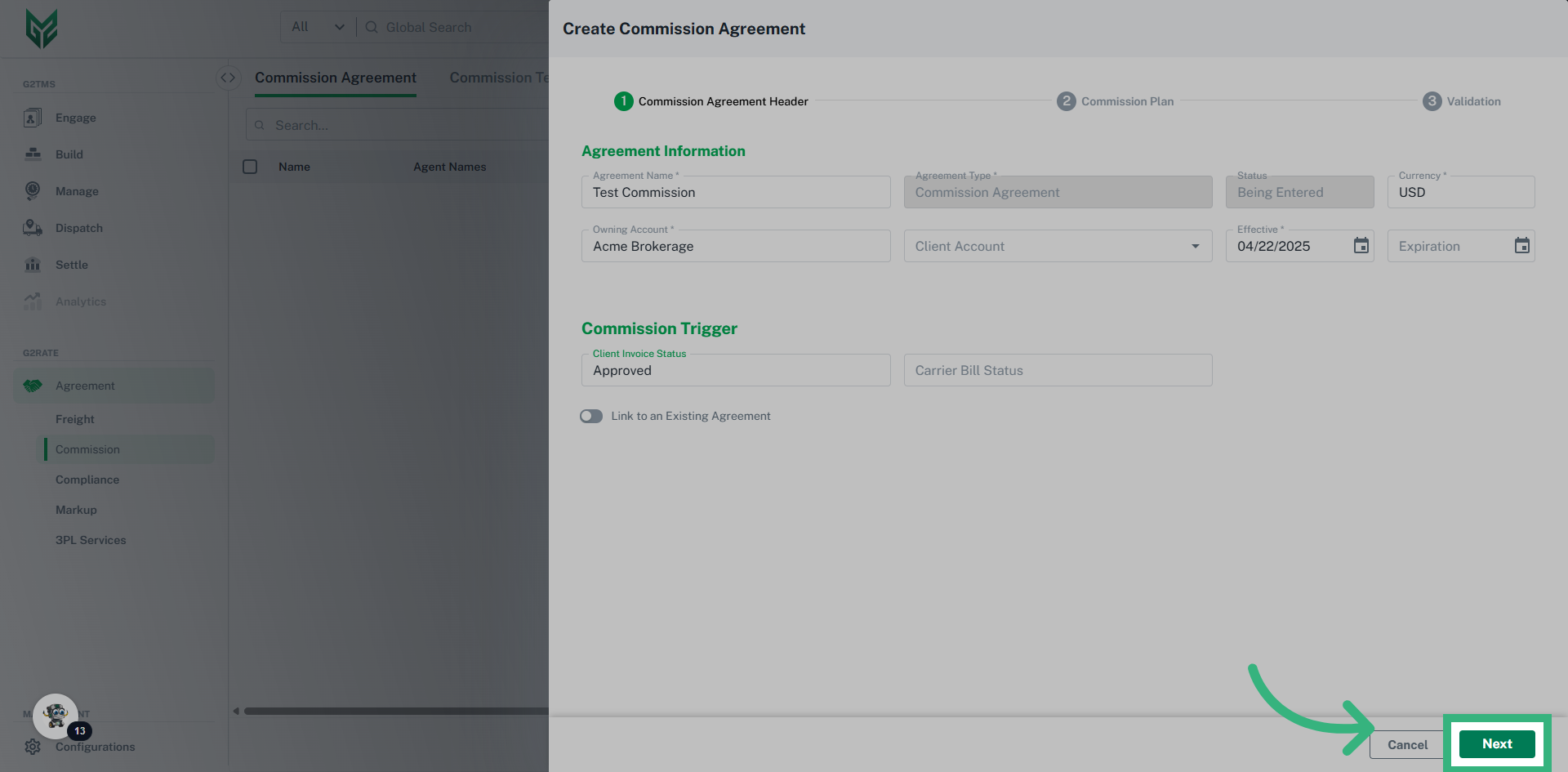
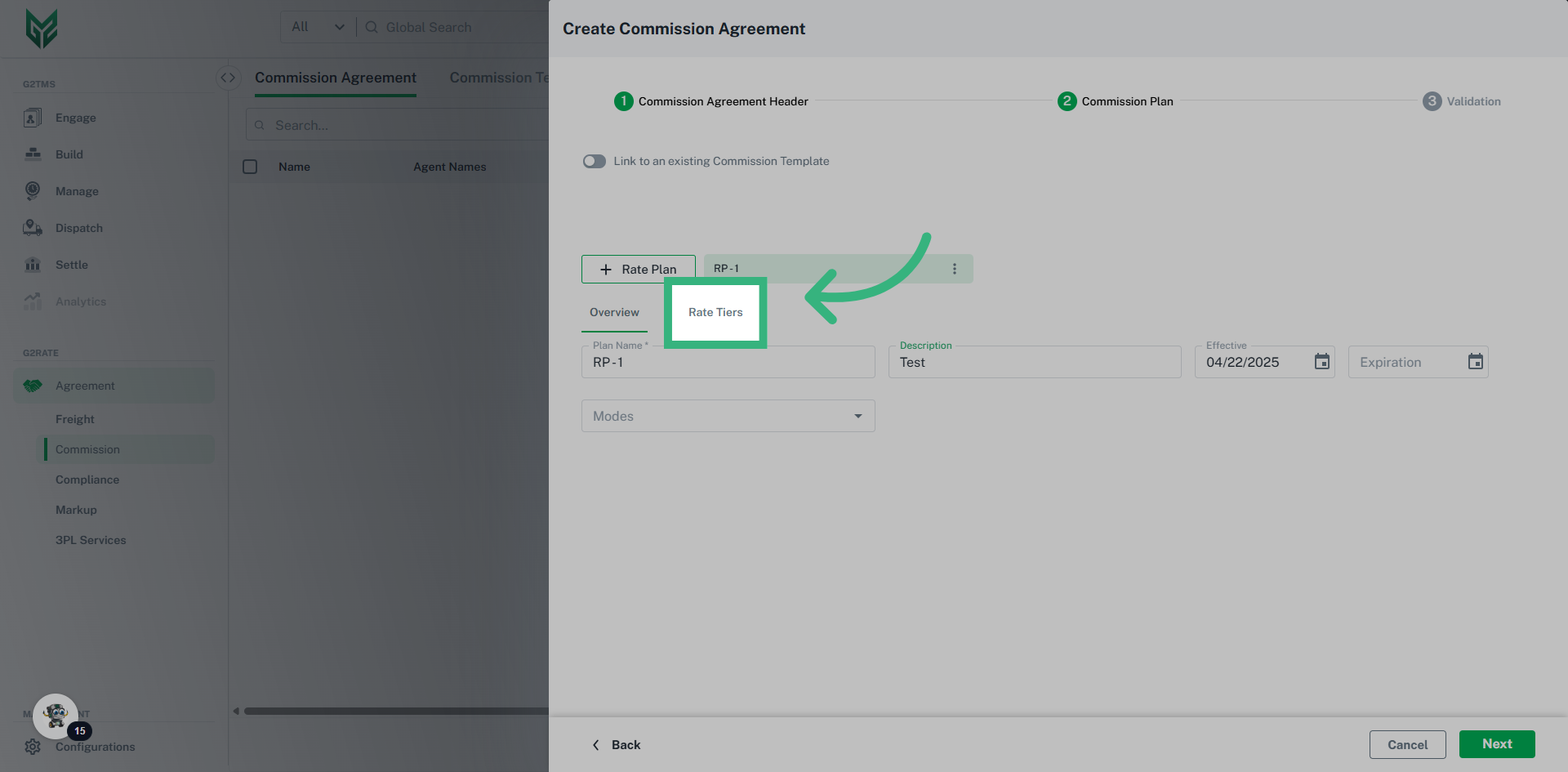
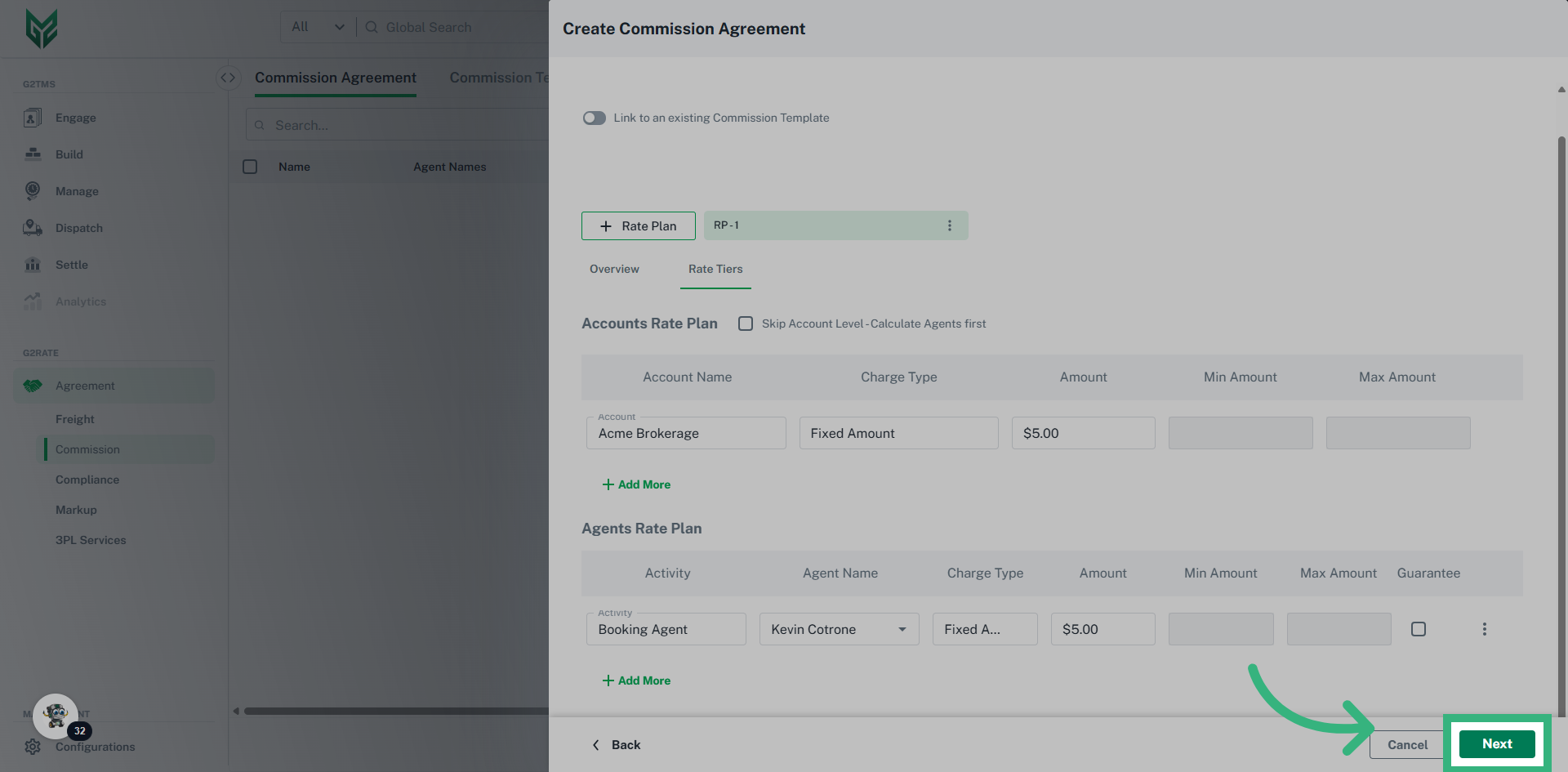
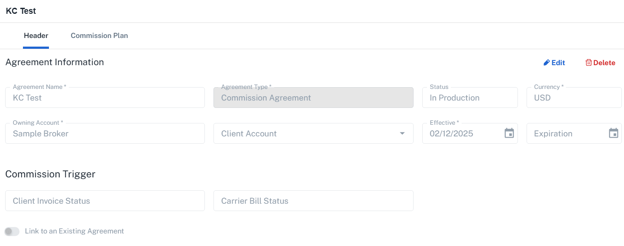
- Agreement Name: Utilize a unique name that provides a clear description
- Agreement Type: Default option is Commission Agreement
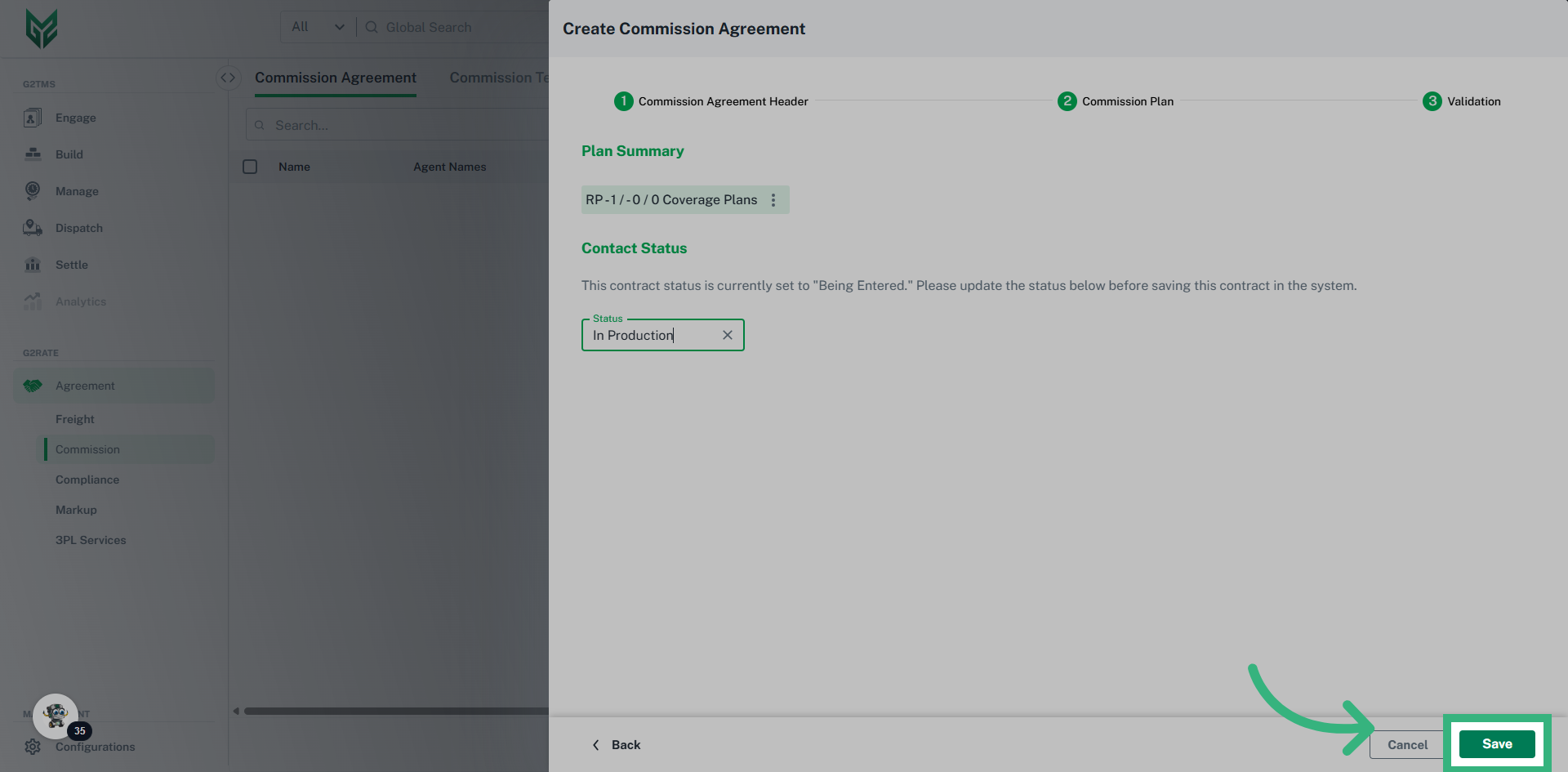
- Status: Utilize “In Production” to have plan available for use
- Currency: Default is US Dollars
- Owning Account: Options from the dropdown will only include Shipper/Brokers accounts associated with the licensed User.
- Client Account: Dropdown will offer options from the Engage section with the Account Type of “Client” (Vendor Accounts may not be selected)
- Commission Triggers: A commission trigger can be based upon Client Invoice, or Carrier Bill status. Utilize the dropdown select options to determine what triggers this commission plan to be activated.
- Link to an Existing Agreement: A commission plan can be general to an account, or it can be linked to a specific Freight Agreement. Activate toggle and assign associated agreement here.