Last Updated: December 3, 2025
Applies to:
Shippers, Brokers
Solution Overview:
This article provides step-by-step instructions for connecting your UPS Parcel accounts to G2Mint. Before you can link your UPS account in G2Mint, you’ll need to complete a few prerequisites in the UPS Developer portal to enable the integration and obtain the required API key. Use the steps below to complete this setup.
Step by Step:
- Click this link to log into the UPS Dev Portal: https://developer.ups.com/apps/G2%20Mint%209y57a6?loc=en_US
- Once logged in, click on the 'My Apps' in the top right next to your profile
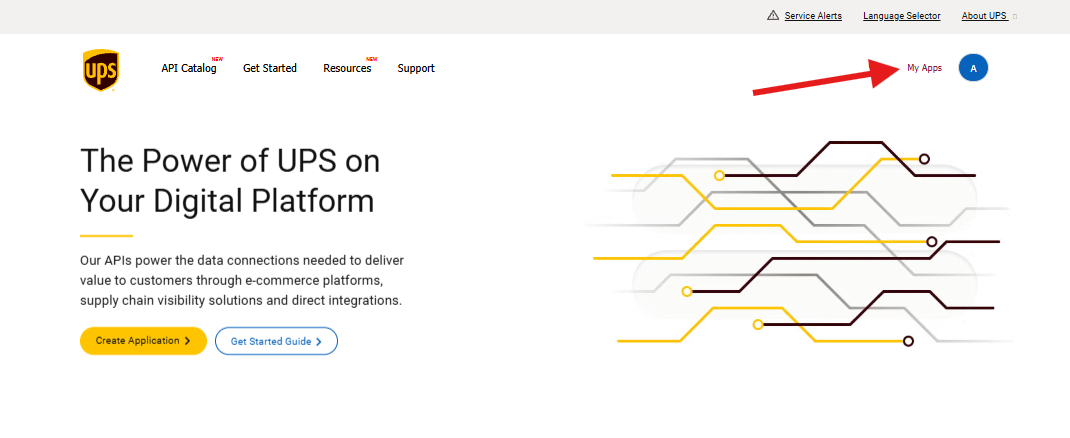
- Select Add Apps: This will walk you through some basic questions
- Under the 'I need API credentials because', choose 'I want to integrate UPS technology into my business'
- Select the first UPS account you wish to connect if you have multiple.
- Check the disclaimer 'I agree' box.
- Click Next
- Fill out the Primary Contact form. This is for UPS informational purposes only.
- Upon clicking next you will be prompted to add apps. For the App Name, we recommend you include your UPS Account number and you can also specify G2Mint as a prefix, such as 'G2Mint 8X5555'.
- Under the 'Add Products' area, you will need to search for each of the 4 products one at a time and move the toggle switch to add the appropriate products to the account.
- Repeat this step 4 times until each of these items are enabled for the account. (Authorization, Rating, Tracking, and Shipping)
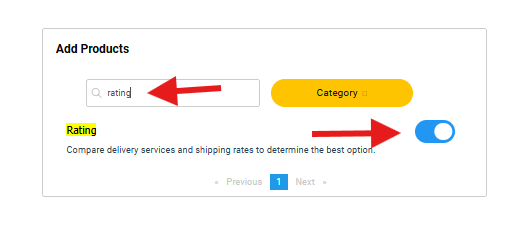
- Repeat this step 4 times until each of these items are enabled for the account. (Authorization, Rating, Tracking, and Shipping)
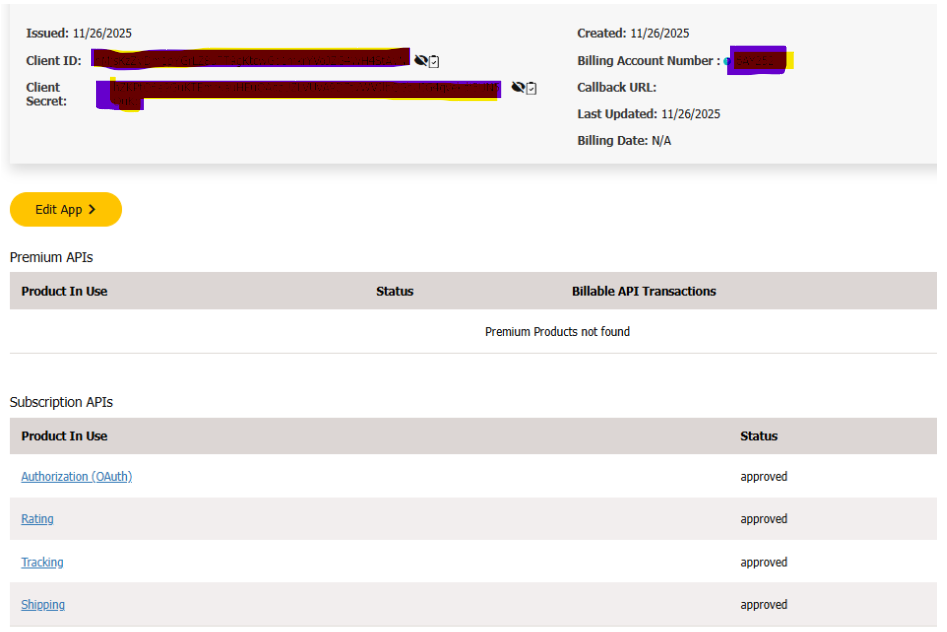
- After the above steps are completed for an account. This is what it should look like on the UPS Dev Portal Site.
- Make sure the proper subscription APIs are selected (Authorization, Rating, Tracking, and Shipping). See below screenshot, this is from the previous step.
- The Client ID and Client Secret ID associated with the Billing Account Number are the key items needed in G2Mint to connect the agreement. You can expand these to view, then copy and paste them into G2Mint.
After the above steps are completed in the UPS Dev Portal, you are now ready to connect your UPS agreement in G2Mint. If you have additional UPS Account numbers, please repeat the steps above.
- Go to the Agreements>Freight and click 'Create New' choose 'Web Services' and follow the prompts on the screen.
- For additional assistance: Click this link to review how to create a Freight Agreement. Create a webservice Freight Agreement
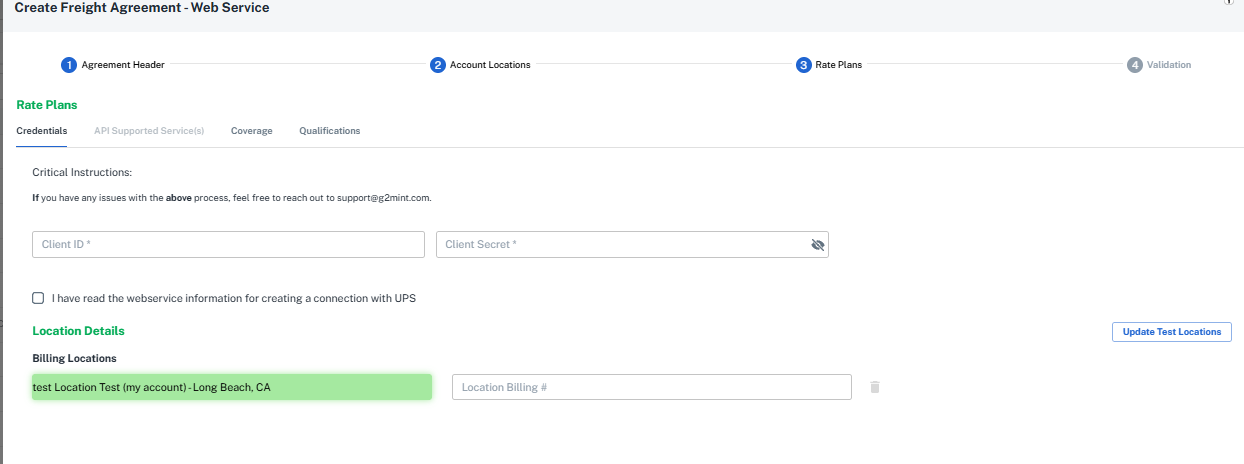
- Once you get to the Credentials screen shown below, this is where you will enter the required Client ID and Client Secret obtained in the UPS dev portal.
- Make sure to enter the proper UPS Account number you just configured in the UPS dev portal.