Last Updated: August 2025
Applies to:Brokers
Common Scenario(s)/Challenge (s):
As a broker, you need to generate a quote to provide your client but you don't know which specific carrier you are going to utilize and you are not ready to award the shipment to a specific carrier. This will require the broker to create a manual rate in order to generate the Quote Confirmation document for their client.
Solution Overview:
In order to generate a quote confirmation document, the system requires you to select a specific carrier and rate to populate on the quote document. This requires you to generate a manual rate record within the shipment to allow the quote document to be generated for that shipment. Once the client agrees, the broker can then tender the shipment to the selected carrier as needed.
Step by Step:
- Navigate to Manage>Shipments to locate the specific shipment or start from Build>Shipments to build a shipment from scratch.
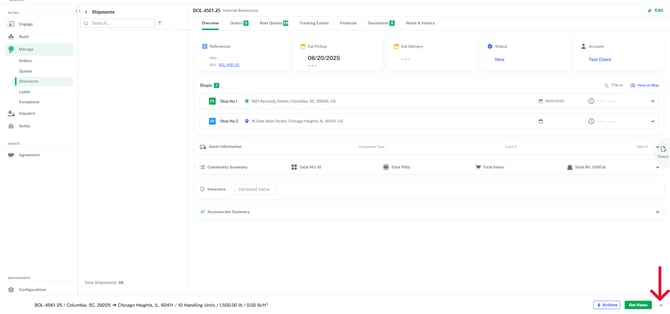
- While in the shipment, select the upward facing arrow '^' located right next to the 'Get Rates' button in the bottom right of the shipment screen.
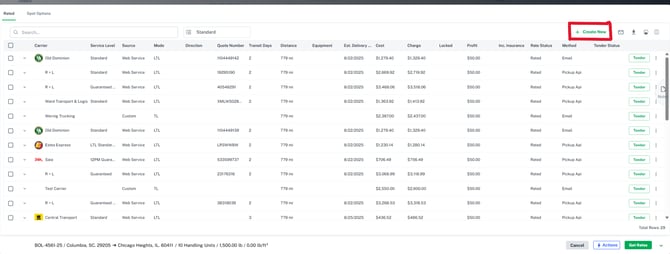
- In the Rate Drawer screen, select the "+ Create New" button located in the top right

- In the 'Create New Rate' screen, enter the rate you wish to charge your client in the 'Total Charge' field. This is the only required field, once entered you can click save.
Note: The account name or other fields in this screen do not need to be filled in. The manual rate you are creating will default to your main account as the 'Carrier' in the rate drawer as this is just being utilized as a placeholder to generate your quote.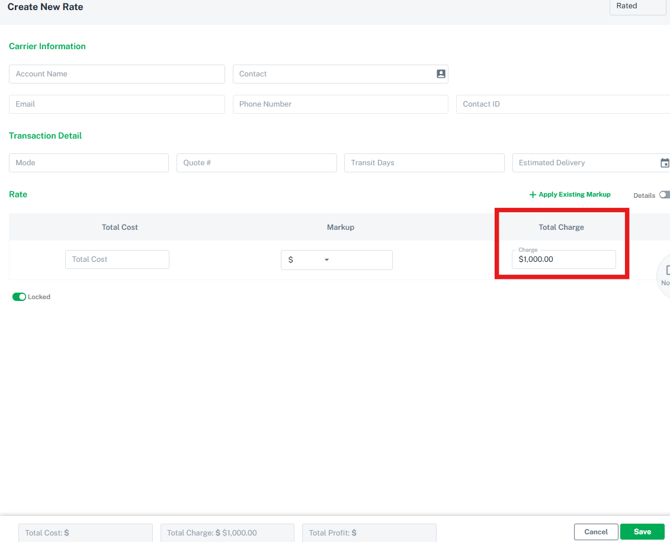
- 5. After you created your quote, select that quote in the rate draw by locating the rate you just created and clicking the box on the far left. It should default to your account showing as the Carrier name. See the screenshot below.
6. After selecting the rate, click the printer icon in the top right of the screen. See the screenshot below.
7. Select 'Quote Confirmation' and your quote document should be generated to send to your client. See the screenshot below.
Your Quote Confirmation document should now be ready to share with your client!
Related Articles
Still Need Help?
If you need further assistance from our support team please click this link to create a support ticket. (TBD-This can be a link to contact support form or the support email address)