Manage Carrier Bills: Automatically Update Client Charges During Bill Approval
Learn how to use the automated charge adjustment settings when approving carrier bills to protect your margins, eliminate manual data entry, and automatically handle supplemental invoicing.
What’s in this article
- Overview of automated charge adjustments
- How to auto-update client charges using original markups
- How to pass along unexpected costs with no markup
- Handling manual rates without a standard markup agreement
- Understanding automatic supplemental invoicing
Overview of Automated Charge Adjustments
When reviewing carrier bills, unexpected variances in accessorials or freight costs often require manual updates to the corresponding customer charge to protect your profit margins. Previously, users had to approve the expected cost in the Settle > Bills section and then manually switch over to the customer's charge record to update it.
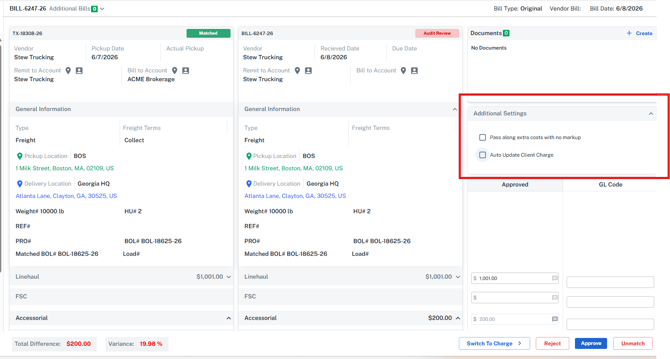
With this update, G2Mint introduces an Additional Settings section during the bill approval process. These settings allow you to automatically pass carrier cost variances onto the customer charge using predefined rules, ensuring seamless margin protection.
How to Automatically Update Client Charges
You can configure the system to recalculate customer charges automatically when a carrier bill is approved in the Settle > Bills section.
During approval, a new Additional Settings section will appear on your screen, which is expanded by default. If no toggles are selected, the system will perform the bill approval exactly as it did previously.
Option 1: Auto-Update Using the Awarded Markup Rate
Use this option to recalculate the client charge based on the final approved carrier cost while maintaining your original margin percentage.
- Navigate to Settle > Bills and locate your pending record under the Expected Cost or Bills tab.
- Review the variances and proceed to the approval screen.
- In the default-expanded Additional Settings section, switch the Auto Update Client Charge toggle to ON.
- Click Approve.
What happens next: The system automatically triggers the rate engine using the final approved cost amounts combined with the original markup rate of the awarded rate quote.
Option 2: Pass Along Extra Costs with No Markup
Use this option if you want to pass the exact dollar amount of the unexpected cost variance directly to the customer without adding an extra markup.
- On the bill approval screen, navigate to the Additional Settings section.
- Switch the Pass along extra costs with no markup toggle to ON.
- Click Approve.
What happens next: The system calculates the exact financial difference between the original expected cost and the new approved bill amount, then automatically adds that difference directly to the customer's charge record.
Special Scenario: Manual Rates Without a Standard Markup Agreement
If you created a manual rate for a shipment and there is no standard markup agreement tied to the account, please note the following behavior:
- Markup Reference Criteria: The Auto Update Client Charge option (Option 1) currently looks for an active, system-defined markup agreement to calculate the new rate. Because a manual rate lacks a baseline agreement, Option 1 is not supported for this specific use case. Future platform updates will expand this capability to pull markup details directly from manual rate entries.
- Recommended Workflow: For these specific shipments, select Pass along extra costs with no markup (Option 2). This ensures that the charge record is still automatically updated to reflect the additions you approved on the carrier bill. The system will add the extra costs to your customer charge to protect your baseline margin, and you can still manually apply a markup to the charge afterward if desired.
Understanding Automatic Supplemental Invoicing
If the customer's documentation has already progressed through your billing workflow, G2Mint safeguards your updates by checking the status of the associated charge or invoice record:
- Uninvoiced Shipments: If the customer charge has not been invoiced yet (or is not in a processing status), the system will simply update the open Charge or Invoice record directly.
- Invoiced Shipments (Processing Status): If the associated customer charge has already been converted into an invoice and is currently in a Processing status, the system will automatically create a new Invoice record of type Supplemental.
This completely eliminates the need to manually void, edit, or regenerate original invoices when caught by a carrier bill audit.