Last Updated: April 27, 2025
Applies to:
Shippers, Brokers
Solution Overview:
G2Mint supports the generation and management of key shipment documents within the application.
System-generated documents include:
- Bill of Lading
- Rate Confirmation
- Client Quote Confirmation (Brokers only)
- Handling Unit (HU) Labels
In addition, G2Mint retrieves relevant documents from connected workflows and stores them on the associated shipment or load within the Documents tab. Users can also manually upload documents and attach them directly to their shipments or loads for centralized visibility and control.
Step by Step:
How to access a BOL document generated by G2Mint?
BOL documentation can be accessed two different ways.
Option 1: From within the shipment or load details. This method is typically used when you want to view and send the BOL immediately after awarding the shipment to a carrier. Click here to jump to the steps below.
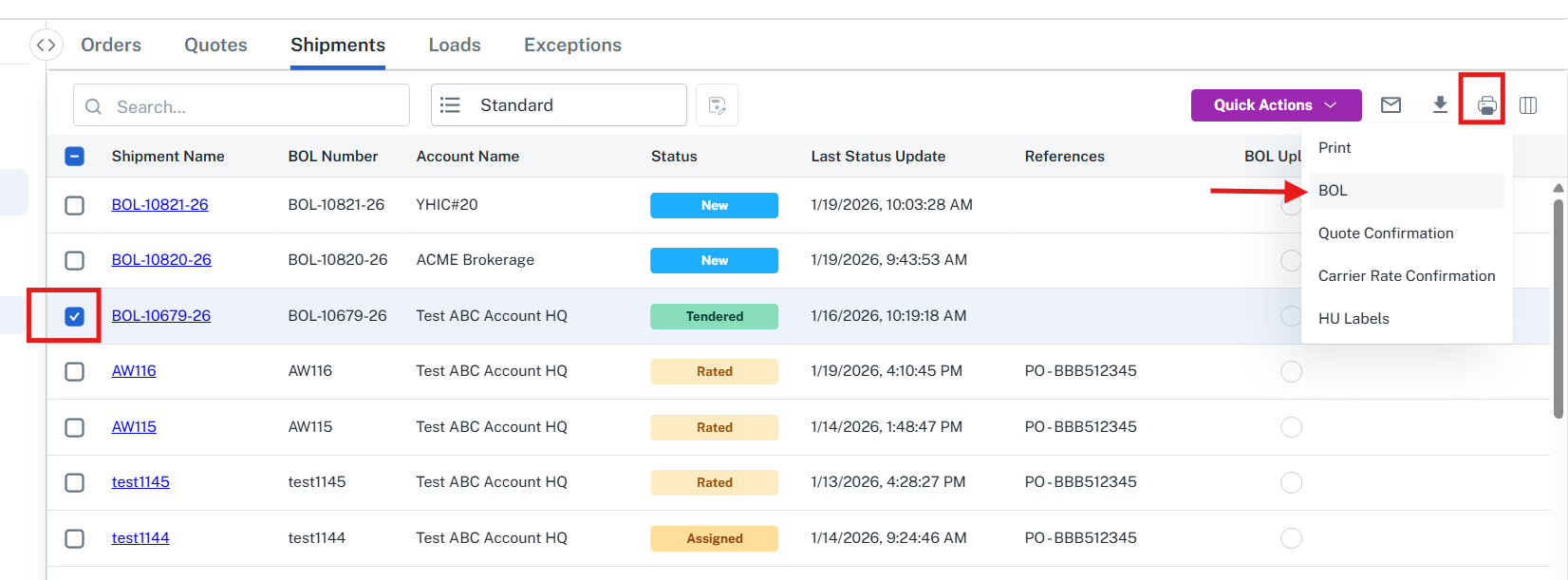
Option 2: From within the grids. User can select any shipment or load and click on the printer icon in the top right of the grid. This method is typical when you are going back to a specific shipment at later time after previously booking/awarding the shipment to a carrier. Click here to jump to the steps below.
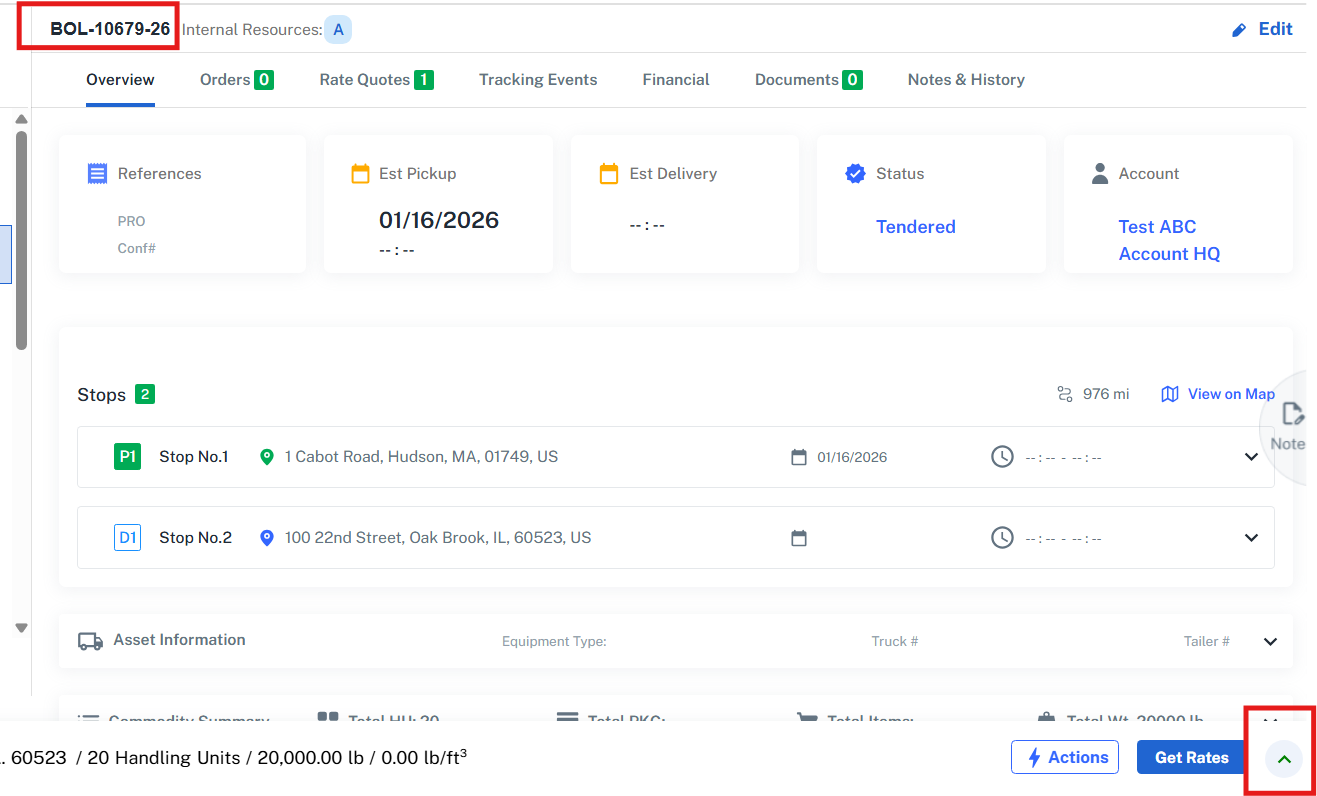
From within the detail screen of a shipment or load:
1. While in the shipment detail screen, click on the carrot icon next to the 'Get Rates' button.
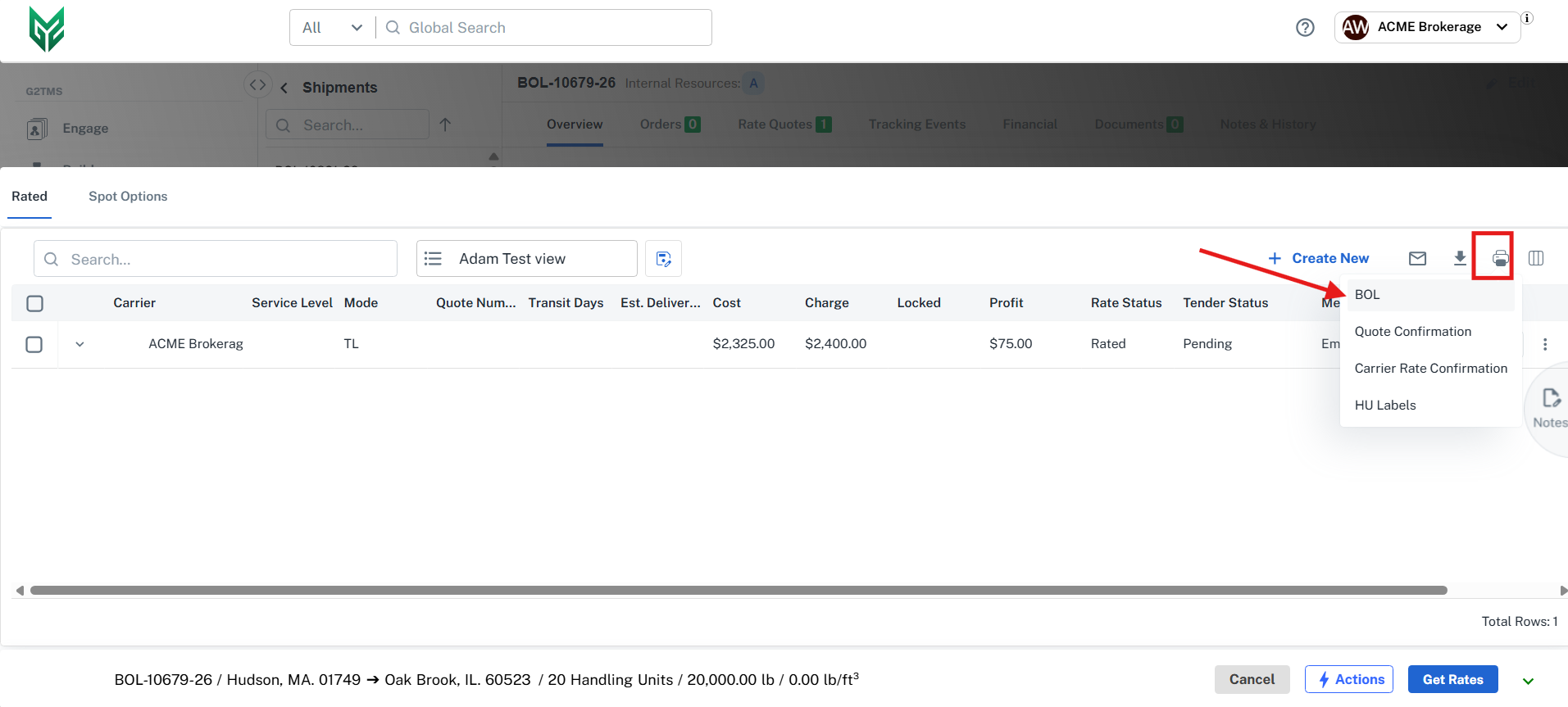
2. This will expand the the screen allowing you to click on the printer icon within the window. From there you can select the BOL document or any other G2Mint generated document. The document will open up a pdf on another tab allowing you to print, download, or just view.
Note: You can also click on the email icon to the left of the Print icon and email any of the documents directly to any recipient(s).
Accessing a BOL from the Grid:
Click on any of the grids to access shipment or loads (Manage>Shipments, Manage>Loads, Track, Dispatch).
1. Select the shipment or load you are looking to view the BOL
2. In the top right of the screen, click on the printer icon.