Last Updated: Jan 2026
Applies to:
Brokers
Common Scenario(s)/Challenge (s):
For Brokers who want to minimize manual intervention required to approve and send out invoices to their customers.
Solution Overview:
G2Mint’s Invoice Automation eliminates the need for manual intervention by automatically approving and distributing invoices or statements based on your specific business rules. By defining "Triggers" (when to approve) and "Processing" (how to send), you can streamline your billing cycle and reduce administrative overhead.
Configuration Levels
You can configure automation at two levels. Note: Settings applied at the Customer level will always supersede (override) Global settings.
-
Global (All Customers):
Default Settings>Finance-Invoicing -
Specific Customer:
Engage>Client Shipper Account>Agreements>Invoicing
Anything set at the Client shipper account level will supersede configuration done at the main broker account level.
How it works?
Set up:
The configuration is located in the Default Settings>Finance-Invoicing of the main broker account OR under a specific client shipper account under Engage>Client Shipper Account> Agreements>Invoicing.
Brokers will set up their specific Triggers that will dictate the requirements to approve an Invoice. From there, brokers then set up their processing requirements which will determine when the Invoice or Statement will be generated, what information will be included, the frequency, method of communication, and net terms. See below for more insight into the Triggers and Processing settings available.
Execution:
After the set up is completed, moving forward, anytime a shipment or load is booked with a carrier, when your Trigger criteria settings are met, the associated Charge records will be marked approved for the BOLs that meet this criteria.
When your Processing criteria settings are met, the system will update the status of the approved charge records (AR's-Account Receivable Records) will move to a status of 'Ready for Invoicing'. Those AR records will then sent out in an invoice or statement.
Configuration:
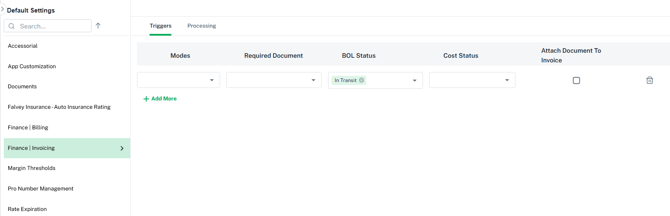
Set your Trigger Requirements:
-
Mode: Define rules by transport mode (e.g., LTL vs. TL). Leave blank to apply to all modes.
- Required Document: Require a Proof of Delivery (POD) or Signed BOL to be attached to the BOL before approval. Leave blank if this is not necessary for your process.
- BOL Status: The minimum status your shipments or loads must be placed in order to allow the approval and send process to be initiated. As example, maybe you don't want an invoice to be approved and sent until the shipment has been picked up, in this case you would select In Transit as your BOL status.
- Cost Status: Every shipment booked with a carrier has a cost associated to it. This setting dictates your desired status of the associated cost record tied to the shipment. As example, some brokers may elect to not approve and send an invoice to their customer until they confirm the final amount billed by the carrier. In this example, they would want the Cost status to be approved before a customer is invoiced.
- Attach Document to Invoice: By checking this box, the required documents you selected above would attach themselves to the invoice or statement that is sent to the client.
Set your Processing Requirements:
-
Type: Indicates whether or not you plan to send 1 Invoice at a time or multiple invoices combined into a G2Mint Statement (aka consolidated invoice).
- Invoice-Use if you send your clients individual invoices per BOL
- Statement-Use if you want the system to combine multiple invoices into one statement. Statements are best if your customer pays for multiple BOL's with one check as it allows the broker to enter the payment information one time which gets applied to multiple BOLs.
- Frequency: Choose when documents are sent (Daily, Weekly, or Monthly etc..).
-
System Action: At 12:01 AM on your scheduled day, the system gathers all "Ready for Invoicing" records and sends them.
-
- Method: Email will send the invoice or statement (type selection) via email
- Recipient Logic: Sent to contacts labeled Finance. If no Finance contact exists, it defaults to the primary account contact associated with the customer.
- Net Terms: Sets the invoice due date. We recommend setting a value here as a fallback if no terms are defined at the account level.
- Consolidated Savings: This functionality is not yet currently available.
How to use (Step by Step of your feature here)
- Determine if you want to set the configuration for ALL customers or for a specific customer(s)
- To set up for All customers:
- Go to Default Settings, located under your profile name in the top right hand of the screen.
- Select Finance-Invoicing under Default Settings.
- To set up for a specific customer(s):
- Go to Engage
- Search for the Client Shipper Account and click into the account
- Go to Agreements tab and choose the Invoicing option
- To set up for All customers:
- Click on the Triggers tab and define your triggers: Refer to the definitions above under the configurations. It is not necessary to select all items, by leaving a trigger blank such as 'Mode' will enable the trigger to work for ALL Modes. Use "Add More" to create different rules for different Modes.
- Click on the Processing tab and set up your processing requirements: The selection below states that every Tuesday, the application will email a statement to my customers that will contain any invoice that met my criteria set in the triggers section.
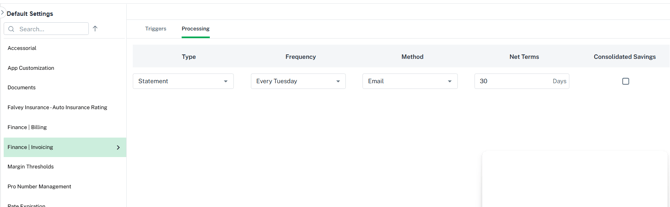
- Note: If you select Invoice then your customer will receive an invoice for each individual BOL #. If Statement is selected, the system will consolidate multiple qualifying invoices into 1 statement and send the customer 1 statement with multiple BOLs.
- When the Frequency period happens (Every Tuesday in the example above) , the system will look for any approved Invoice that is updated to Ready for Invoicing, build the statement (if statement is selected) and the statement will be updated to a 'Processed' status indicating the statement has been emailed to the customer.
Important Notes:
-
Any charge record in 'Ready for Invoicing' will be sent out to your customers shortly after 12:01 am of the day you selected for the Frequency.
-
Any balance due charge type you create will need to be manually approved and moved to 'Ready for Invoicing' if you want those to be included in the invoice. Further automation of this process could be explored with our Workflow features, reach out to support@G2mint.com for additional questions.
-
Visibility: Once sent, the status of the invoice record will update to Processed, providing a clear audit trail of when the customer received their bill.