Skip to content
English
  • There are no suggestions because the search field is empty.

How to Upload Accounts in Engage

Within Engage, you can upload all of your accounts, their associated locations, and contacts. 

Last Updated: September 2025

Applies to:

Shippers, Brokers, Carriers, and Partners

Common Scenario(s)/Challenge (s):

Any broker or shipper looking to create multiple accounts and wants to save time by avoiding the one-by-one entry can leverage the upload feature located within the Engage>Accounts, Locations, and Contacts section. 

Solution Overview:

This guide outlines the step-by-step process for uploading your accounts, locations, and contacts. For brokers, it is recommended to begin by uploading client accounts.

To upload your initial client accounts, use the provided template, which allows one row per client account with space for a single associated contact and location.

Note: Only 1 location and 1 contact can be added to an account upon the initial upload. You can upload additional locations and contacts on an account after you create the initial account by going into the Locations tab and contacts tab and performing another upload. 

Step by Step: 

  1. Click the  “Engage” section located in the left sidebar menu.
  2. Select the “Accounts” tab.
  3. Click the 'Upload Accounts'  icon located in the top right above the table (see screenshot) 

     
  4.  This will prompt the window for you to download the Accounts Template. Click the Download Accounts Template and open the template file downloaded.
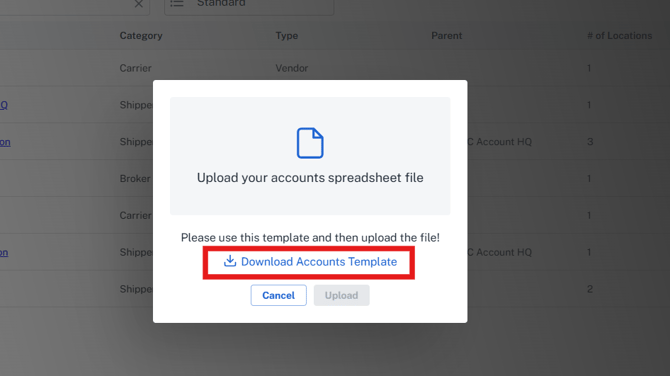
  5. Within the Template file, fill in the appropriate fields and save it on your PC with your desired naming convention.
         The following items should be considered when filling out the file:
    1. The blue fields are required
    2. Account names must be exact
    3. Only 1 location and contact can be added to an account upon the initial upload. You can upload additional locations and contacts on an account after you create the initial account by going into the Locations tab and contacts tab and performing another upload. 
    4. Category must be Shipper or Carrier
    5. Type must be Client or Vendor
      *Need help filling in the upload template? Click here for field descriptions and options.


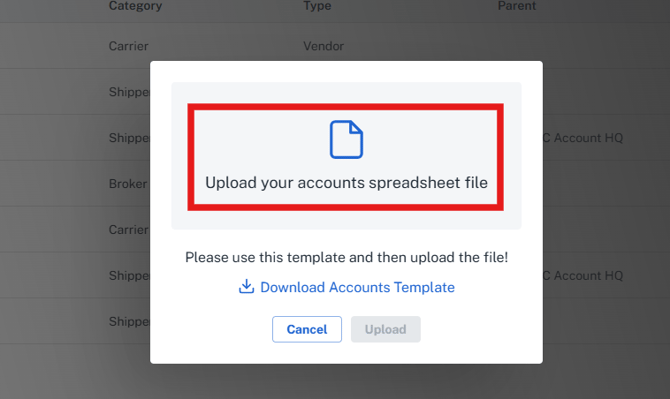
  1. After updating the file with your data to upload, save it to your PC, then go back and select the 'Upload Account' icon, and click in the 'Upload your accounts spreadsheet file' area of the pop-up window.
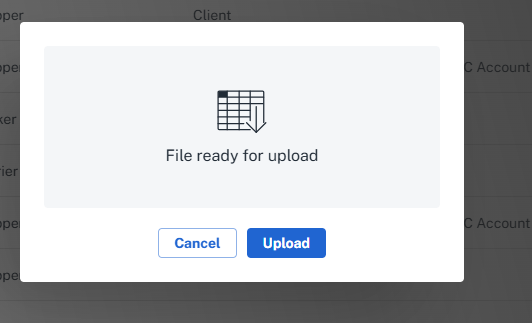
  2. Locate your file, and the window will indicate the File is ready for upload. Click the Upload button.
  3. The system will provide a description of a successful upload or indicate failures upon uploaded. After uploading, you can edit your data within the screen to make any necessary updates.

Related Articles

 Still Need Help?

 If you need further assistance from our support team please email support@G2Mint.com


Field Name (bold items are required) Upload Requirement Description
Account Name Required This is the name of the Account you want displayed within the Application
Category Required Input Shipper or Carrier
Type Required Input Client for a shipper or receiver Or Vendor for a Carrier
Parent Account Optional If applicable, you can denote a Parent Account when your client accounts have multiple entities
Account Code Optional This can be an internal code  or abbreviation used in other internal systems such as an ERP. This will be leveraged with various integrations when applicable. Otherwise, it can be helpful for analytics to tie back G2Mint data with your internal data using common codes.
Location Name Required This is the name of the associated location (s) you want displayed wihtin the Application
Address1 Required Street Address associated with the location specified in this upload
Address2 Optional Can be additional information needed for address 1 such as a Suite number or even a second address
City Required City name associated with the address (please specify the full name)
State Required Use the common two-letter state abbreviation code
Postal Required Zip code for the location
Country Required 3 Letter Country Code (USA, CAN, MEX)
Location Code Optional This can be an internal code  or abbreviation used in other internal systems such as an ERP. This will be leveraged with various integrations when applicable. Otherwise, it can be helpful for analytics to tie back G2Mint data with your internal data using common codes.
Location Types Optional Ship/Receive, Bill To, Remit To, Transfer Point (Note: Ship/Receive is the most common for Client Accounts and Remit To is common for Carrier Accounts)
Location Notes Optional Any specifics you want to denote on here for reference. This will not show up on the BOL if it is a ship to or receiving location but there are BOL notes that can be added directly within the location Edit screen.
Location Accessorials Optional Best to enter after the upload and leave blank for now. Go into the location added within the account and click edit, there will be a drop down for choosing common accessorials that apply for that location
Schedule Name Optional If left blank this will default to standard business hours of 8am-5pm local time for that location. 
Pickup Appointment (T/F) Optional Mark T and F if you want to ensure a pick up appt is set when shipping to or from this location. This can also be done as needed via the build shipment screen if not set.
Delivery Appointment (T/F) Optional Mark T and F if you want to ensure a pick up appt is set when shipping to or from this location. This can also be done as needed via the build shipment screen if not set.
FCFS Pickup (T/F) Optional Mark T and F if you want to ensure a pick up appt is set when shipping to or from this location. This can also be done as needed via the build shipment screen if not set.
FCFS Delivery (T/F) Optional Mark T and F if you want to ensure a pick up appt is set when shipping to or from this location. This can also be done as needed via the build shipment screen if not set.
First Name Required First name of the initial contact you are uploading
Last Name Optional Last name of the initial contact you are uploading
Email Required Email email of the initial contact you are uploading
Phone Optional Phone phone of the initial contact you are uploading
Contact Types Optional Contact types of the initial contact you are uploading