Last Updated: September 2025
Applies to:
Shippers, Brokers, Carriers, and Partners
Common Scenario(s)/Challenge (s):
The Address Book is utilized when you need to save pickup or delivery locations—such as your clients’ customers—that you may reuse but that are not direct client or vendor locations. It lets you prefill addresses and contacts in quotes and shipments, helping reduce repeat entry and preserve known accessorials and operating hours.
Solution Overview:
This guide outlines the step-by-step process for uploading locations and contacts. These locations can be assigned to specific clients only, or be available to all clients.
To upload your initial client accounts, use the provided template, which allows one row per client account with space for a single associated contact and location.
Step by Step:
- Click the “Configurations” section located in the lower left sidebar menu.
- Select the “Address Book” tab.
- Click the 'Upload Address Book' icon located in the top right above the table (see screenshot)
- This will prompt the window for you to download the Accounts Template. Click the Download Accounts Template and open the template file downloaded.
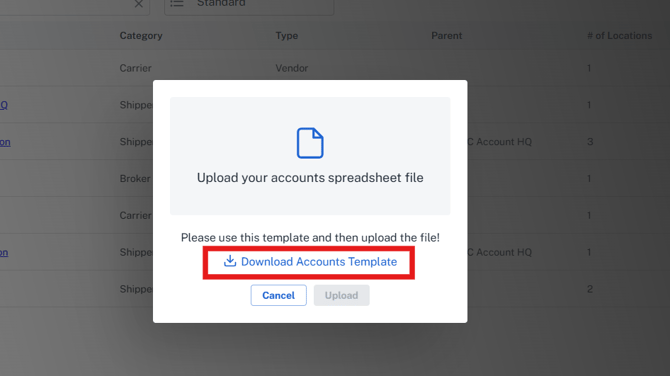
- Within the Template file, fill in the appropriate fields and save it on your PC with your desired naming convention.
-
- The blue fields are required
- Account name must be exact (if entered. This is not a required field).
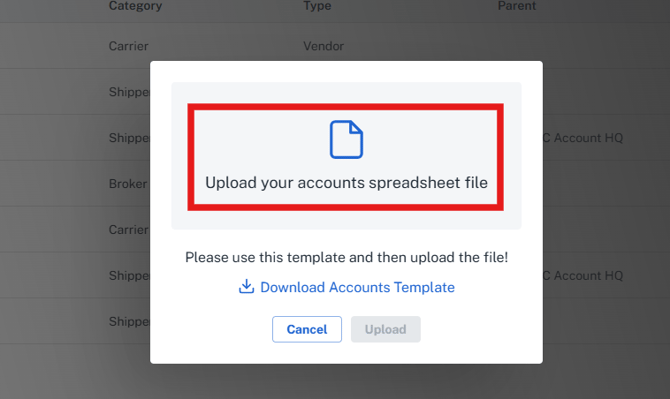
- After updating the file with your data to upload, save it to your PC, then go back and select the 'Upload Account' icon, and click in the 'Upload your accounts spreadsheet file' area of the pop-up window.
- Locate your file, and the window will indicate the File is ready for upload. Click the Upload button.
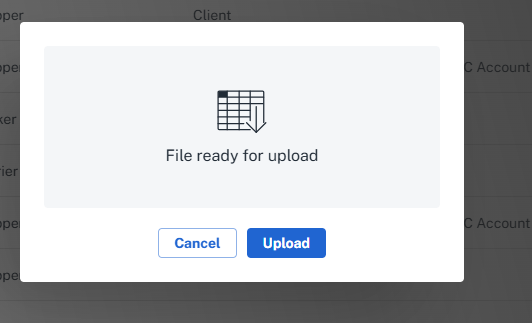
- The system will provide a description of a successful upload or indicate failures upon uploaded. After uploading, you can edit your data within the screen to make any necessary updates.
Related Articles
Still Need Help?
If you need further assistance from our support team please email support@G2Mint.com