Last Updated: May 20, 2025
Applies to:
Shippers, Brokers, Carriers, and Partners
Common Scenarios/Challenges:
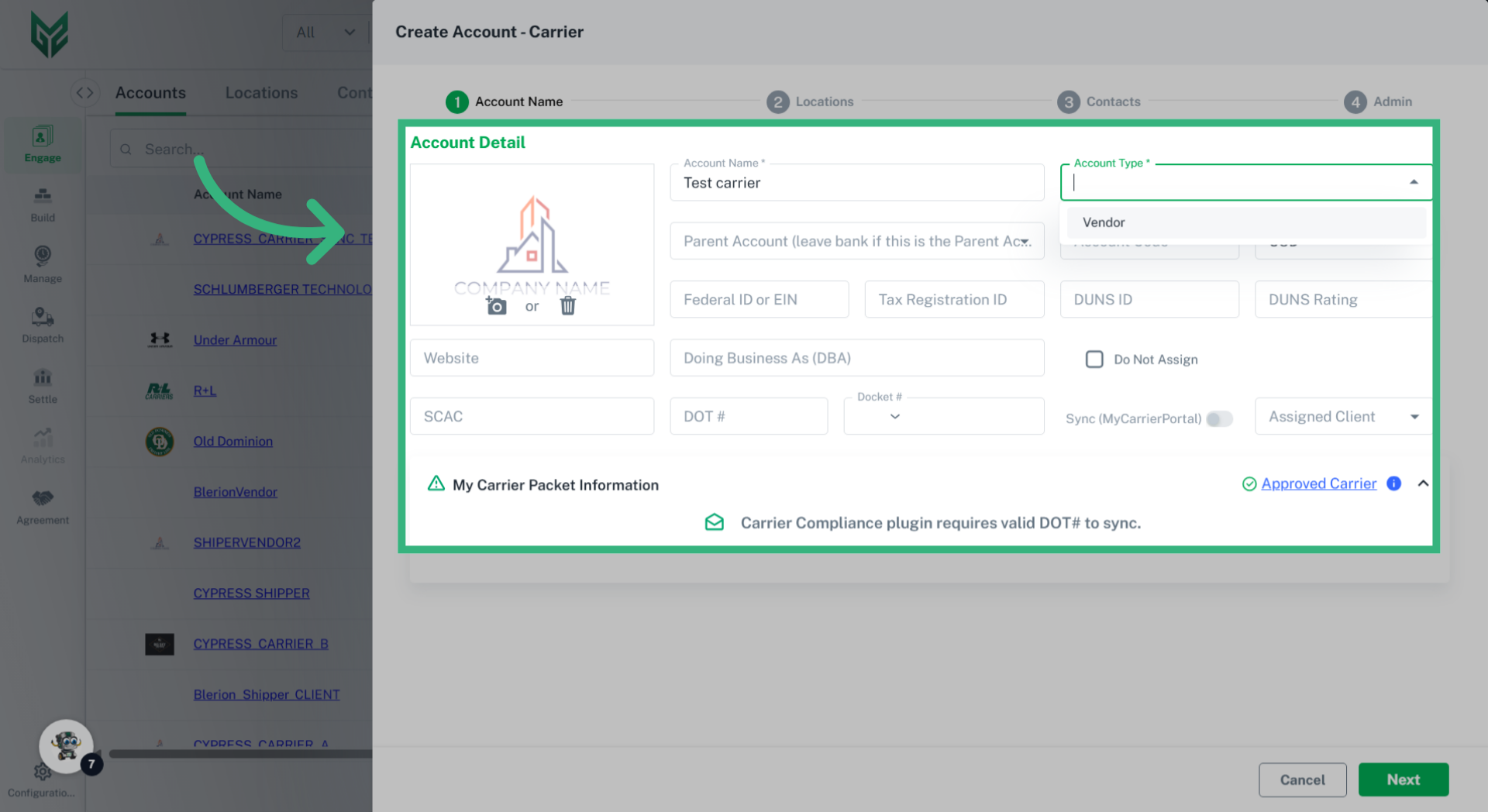
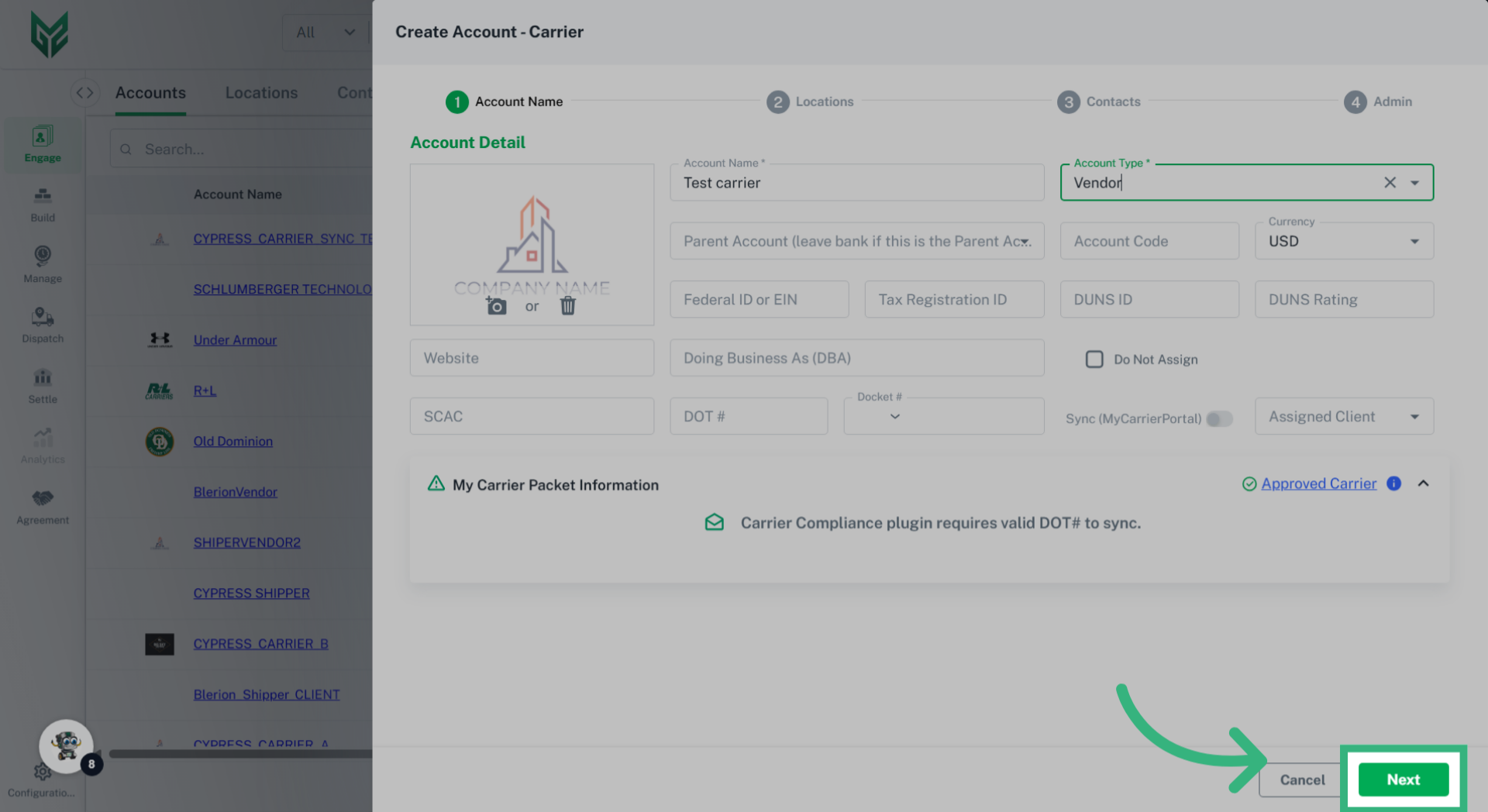
The Engage Account feature enables users to establish an entity within the Licensed Account of the TMS, representing an organization or company that will engage in various transactions within the system, such as shipments and settlements.
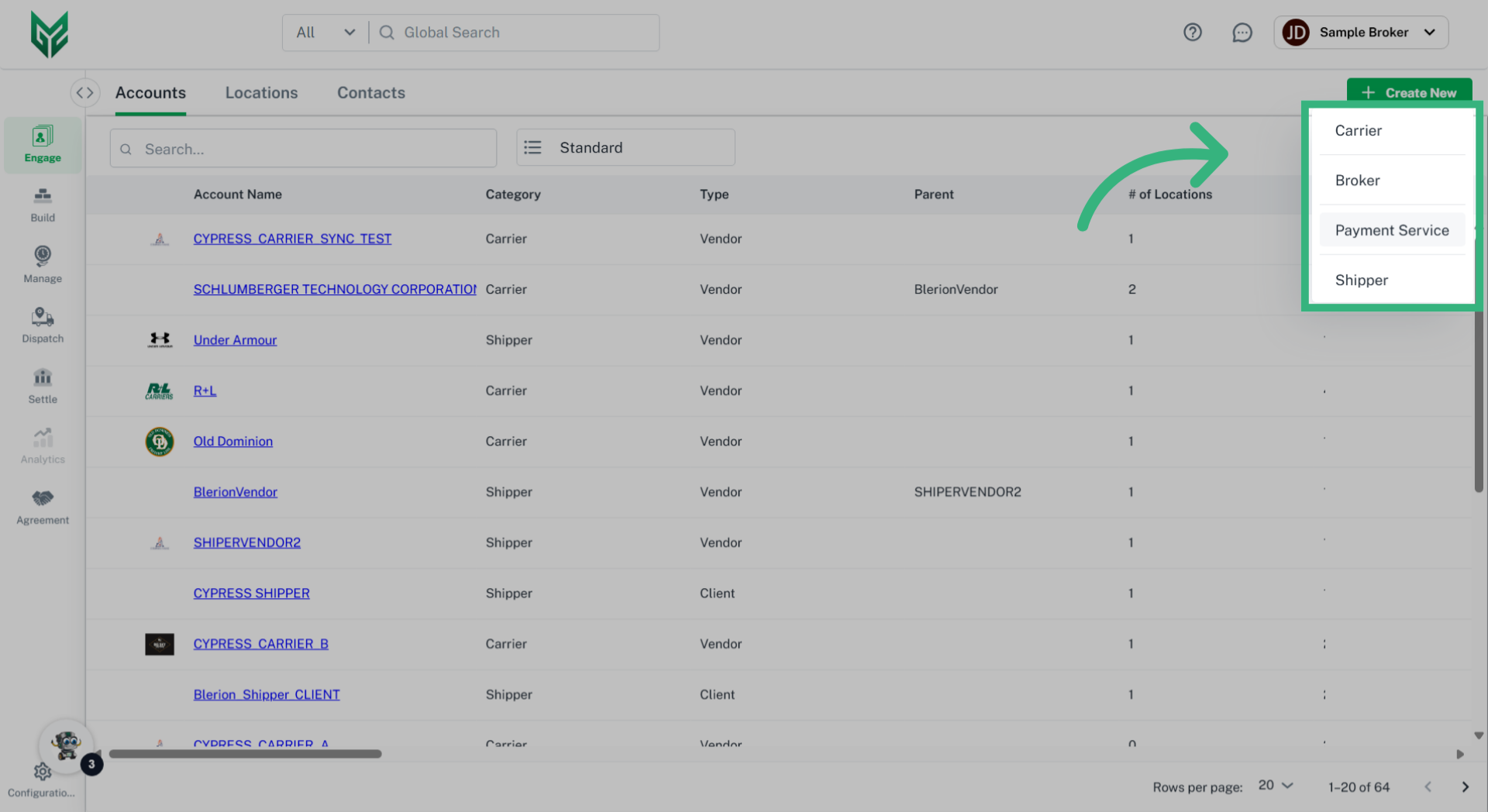
Engage Accounts can take on several personas, including:
- Broker
- Shipper
- Carrier
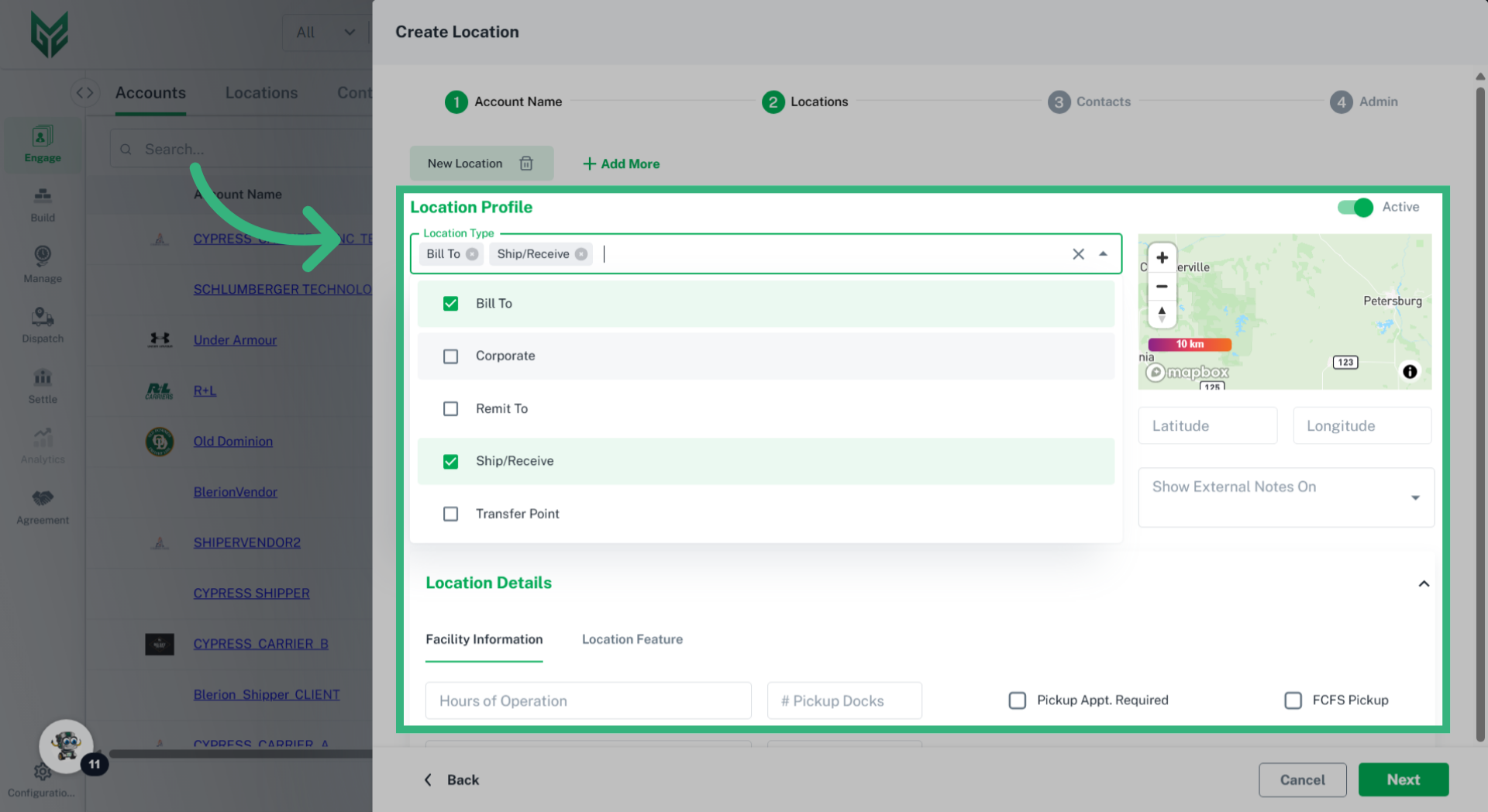
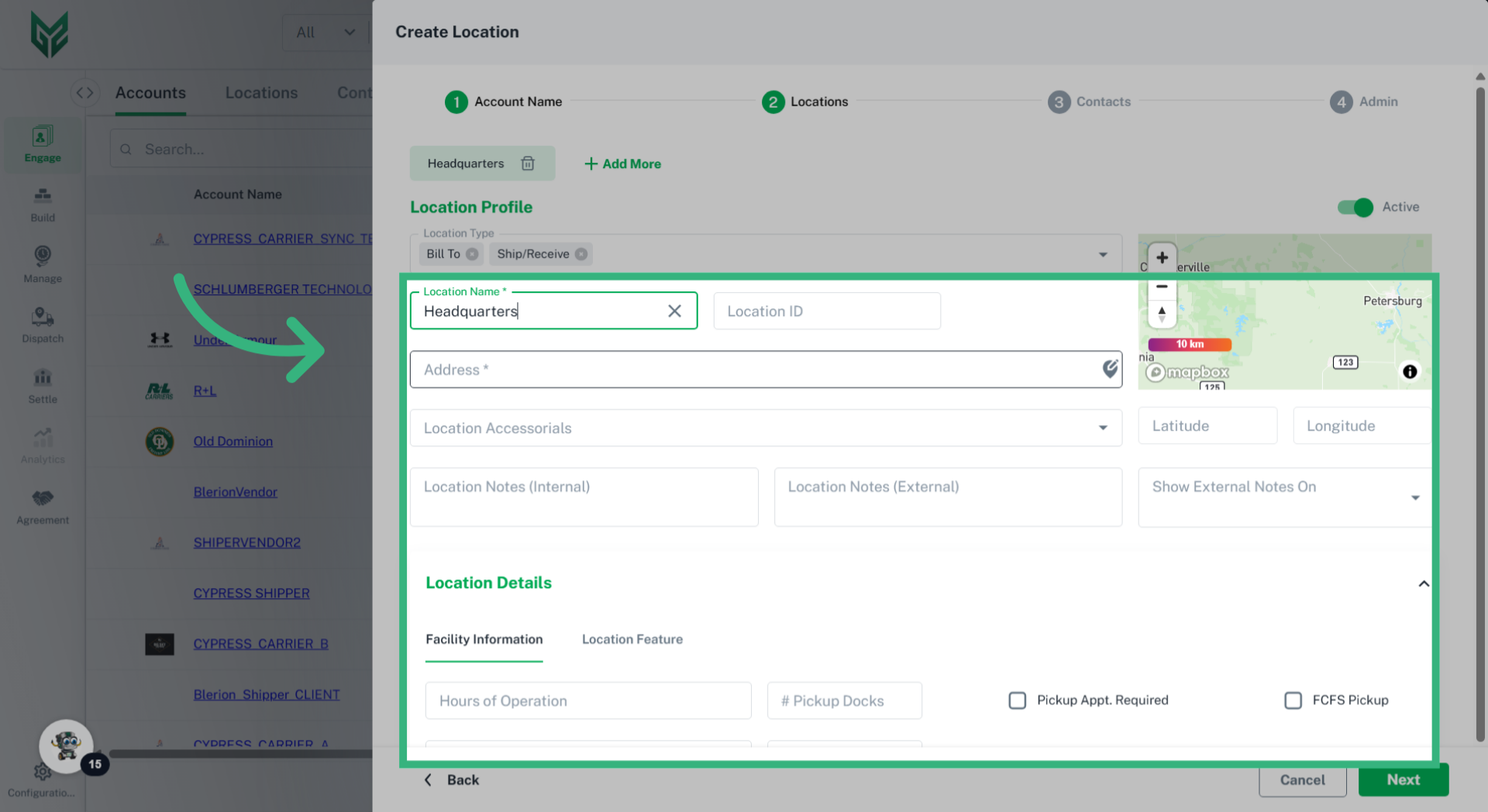
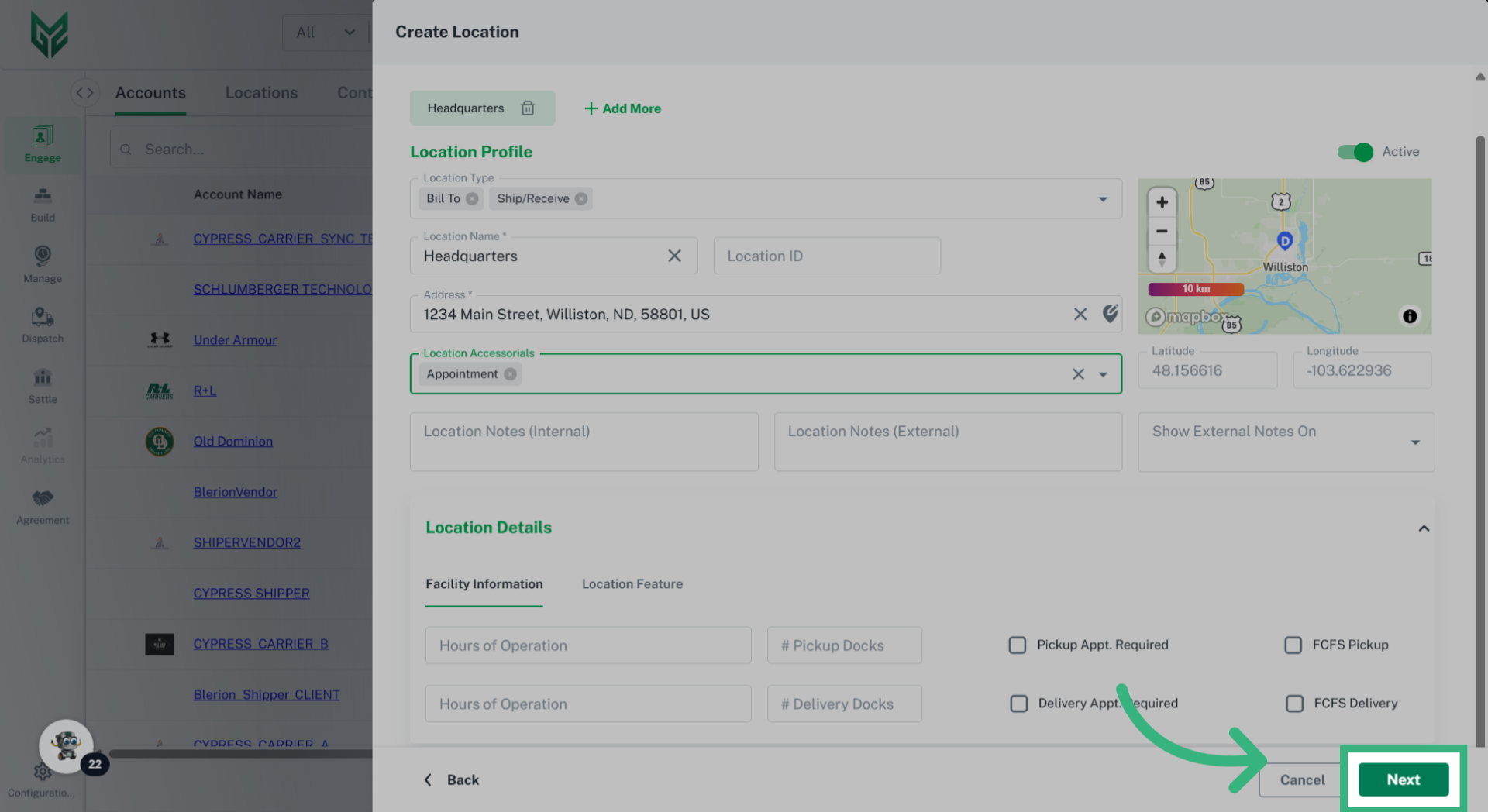
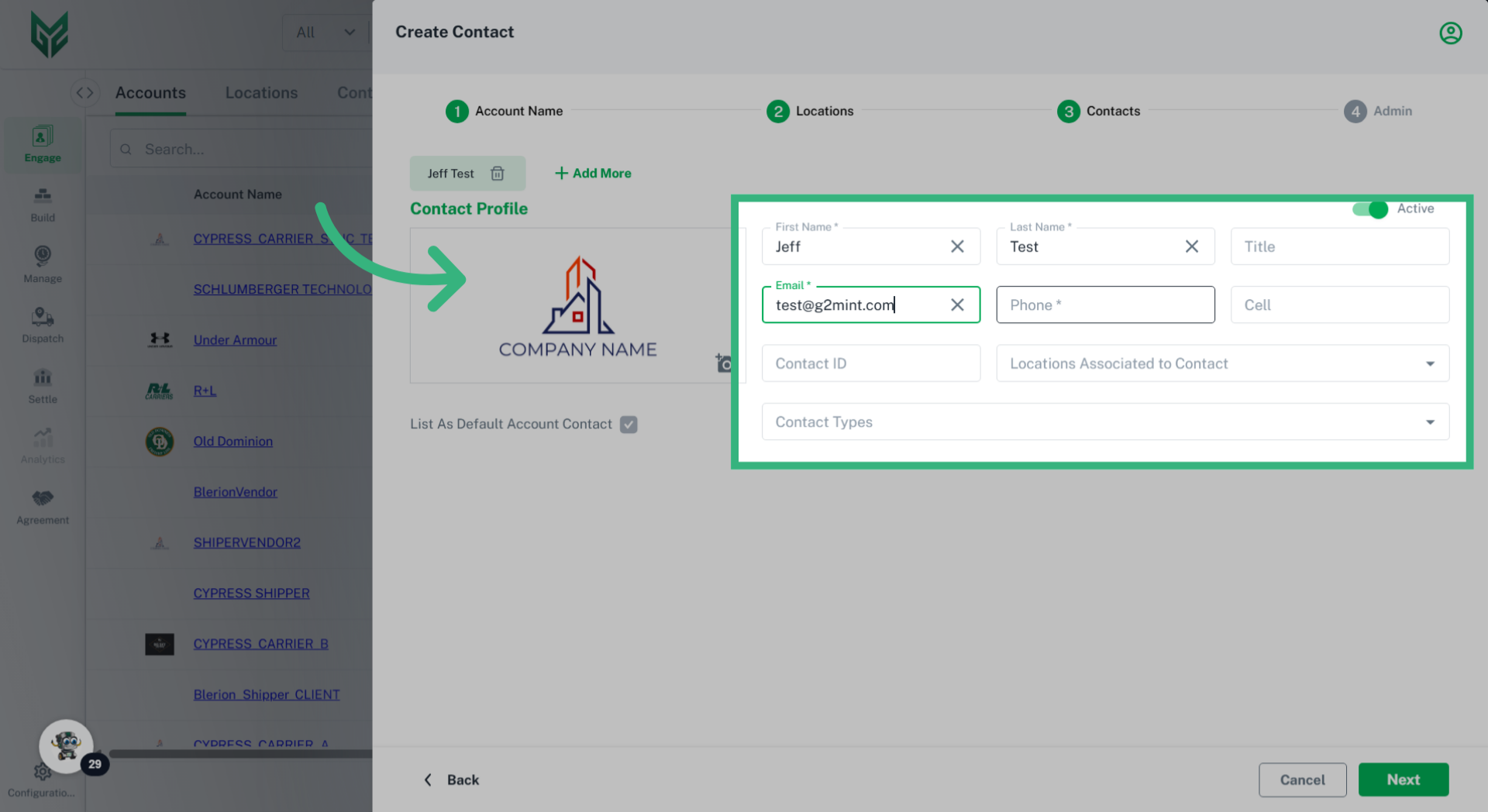
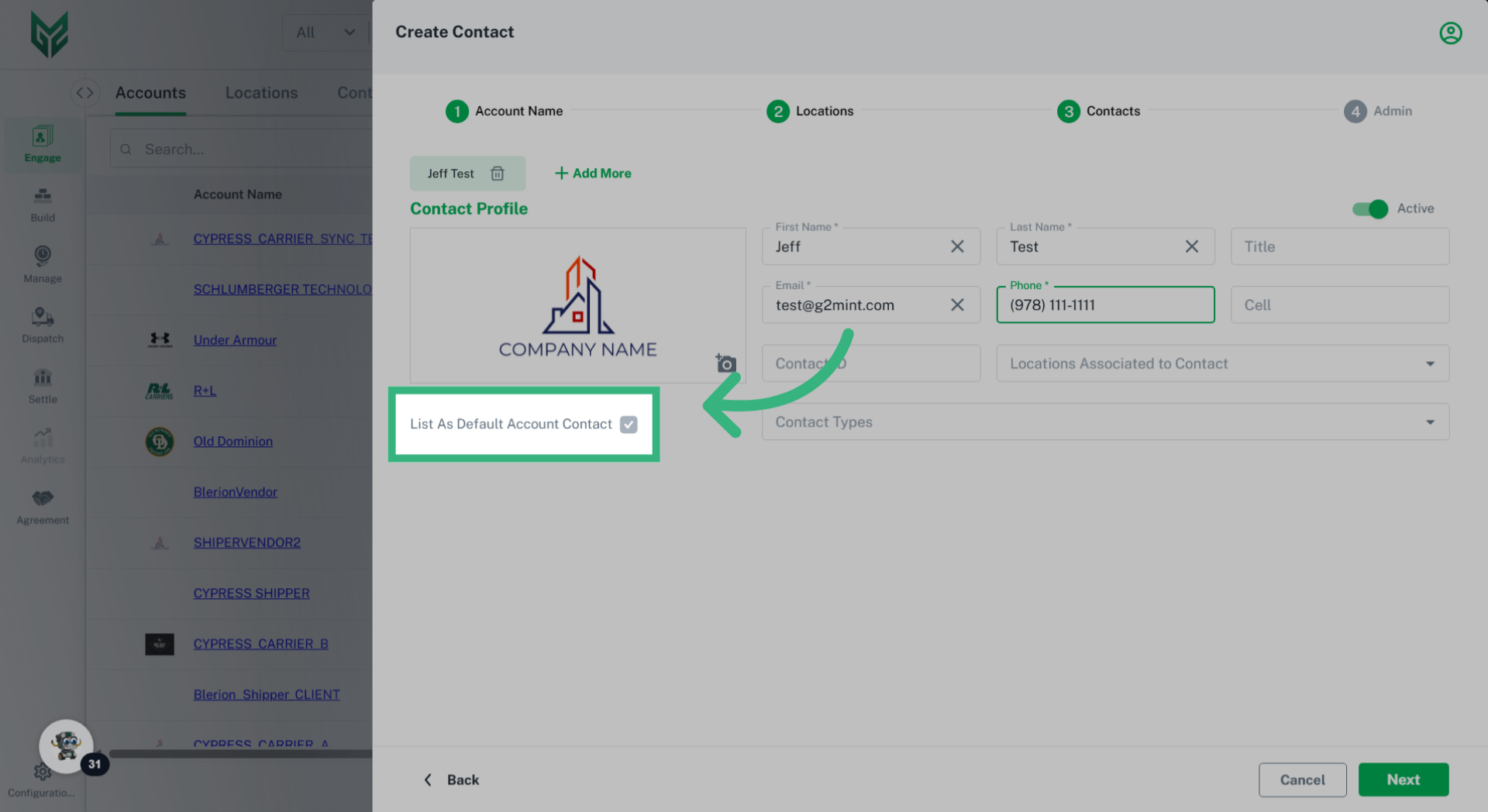
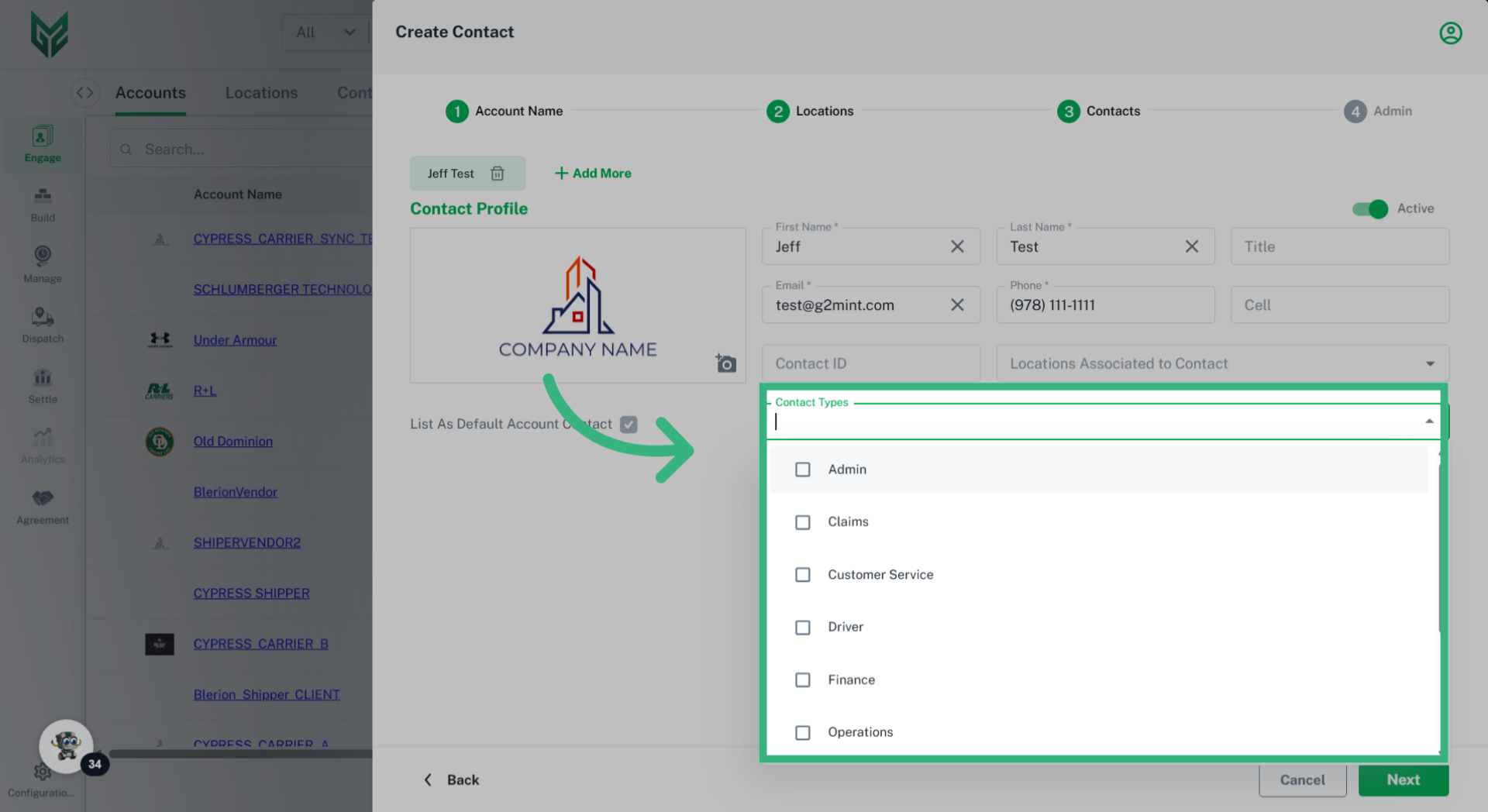
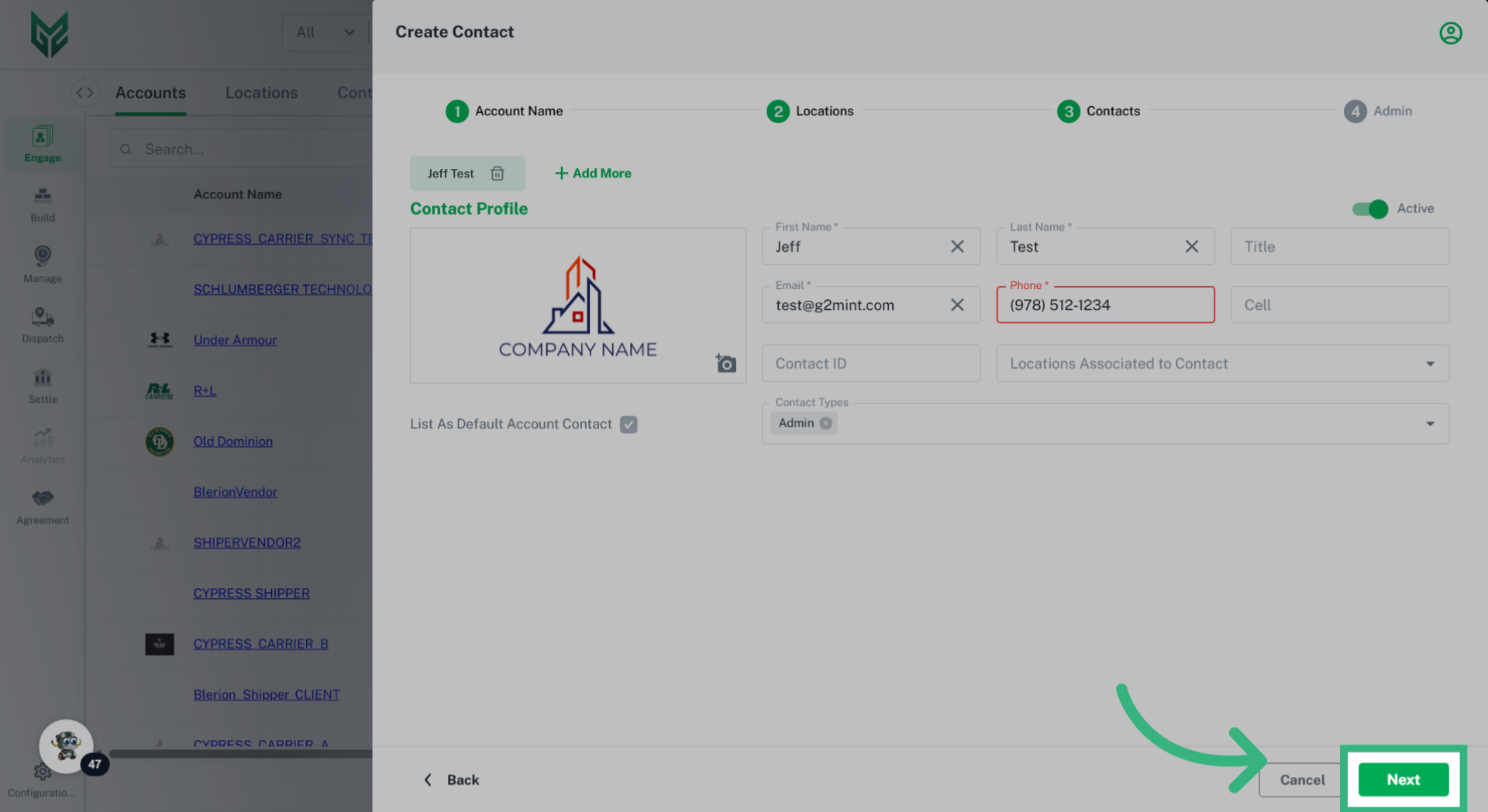
Each type of Engage Account is responsible for managing its specific attributes, including profiles, credit ratings, compliance, and capabilities. Furthermore, every Engage Account can have unique preferences and system settings tailored to its needs. In the G2M TMS, it is mandatory for each Engage Account to have at least one Location (typically designated as a Billing location) and one Contact (which includes a name and email address).
Solution Overview:
Once an Engage Account is created, all relevant information linked to that account will automatically populate in the application wherever applicable.
Agreements in Engage allows the User to view already created Agreements that the Account utilizes or create new ones specific to this Account. The accessible Agreements from the Accounts section are Persona specific. Types include:
- Freight: View the existing Freight Agreements that the Account will reference
- Cost+: View existing Markup Agreements that the Account will reference
- 3PL Service: Identify any 3PL services that you provide to an Account and define how you intend to invoice for the service
- Billing: Establish payment terms and add specific audit tolerances for an Account (Note: if left blank, Default settings will be applied)
- Invoicing: Define the rules and requirements that establish how you will invoice the Account, including Status Triggers, Invoicing methods, Terms and Credit Limits
How to Create an Engage Account: