How to manage carrier cost and create payable records without a carrier bill integration?
This article explains how to manage your carrier bills and payables in G2Mint.
Last Updated: November 2025
Applies to:
Shippers, Brokers
Common Scenario(s)/Challenge (s):
- Your carrier bills need to be manually entered into G2Mint
- You want to create a system of record in G2Mint to match your carrier bill information to your shipments or loads in G2Mint
- You need to create payable records to track and manage your carrier payments
Solution Overview:
This article covers the steps needed to manually enter the carrier bill into G2Mint, match it to the appropriate shipment or load, and approve the final cost to generate a payable record.
00:00: This article explains how to manage your carrier bills.
00:02: And payables in G2 MIT, we will review how to match and expected
00:06: cost to a manually entered carrier Bill approve, the amount you intend to
00:10: pay the carrier, creating a payable record. And finally, how to update the payable record
00:15: to indicate a payment has been made.
00:17: Click on the settle section and select the bills to access the list of all your expected
00:22: costs. Each shipment or load will create an expected cost record.
00:25: This is based on the original quote, you booked in G2 mint,
00:30: Locate the expected cost record. You can select the record directly or search
00:34: by BOL (searching by Pro will be available soon).
00:38: Now that you've located your expected cost, it's time to enter your carrier Bill
00:42: information in order to create a payable record, you need to create a bill and
00:46: match it to your expected cost. Click create Bill to manually.
00:50: Add the information from your carrier, invoice.
00:53: Enter all the required information from your Carrier Bill.
00:56: This is where you will enter the bill details from your carrier invoice.
01:01: Enter the amounts on your carrier bill, you can decide if you want to fill in all the detail,
01:05: which will allow you to break down the amounts by line haul FSC and accessorial
01:10: charges. Or if you just want to enter the total amount on the bill,
01:14: Click "Save" to store the updated bill information
01:18: Once the bill has been saved, you can now see the original expected cost and
01:22: the actual carrier invoice amounts side-by-side, you are now ready to approve.
01:26: The amount, click approve to confirm and this will update the expected cost to
01:30: approve status. It will then be found within the payables grid.
01:34: Click "Payables" to access the payable records related to the bill.
01:37: The payable grid is all of your expected cost records that have been approved.
01:41: This is where you can manage your payables and update them with payment information.
01:46: Locate the Payable record you wish to update.
01:50: Select the record and click Mark paid.
01:52: This will open a new window allowing you to enter pertinent payment information
01:56: for record-keeping purposes.
01:59: Click "Payment Method" to select the method of payment.
02:03: Click 'Payment Reference' to input any key reference information such as
02:07: a check number.
02:09: Enter the payment amount for the payable. If you input the exact amount on
02:13: the payable record, the status will be updated to Paid.
02:16: If you only enter a portion of the payment amount on the payable, the
02:20: status will update to Partially Paid
02:23: Click here to choose the payment date from the calendar.
02:27: Click "Mark Paid" to complete the payment marking process.
02:30: This will update the payable record to a 'Paid' status.
02:34: This article demonstrated how to match an expected cost to a carrier Bill and
02:39: create a payable record in G2 MIT. By following these steps, you can accurately
02:43: record, approve and Mark payments to ensure your carrier.
02:47: Payables are up to date for more information, see related articles on managing
02:51: bills and payables
Step by Step: How to approve your Expected Cost?
- Navigate to the Settle>Bills section first. This step is needed in the event your charge record (your carrier cost) reflects the proper amount, as you want to update the cost record first to be approved by creating a bill and matching it accordingly.
- Within, the Expected Cost grid, locate the appropriate Expected Cost record in the grid.
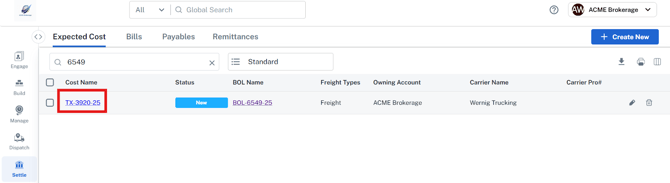
- Click on the Expected Cost record in the grid and click the ‘Create Bill’ button, located in the bottom right of the grid next to the Approve button. This will ensure you reflect final amount actually billed by the carrier.
- The Create New - Bill screen will open. You will see the original quote associated with the cost record. In this screen, you can then enter the new amount or add the difference in the appropriate section (Linehaul, Accessorial, or FSC).
- Note: Any value entered in this screen will be added to the initial quote and be reflected in the final approved cost record.
- Upon generating the bill it will be associated to the cost record, the cost record status will update from New to Matched. The screen will display the original cost record and the bill you created side by side, showing the differences.
- Click Approve to mark the bill as approved. This will ensure when viewing the client charge record, the approved amount for the cost is reflected.
Now you are ready to review the client expected charge and approve it to create the proper invoice
Related Articles
Still Need Help?
If you need further assistance from our support team please click this link to create a support ticket. (TBD-This can be a link to contact support form or the support email address)