The G2Mint Mail Intake extension brings Miles, your G2Mint assistant, right into your inbox. Quote, book, send documents, and answer tracking requests without leaving your email, in Gmail or Outlook.
Outlook Users — Please Read
Outlook on the web (in your browser): Available now. Install the extension in Chrome or Edge using the links below.
Outlook desktop app: Coming soon, with an estimated release in 3–7 business days. It will be available in Outlook's Add-ins store as soon as Microsoft publishes it, and we'll let you know in G2Mint the moment it's ready.
What You Can Do
- Quote and book from an email. Miles reads the request, builds the quote or shipment, and adds your rates to the reply.
- Send documents on the thread. Reply with a fresh BOL, Quote Confirmation, Carrier Rate Confirmation, or handling unit labels, or any document already on the shipment.
- Reply to tracking requests. Miles loads the shipment's tracking link so you can send it straight to the thread.
- Add status updates to a shipment from the extension's Tracking Events tab.
- Create freight bills from carrier emails (Gmail only right now). Miles hands you a bill that is already filled in.
- Receive documents (Gmail only right now). Save paperwork your carriers and customers email you to the right shipment.
Step 1: Install the Extension
The extension works with Gmail and Outlook on the web. Install it in the browser you use for email:
- Google Chrome: G2Mint Mail Intake on the Chrome Web Store
- Microsoft Edge: G2Mint Mail Intake on Microsoft Edge Add-ons
Click Add to Chrome or Get, then confirm to add the extension.
Step 2: Connect Your AI Key
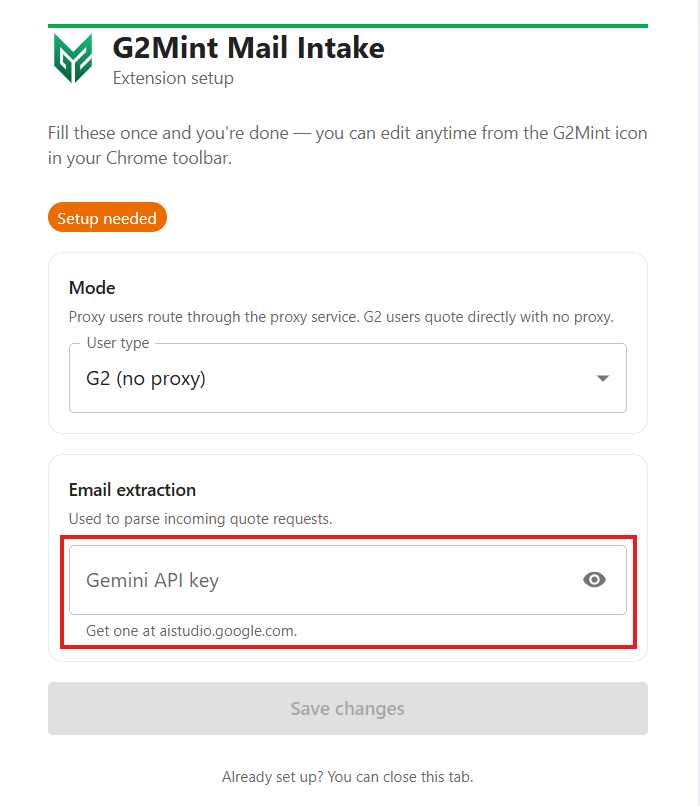
Once the extension is installed, a G2Mint Mail Intake window opens and asks for an AI key. Today the extension uses Google Gemini, and a Gemini API key is free. All you need is a Google account. If you don't have one yet, you can create a free Google account.
We plan to support keys from other AI providers in the future, so you'll be able to use the AI service your company prefers.
- Under Mode, leave User type set to G2 (no proxy). No change is needed.
- Under Email extraction, click the Get one at aistudio.google.com link below the Gemini API key field.
- Sign in with your Google account and create an API key.
- Copy the key, paste it into the Gemini API key field, and click Save changes.
Outlook Desktop App
The Outlook desktop add-in is coming soon. It will be available as soon as Microsoft publishes it in their Add-ins store, which we expect within 3–7 business days. Once it's live, you'll find it under Add-ins in Outlook, and we'll let you know with an in-app message in G2Mint.
Need Help?
If you have any questions, reach out to our support team at support@G2Mint.com.