Last Updated: May 2026
Applies to:Shippers, Brokers
Common Scenario(s)/Challenge (s):
This article outlines the three core financial workflows in G2Mint:
I. Carrier Bill Audit: Comparing your Expected Costs to your Carrier Bills and generating Payables
II. Customer Invoicing: Generating and Approving customer invoices (Expected Charges)
III. Sending invoices, and updating an invoice status to paid.
Note: This article is focused on processes without any integrations or automation features G2Mint offers to streamline these workflows.
I. Carrier Bill Audit: Comparing your Expected Costs to your Carrier Bills and generating Payables :
1. Go to theSettle > Bills > Expected Costs -
- Search by your Shipment ID (BOL-12345-XX) to locate the Expected Cost record.
2. Click on the Cost Name (e.g., TX-12345-26) to view details, then click the ‘Create Bill’ button
-
- If your G2Mint instance uses Commissions or Insurance, make sure the record 'Freight Type' column is equal to 'Freight' to avoid selecting a commission or insurance payable records.
3. Enter your carrier Bill details (Linehaul, FSC, Accessorial etc..) and click save. This will match the the cost record to the Bill.
4. If the carrier bill does not match your Expected Costs, the bill status will update to Audit Review status. Prior to clicking approve, check one of the Additional Settings options to determine how you want to pass on the additional costs to the Expected Charge (the invoice you generate for your customer) 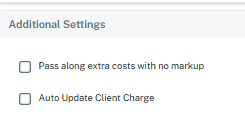
5. After selecting the best option for Additional Settings, click the Approve button to finalize the amount you wish to pay the carrier. Your Expected Charge will update based on the option chosen above.
6. Click the 'Switch to Charge' button to move over to your Client Invoice and proceed the workflow outlined in item 2 below.
Outcome: The payable record is created, indicating the final amount you plan to pay your carrier (Payable records can be found in the Settle > Bills > Payables Grid).
II. Customer Invoicing: Generating and Approving customer invoices (Expected Charges)
- Go to
Settle > Invoices > Expected ChargesSearch by Shipment ID to locate the appropriate Expected Charge record.
- Approve the amount to invoice your customer for that shipment.
Outcome: The invoice record is created, indicating the final amount you plan to invoice your customer (Found in Settle > Invoices > Invoices Grid).
III. Sending Invoices to Customers
- Go to the
Settle > Invoices > Invoices Grid - Search by Shipment ID.
- Select the invoice record in the grid.
- Click the Print icon in the top right
 to review and send the invoice to your customer. OR select the Transmit button in the bottom of the grid to email the invoice directly.
 - After sending the invoice, select the invoice record and click on the Update Status button
 to Update the Invoice status to billed.
Outcome: The invoice is sent to the customer and updated to indicate ‘Billed’ or ‘Transmitted’.
IV. Update Payment Status of your Client Invoice
- Go to the
Settle > Invoices - Locate and select the appropriate invoice record.
- Click the ‘Mark Paid’ button located in the bottom of the grid
- While in the Mark Paid screen, update the record with the necessary reference information (check # or ACH, date paid, etc.)
Note: To update the payment status of your approved payable follow the same process above in item IV except go to Settle>Bills<Payables grid.
Related Resources
- General understanding of how financials are handled in G2Mint:
- Carrier Bill Management Overview:
- Managing Client Invoices: