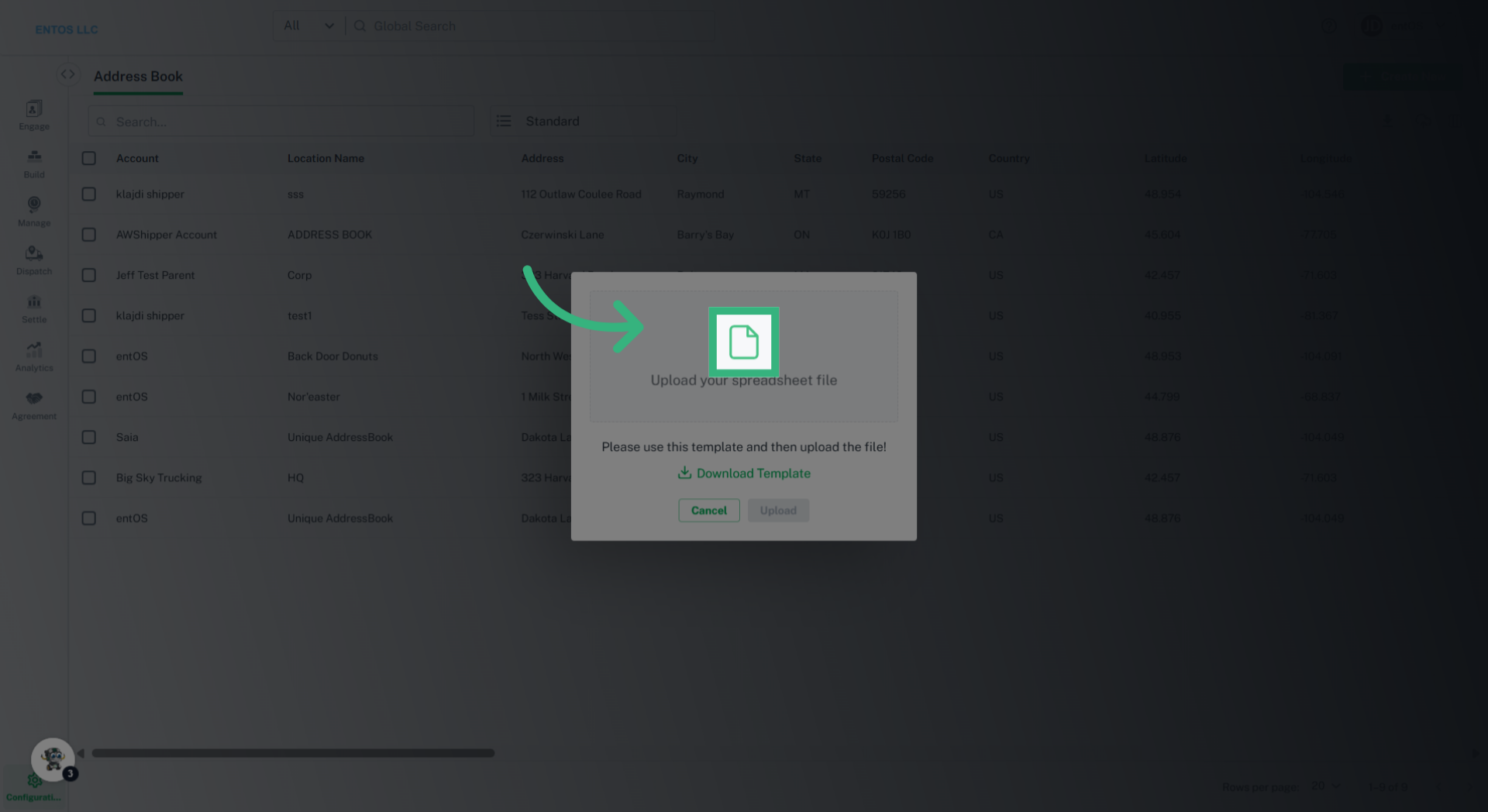
Please Note: When adding accessorials to your locations during the upload process, please enter the corresponding code—not the display name—into the 'Locations Accessorials' column of the template. Refer to the table at the bottom of this article to select and use only the codes provided.
Location Accessorial Codes in the Address Book:
When adding accessorials to your locations during the upload process, please enter the corresponding code—not the display name—into the 'Locations Accessorials' column of the template. Refer to the table below to select and use only the codes provided.
| # | Display Name | Billing Only | Pickup | Delivery | Code |
| 1 | Additional Stops | FALSE | FALSE | FALSE | INP |
| 2P | Appointment | FALSE | TRUE | FALSE | NFYP |
| 2D | Appointment | FALSE | FALSE | TRUE | NFYD |
| 3P | Outside of Business Hours | FALSE | TRUE | FALSE | PMTP |
| 3D | Outside of Business Hours | FALSE | FALSE | TRUE | PMTD |
| 4 | Blind Shipment | FALSE | FALSE | FALSE | BLD |
| 5 | Corrected Bill of Lading | TRUE | FALSE | FALSE | BLC |
| 6 | Detention | TRUE | FALSE | FALSE | DET |
| 7 | Reconsignment | TRUE | FALSE | FALSE | DIV |
| 8P | Driver Load | FALSE | TRUE | FALSE | DLD |
| 8D | Driver Unload | FALSE | FALSE | TRUE | DUN |
| 9P | Exhibition/Trade Show | FALSE | TRUE | FALSE | TSFP |
| 9D | Exhibition/Trade Show | FALSE | FALSE | TRUE | TSFD |
| 10P | Lumper | FALSE | TRUE | FALSE | LUMP |
| 10D | Lumper | FALSE | FALSE | TRUE | LUMD |
| 11 | Fuel Surcharge | TRUE | FALSE | FALSE | FSC |
| 12 | Hazmat | FALSE | FALSE | FALSE | HAZ |
| 13 | Layover | TRUE | FALSE | FALSE | LAY |
| 14P | Liftgate | FALSE | TRUE | FALSE | LFTP |
| 14D | Liftgate | FALSE | FALSE | TRUE | LFTD |
| 15P | Limited Access | FALSE | TRUE | FALSE | LMAP |
| 15D | Limited Access | FALSE | FALSE | TRUE | LMAD |
| 16P | Metro | FALSE | TRUE | FALSE | METP |
| 16D | Metro | FALSE | FALSE | TRUE | METD |
| 17 | Overlength | FALSE | FALSE | FALSE | OVR |
| 18 | Repackaging | TRUE | FALSE | FALSE | PKS |
| 19P | Pallet Jack | FALSE | TRUE | FALSE | PJSP |
| 19D | Pallet Jack | FALSE | FALSE | TRUE | PJSD |
| 20 | Redelivery | TRUE | FALSE | FALSE | RCL |
| 21 | Reclass/Reweigh | TRUE | FALSE | FALSE | SCL |
| 22P | Residential | FALSE | TRUE | FALSE | AAJP |
| 22D | Residential | FALSE | FALSE | TRUE | AAJD |
| 23P | Sort and Segregate | FALSE | TRUE | FALSE | SEGP |
| 23D | Sort and Segregate | FALSE | FALSE | TRUE | SEGD |
| 24 | Storage | FALSE | FALSE | FALSE | SRG |
| 25 | Tarps | FALSE | FALSE | FALSE | TAR |
| 26 | Tolls | TRUE | FALSE | FALSE | IHT |
| 27 | TONU | TRUE | FALSE | FALSE | TON |
| 28P | Notify/Call Before | FALSE | TRUE | FALSE | NOTP |
| 29D | Notify/Call Before | FALSE | FALSE | TRUE | NOTD |
| 30P | Secure Access | FALSE | TRUE | FALSE | SACP |
| 30D | Secure Access | FALSE | FALSE | TRUE | SACD |
| 31 | Protect from Freezing | FALSE | FALSE | FALSE | PFF |
| 32 | Stop Charges | TRUE | FALSE | FALSE | STOP |
| 33 | Inside Pickup | FALSE | TRUE | FALSE | INSP |
| 34 | Inside Delivery | FALSE | FALSE | TRUE | INSD |