Last Updated: April 28, 2025
Applies to:
Shippers, Brokers, Carriers, and Partners
Solution Overview:
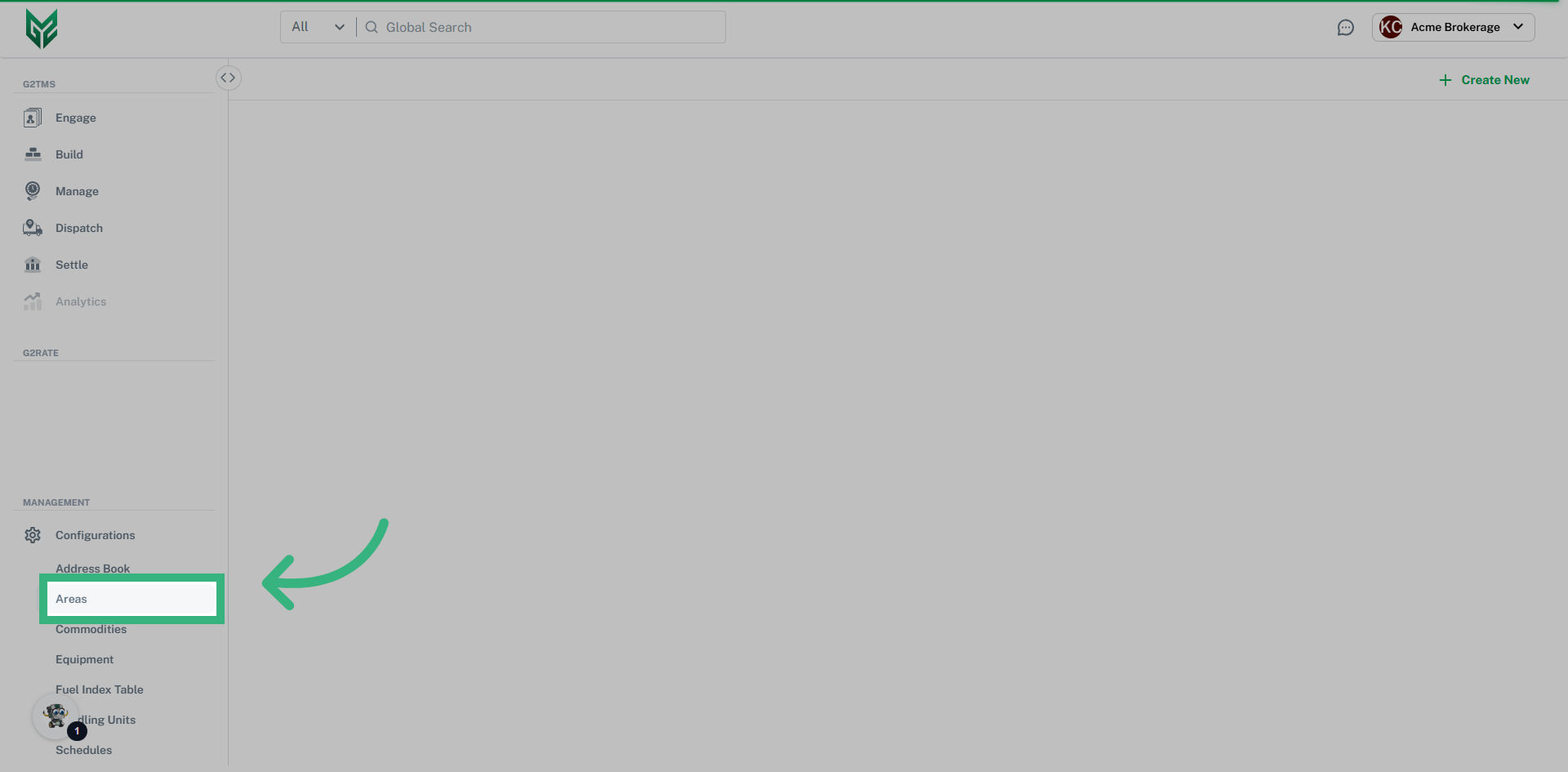
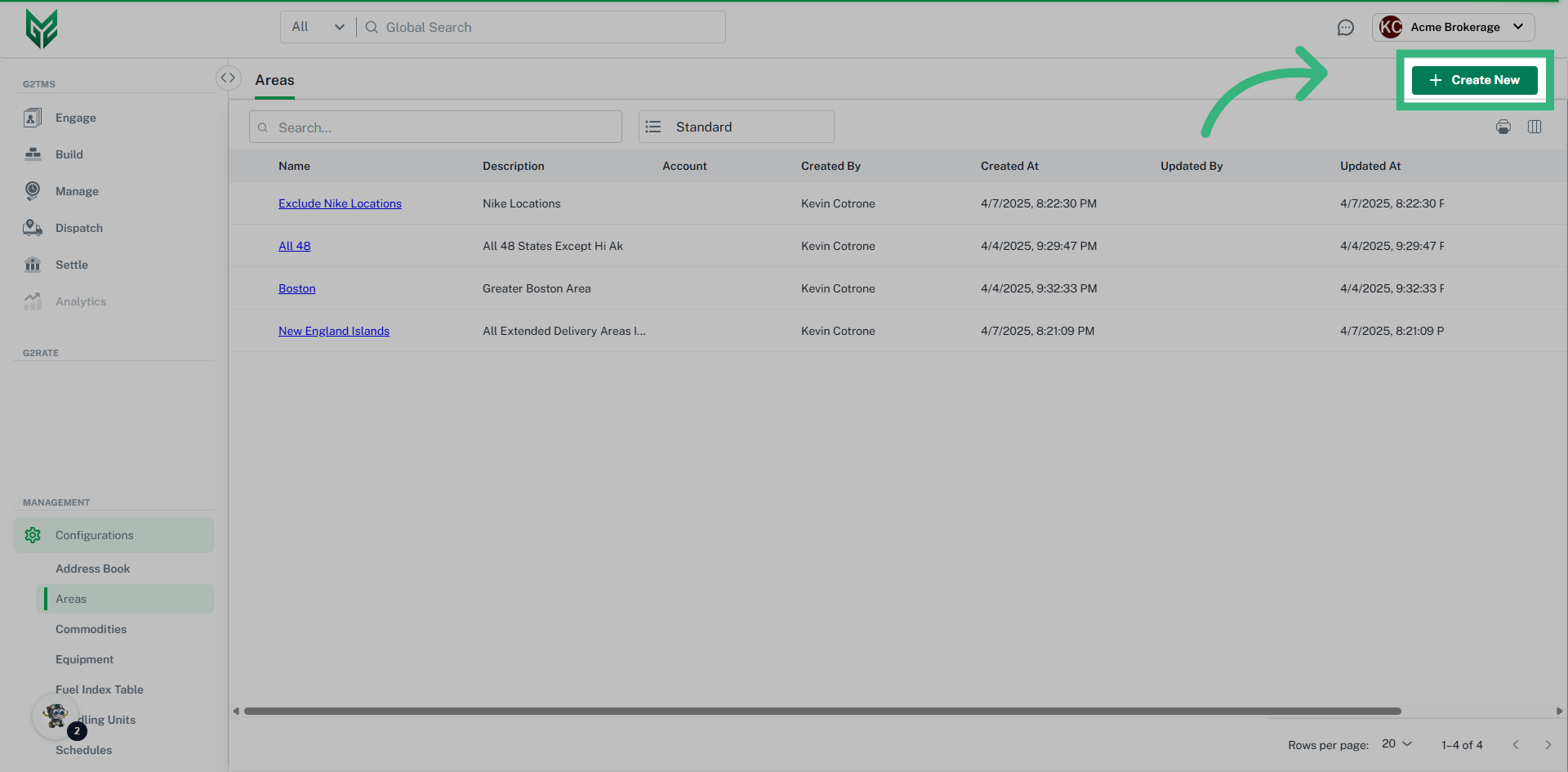
The Areas section in our TMS serves as a centralized hub that emphasizes the system's capability to create, modify, and manage geographical regions. It empowers users to generate Areas when working on Coverage Areas within Engage and Custom Agreements (Freight, Compliance and Markup).
How to Create a Geographical Area:
Area Information:
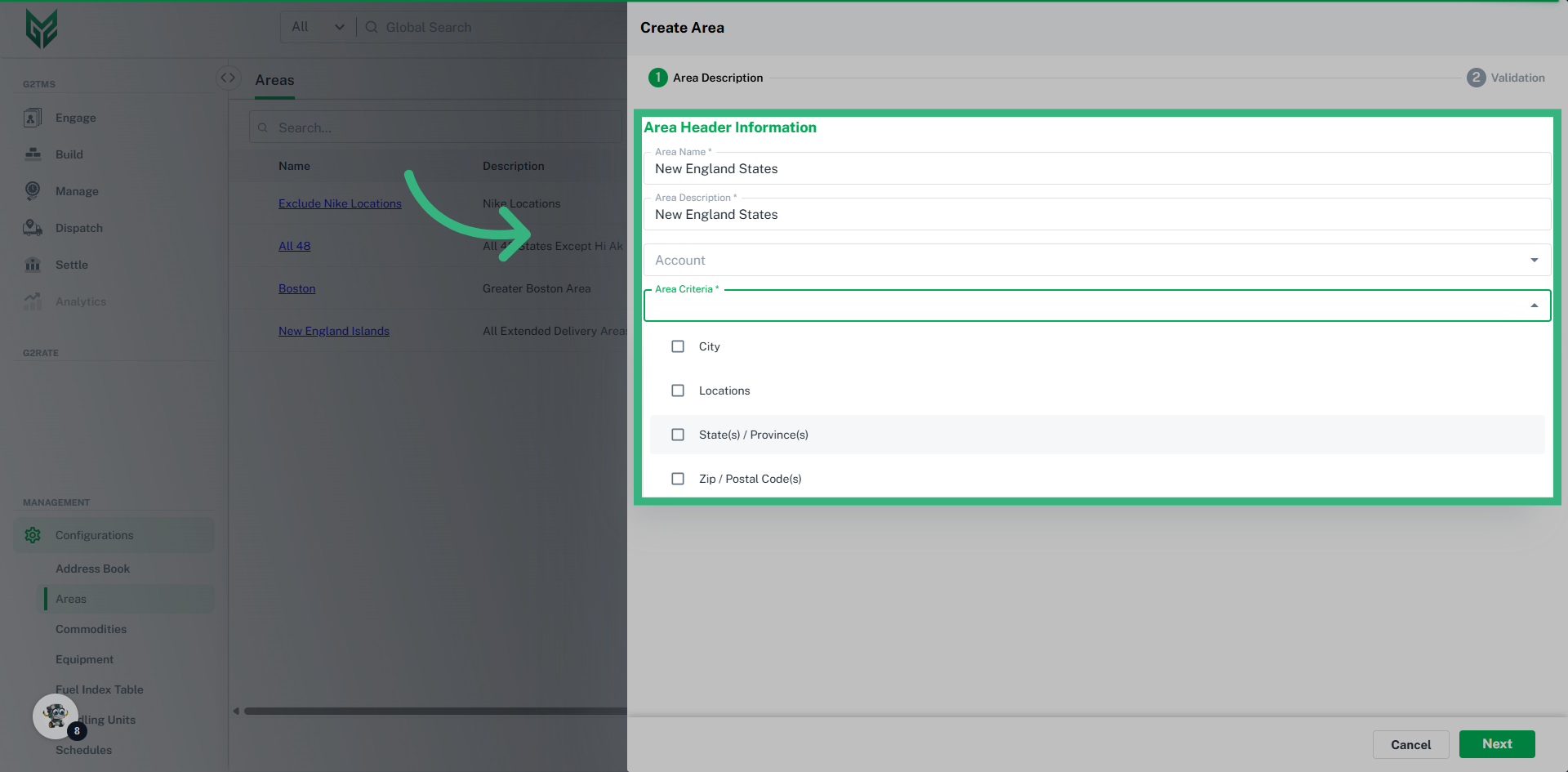
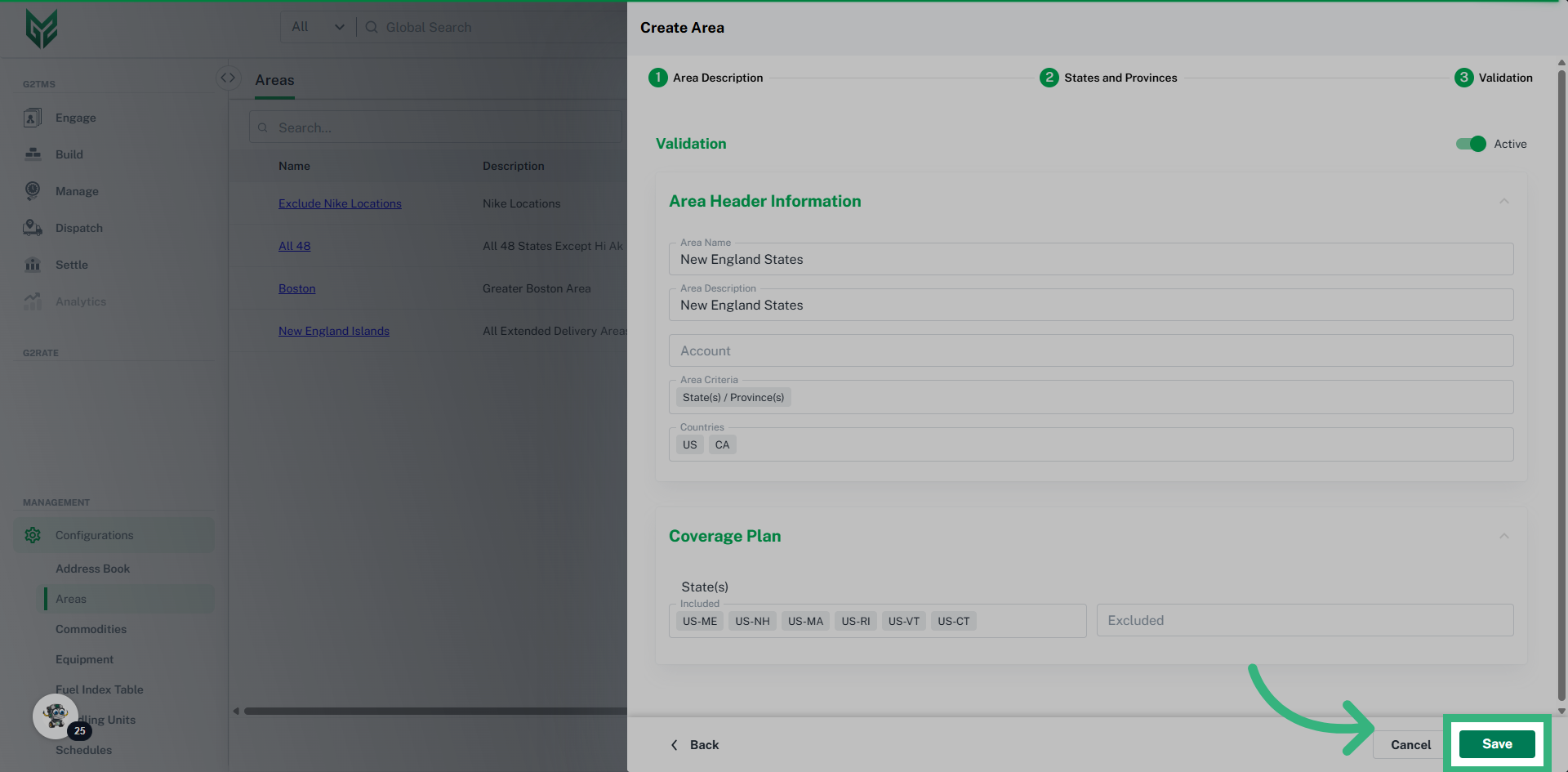
- Assign an Area Name to identify specific geographic areas that can be referenced in the application (ex. 48 states minus Hawaii and Alaska).
- Area Description identifies which geographic area is covered as part of this service.
- The Account field allows you to assign an account that provides coverage in a geographical area or leave it blank to make it available for all accounts.
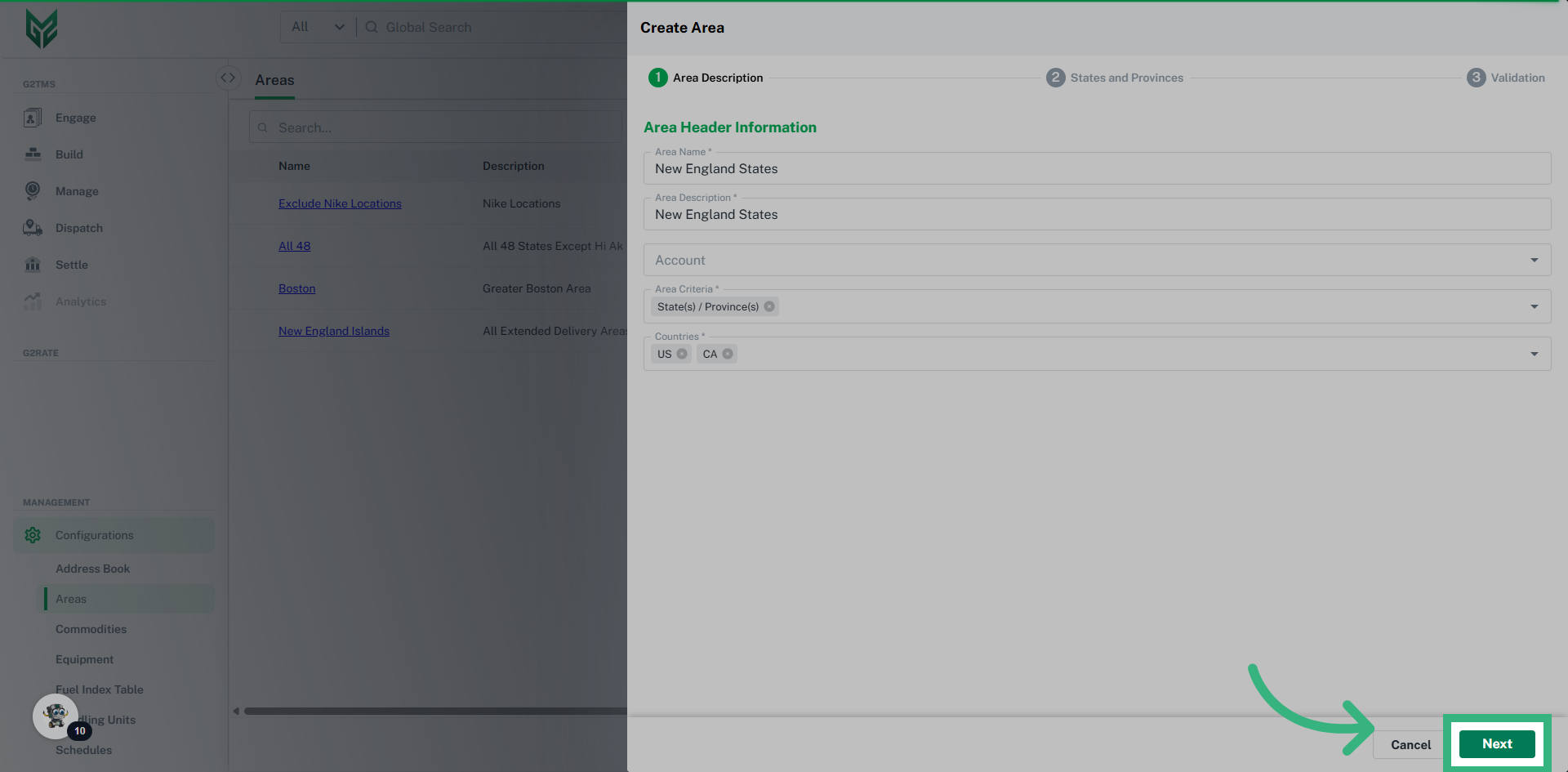
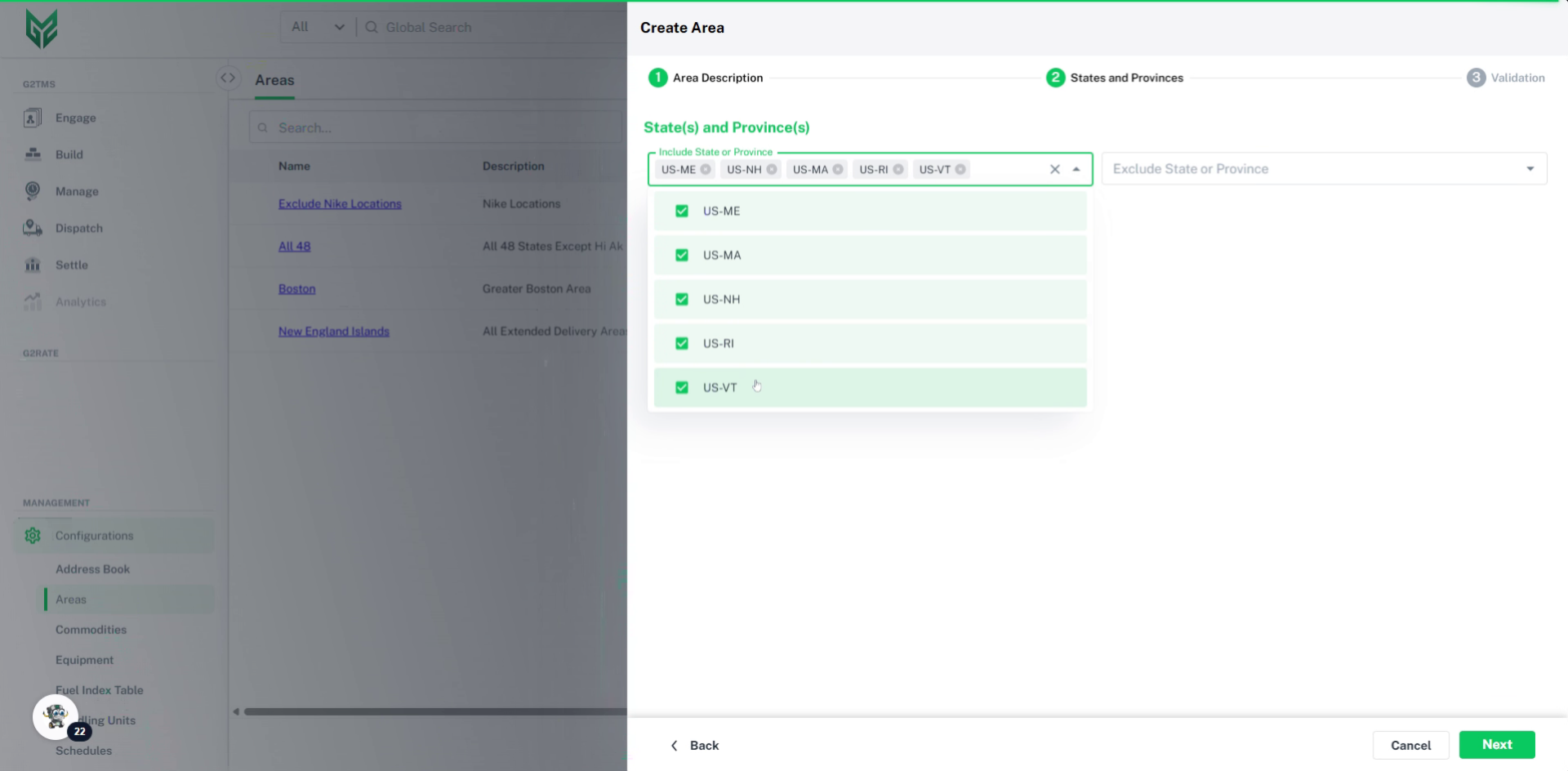
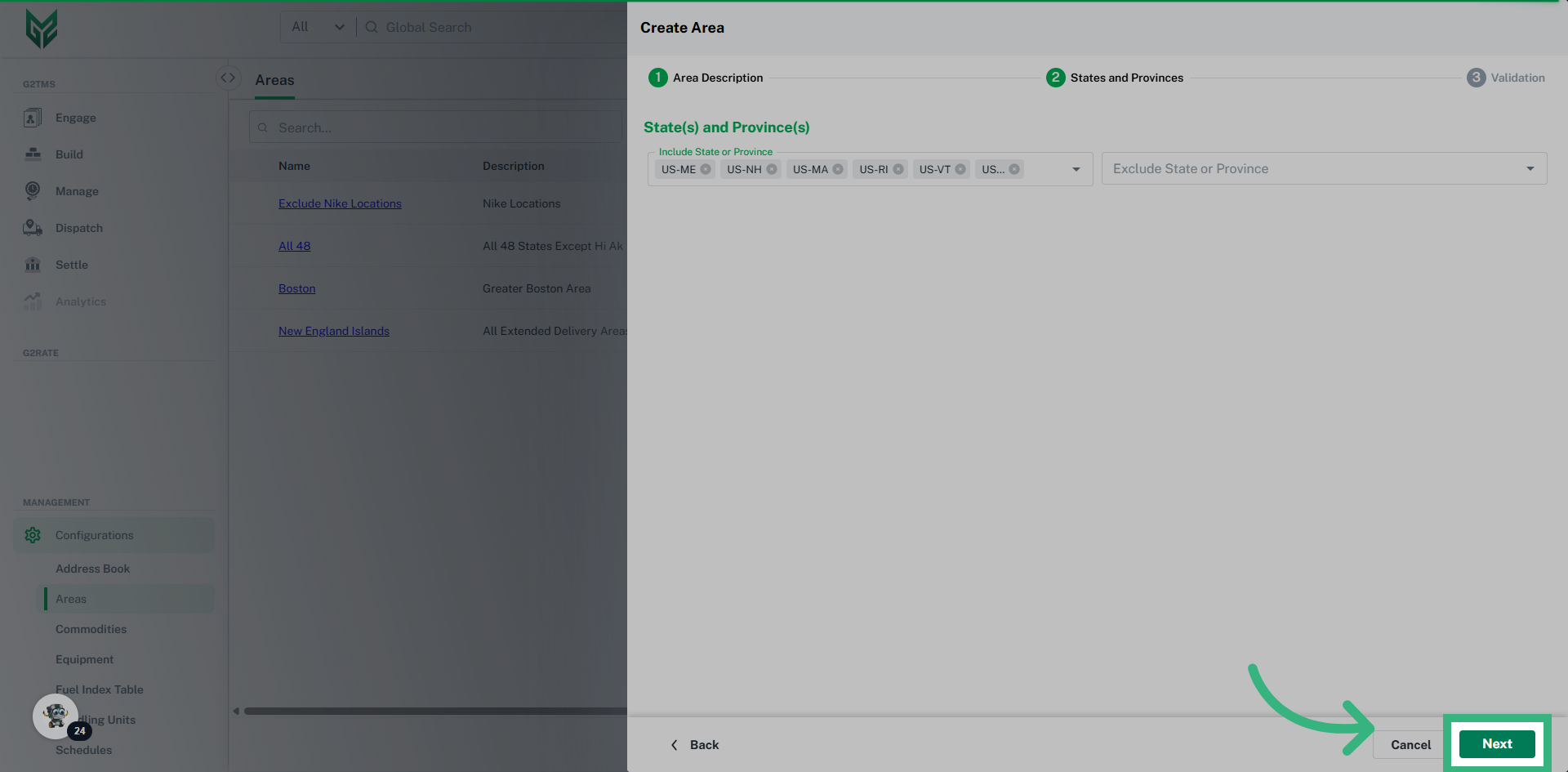
- The Area Criteria allows you to create geographical references i.e., State(s)/Province(s), City, Zip/Postal Codes and Locations associated with the area.
- Set Include or Exclude Areas (Pro Tip: You can combine Area Criterias. For example, if the delivery is area is all of Florida and Georgia, except the Florida Keys, you can select States and City (or Zip/ Postal Codes), Include Florida and Georgia in States, then Exclude the Florida Keys in either City or Zip/ Postal Codes).
- You can Toggle the record on or off (active vs. inactive) from both detail and grid views. Additionally, you can Edit (Pencil icon) or Delete (Trash icon) the record from the grid view only.