Last Updated: May 8, 2025
Applies to:
Shippers, Brokers, Carriers
Solution Overview:
The Manage Quotes section allows users to access comprehensive details of an existing quote, including important information such as dates, locations, accounts, commodities, and the current status. Users can edit quotes, re-rate them as needed, or convert them into shipments. It is important to note that a Quote Rate cannot be tendered until a shipment has been created. Additionally, users have the option to assign a carrier or request a spot rate. Furthermore, users can enter a custom rate or a verbally quoted rate directly from this section.
Manage Quotes: Overview Fields
References: Documents available that are associated to the Quote. When available, there will be a hyperlink. If there is no hyperlink, that document does not yet exist.
Est Pick-up: Based upon date in Builder. In the Quote phase, this is just an estimate.
Est Delivery: Based upon date in Builder. In the Quote phase, this is just an estimate.
Status: A Quote status will always be New
Account: Primary Account Name assigned in Build
Stops: View Stops associated with the Quote
Asset Information: Includes Equipment Type, Truck/Trailer #, as well as the Seal, Chassis and Container #
Commodity Summary: View a summary of Commodity's associated to the Quote. Add additional Commodity by utilizing the blue + button. To Edit existing Commodity, select the Edit Icon in upper right corner.
Accessorial Summary: View a summary of Accessorials associated to the Quote.
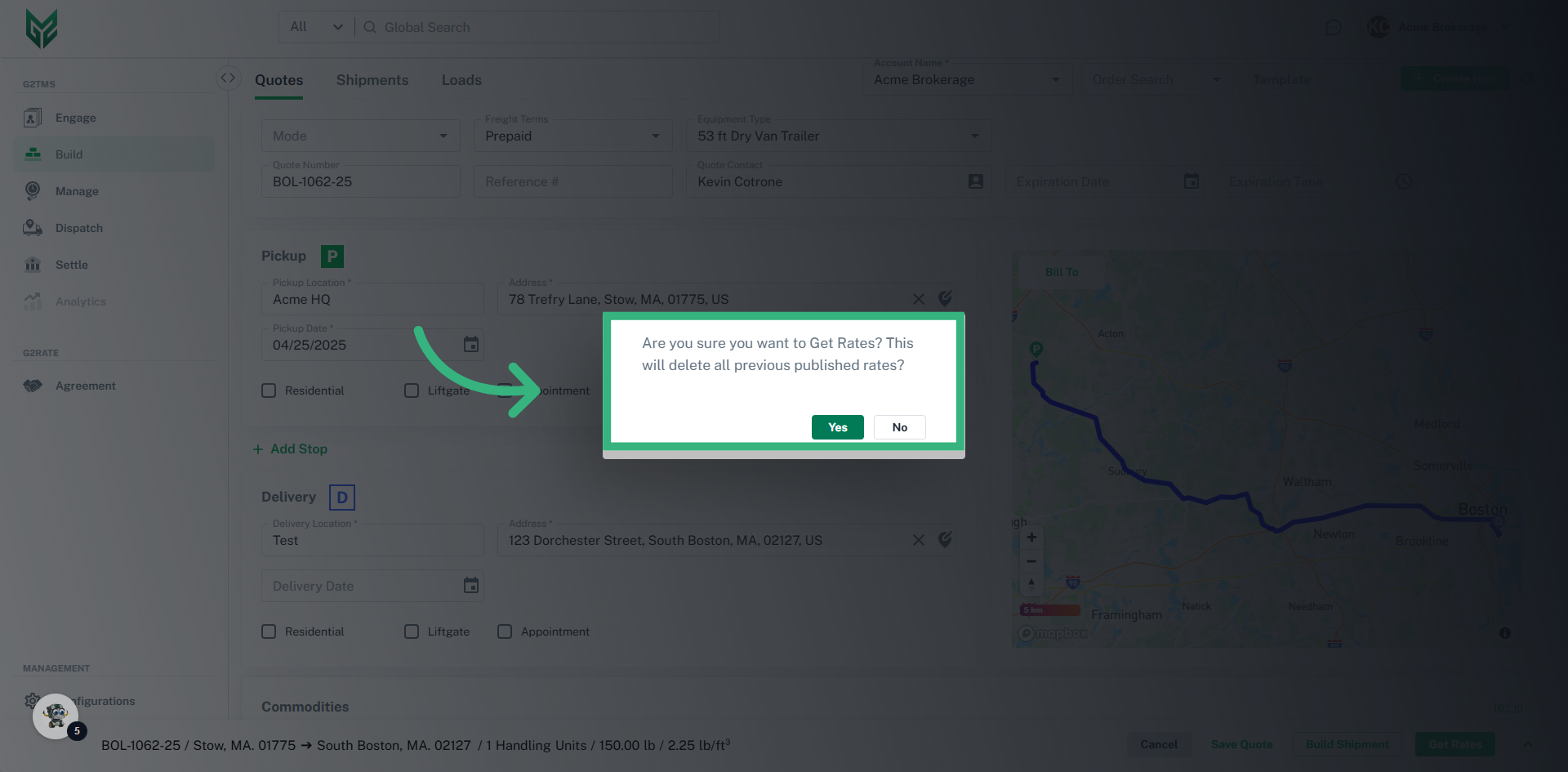
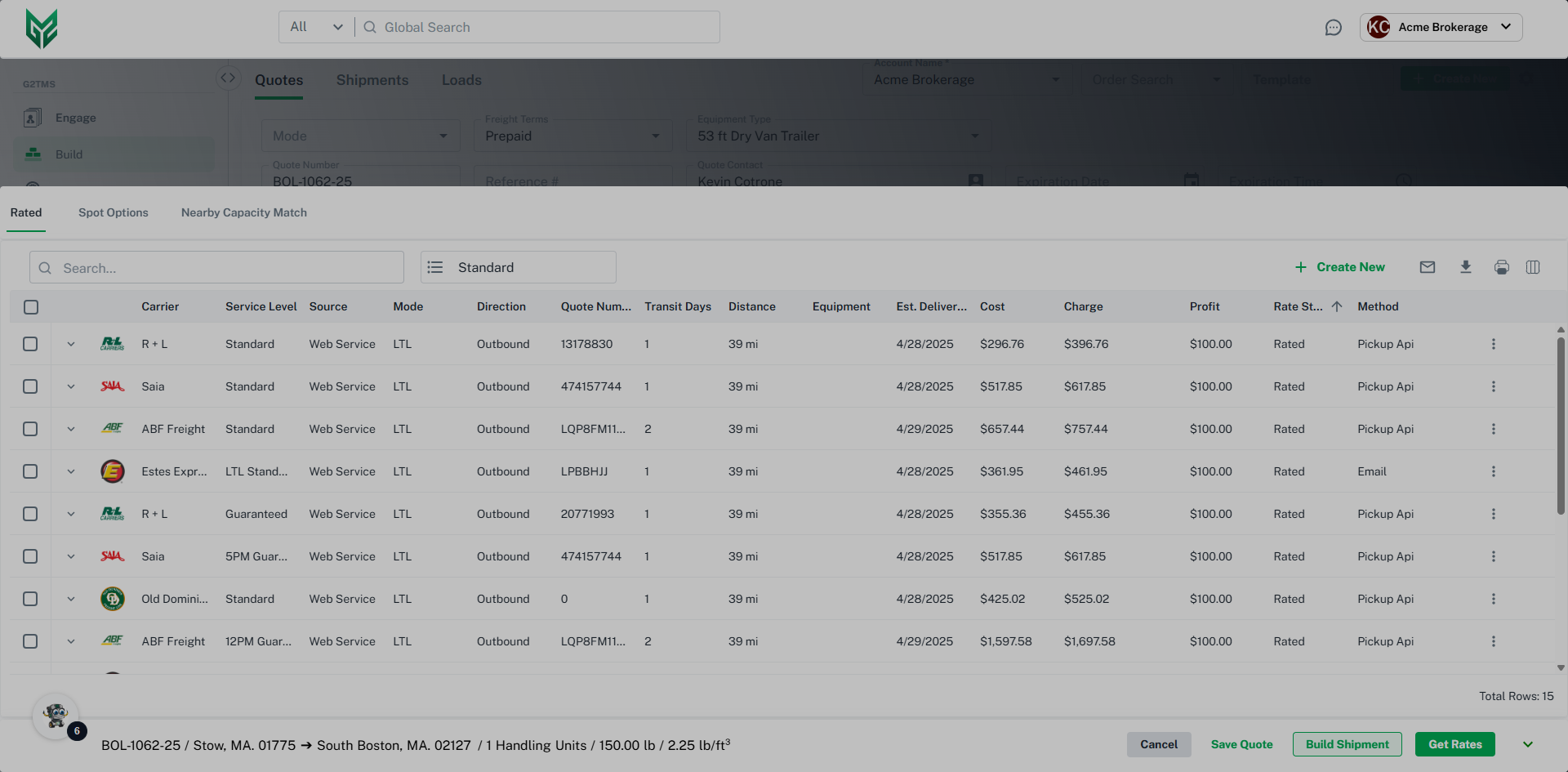
Rerate an Existing Quote:
Request a Spot Rate
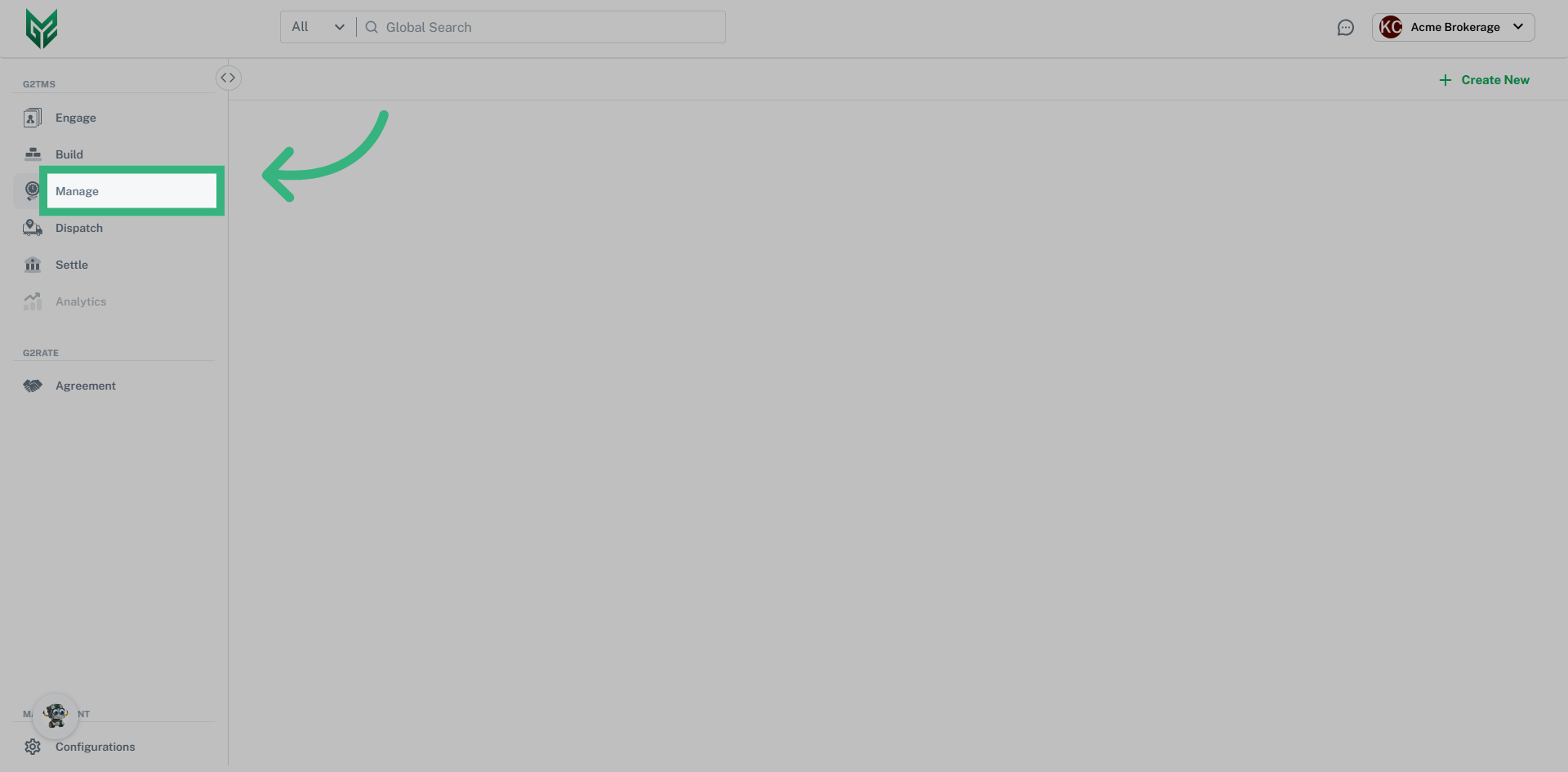
- Select Manage from left Nav Bar
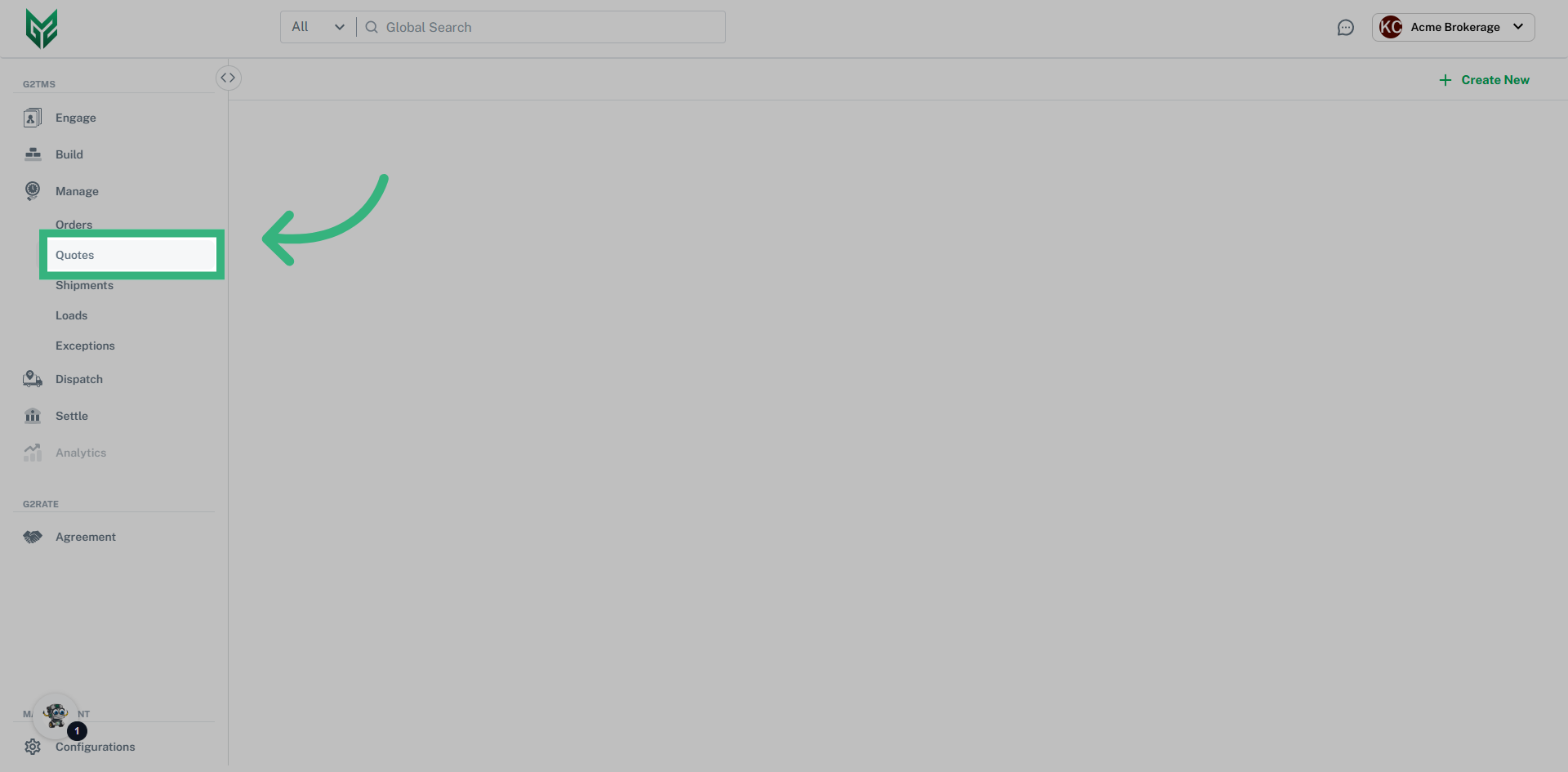
- Select Quotes from dropdown
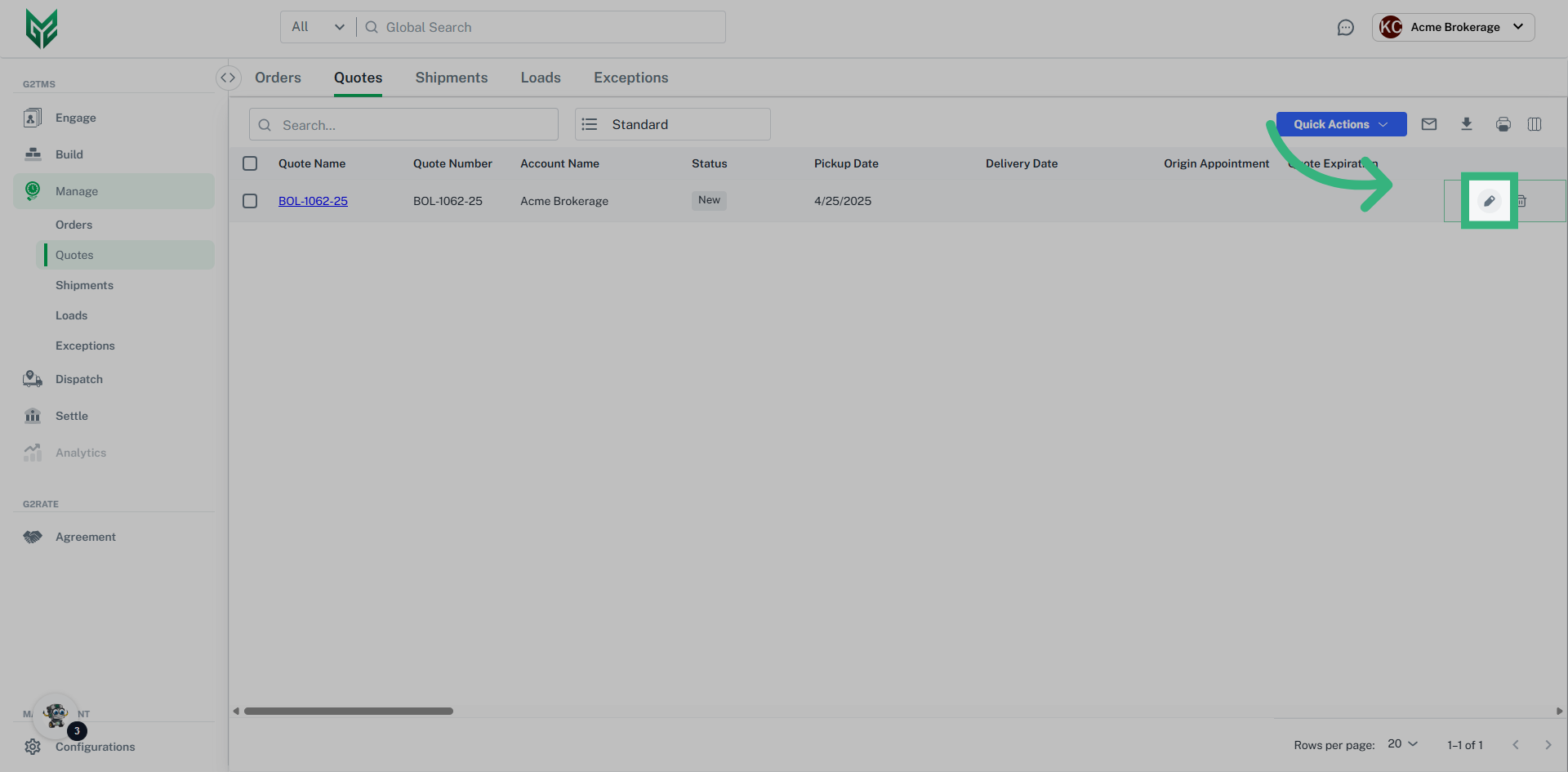
- Select Edit pencil from Grid
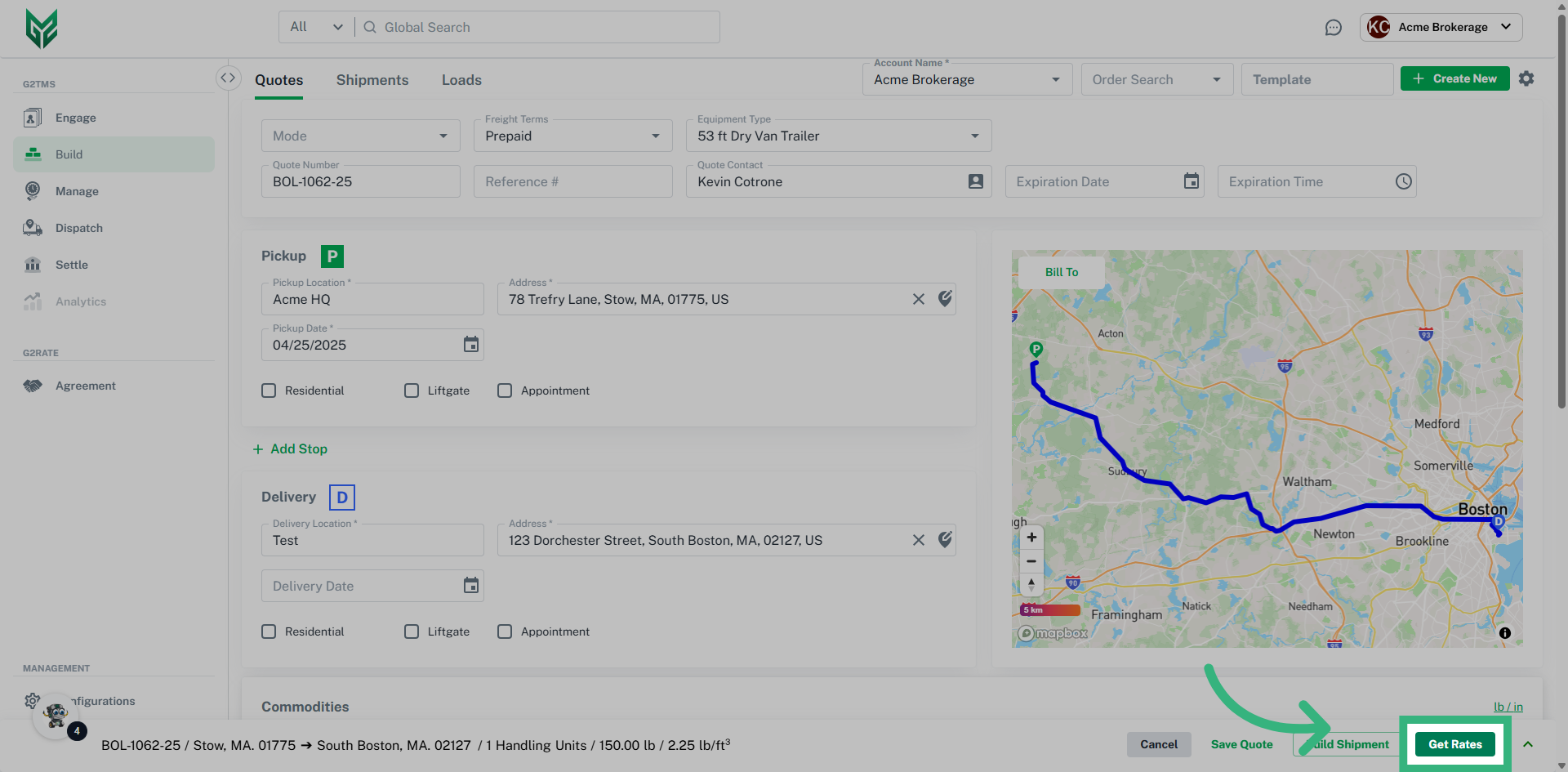
- Select 🔼in bottom right corner to view previous Rate Drawer (Selecting Get Rates to will update previous rates, but will also bring you to the drawer)


Assign a Rate (without Tender)
- Select Manage from left Nav Bar
- Select Quotes from dropdown
- Select Edit pencil from Grid
- Select 🔼in bottom right corner to view previous Rate Drawer (Selecting Get Rates to view drawer will always re-rate)
6. Select Assign

8. Once Assigned, a Carrier may be Unassigned in the same manner