Last Updated: November 12, 2025
Applies to:
Shippers, Brokers, Carriers, and Partners
Solution Overview:
Markup Agreements outline the agreements that dictate how available freight costs are marked up. These agreements can be tailored for specific clients or applied broadly to blanket Freight Agreements, allowing for flexibility at both granular and general levels. When an account-specific markup agreement is in place, it takes precedence over any blanket agreements. If no specific markup agreements exist for a client, the blanket markup agreement will be used by default. Additionally, markup agreements can be set as a percentage of various cost components (such as Linehaul, Fuel Surcharge, Accessorial Charges, or Total Cost) or as a fixed dollar amount. It’s important to note that the terms "Markup" and "Cost Plus" are used interchangeably within our application. One markup plan may be a Blanket agreement (applied to all), assigned to multiple Clients, or specific to client (Learn more).
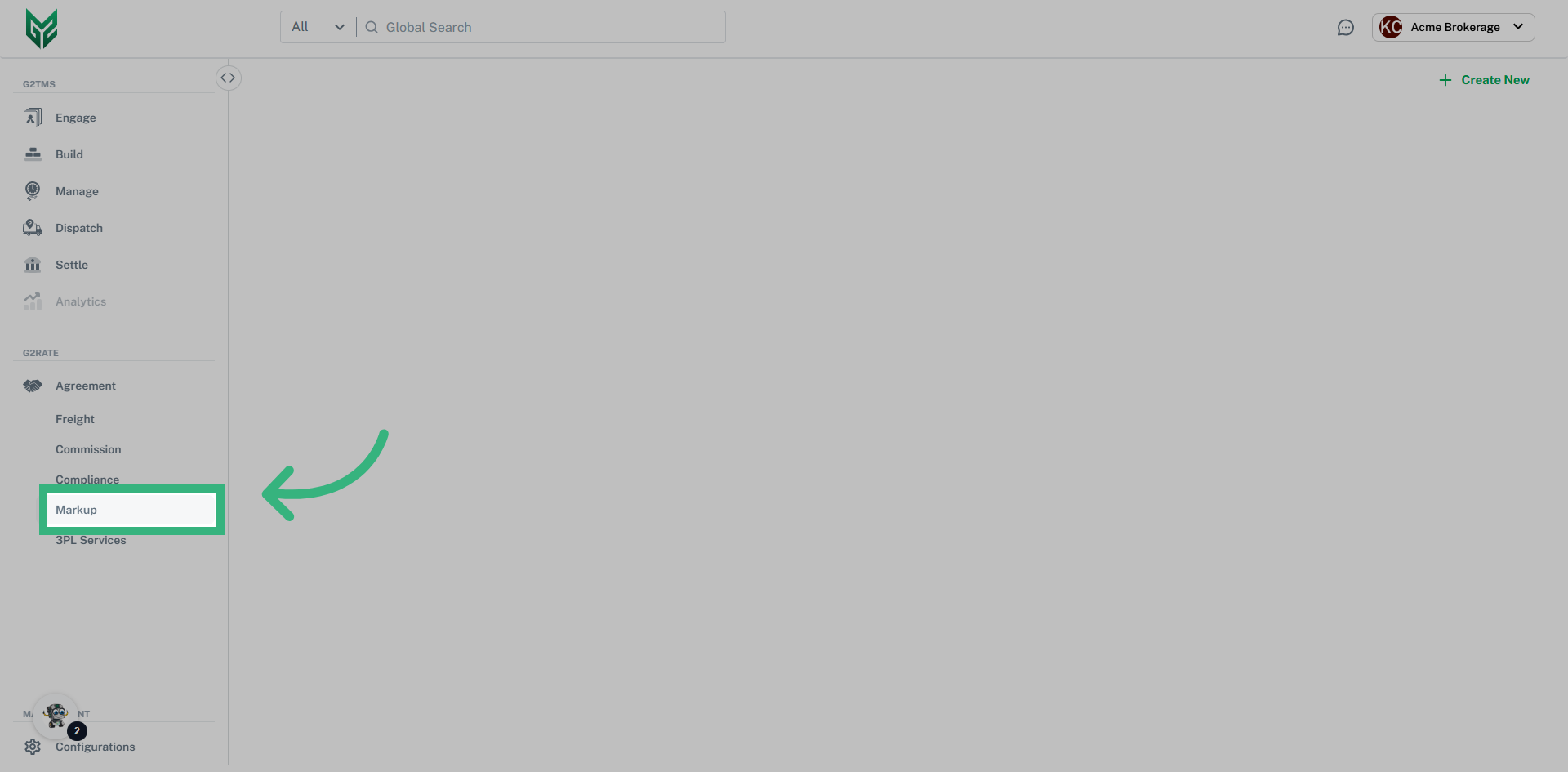
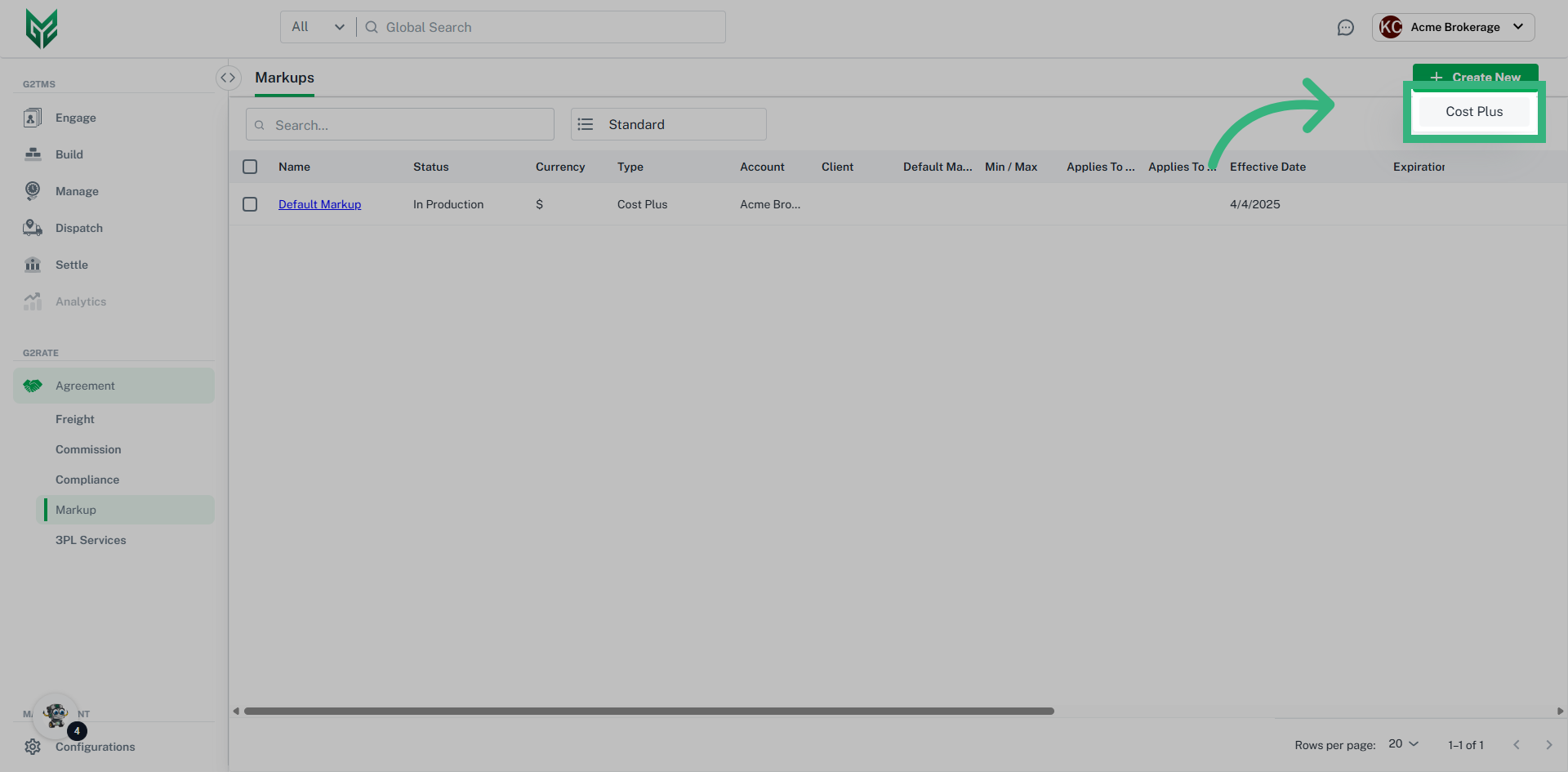
How to create a Markup Agreement:
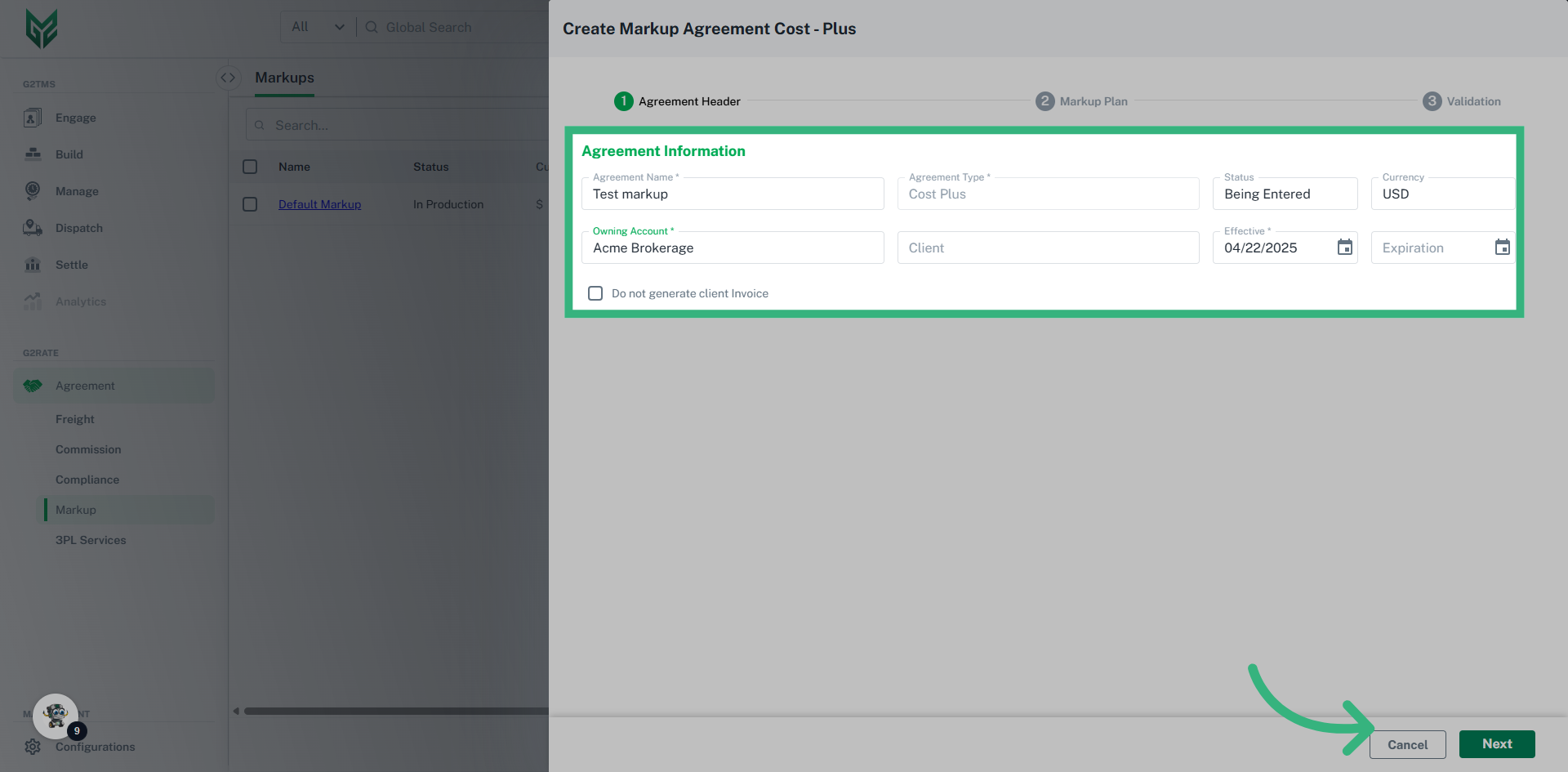
Markup Plan Header
- Agreement Name: Enter a unique Agreement Name that allows for the agreement to be easily recognized.
- Agreement Type: Default option Cost Plus
- Status: Select Status. In Production makes an agreement active. This can also be edited from the Validation screen.
- Currency: Default currency is US Dollars
- Owning Account: Select the primary account that this particular Markup Agreement will serve. This is a required field that determines the "parent" account of the agreement.
- Client: Select one specific Client, select multiple for this agreement or leave blank for it to apply to all not assigned to a client-specific agreement (Blanket).
- Date: Effective date is a required field, while Expiration date is optional.
- Do not generate client Invoice: Select this checkbox if you do not want the markup to generate an invoice. In some cases, there are varying methods of collecting payment, including bundles of invoices (manifests or statements).
Markup Plan Overview
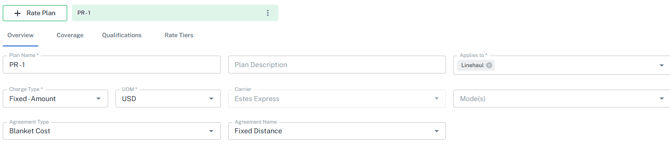
- Plan Name: A Markup Agreement can be made up of multiple plans. This Plan Name allows for unique plan names within an Agreement (for example, different Modes may have different markups).
- Plan Description: Optional field to add additional detail
- Applies To: The markup can be applied to different costs, including Linehaul, Fuel, Accessorial, or Total Cost.
- Charge Type: Determine if the markup will be a fixed dollar amount, or a percentage.
- UOM: Default is US Dollars.
- Carrier: If agreement is Carrier specific, select here (otherwise, leave blank)
- Modes: Leave blank if applies to all modes. If Agreement is specific to one Mode, select here. If multiple modes need to be utilized (but not all), create an individual plan within the agreement for each Mode.
- Agreement Type:
- Billable Agreement- Potential income
- Cost Agreement- Represents a future Expense
- Blanket Benchmark- Provides a standard/ average against rated cost. These are for comparison purposes only, and are non-tenderable
- Blanket Billing- Create Rates to Bill any client (For a Broker, will Rates include Mark-up)
- Blanket Cost- These are the basic shipper/carrier service agreements. The majority of custom carrier contracts will fall in this category
- Blanket Rate Index- An index is an industry average that can only be used if a plugin is activated. A Blanket Index is assigned to any non-specific client
- Client Benchmark- Custom agreements only. Target rates for a specific client, otherwise same as Blanket Benchmark
- Client Billing- Custom agreements only. Client specific billing agreement where amounts will be used to invoice the client
- Client Cost- A client-specific expense agreement, ex. Shipper/ Broker creating for a Carrier
- Client Rate Index- Similar to the Blanket Index, except assigned to a specific Client
- Agreement Name: A Markup Agreement can be assigned to a specific Freight Agreement. If that is the case, select from dropdown.
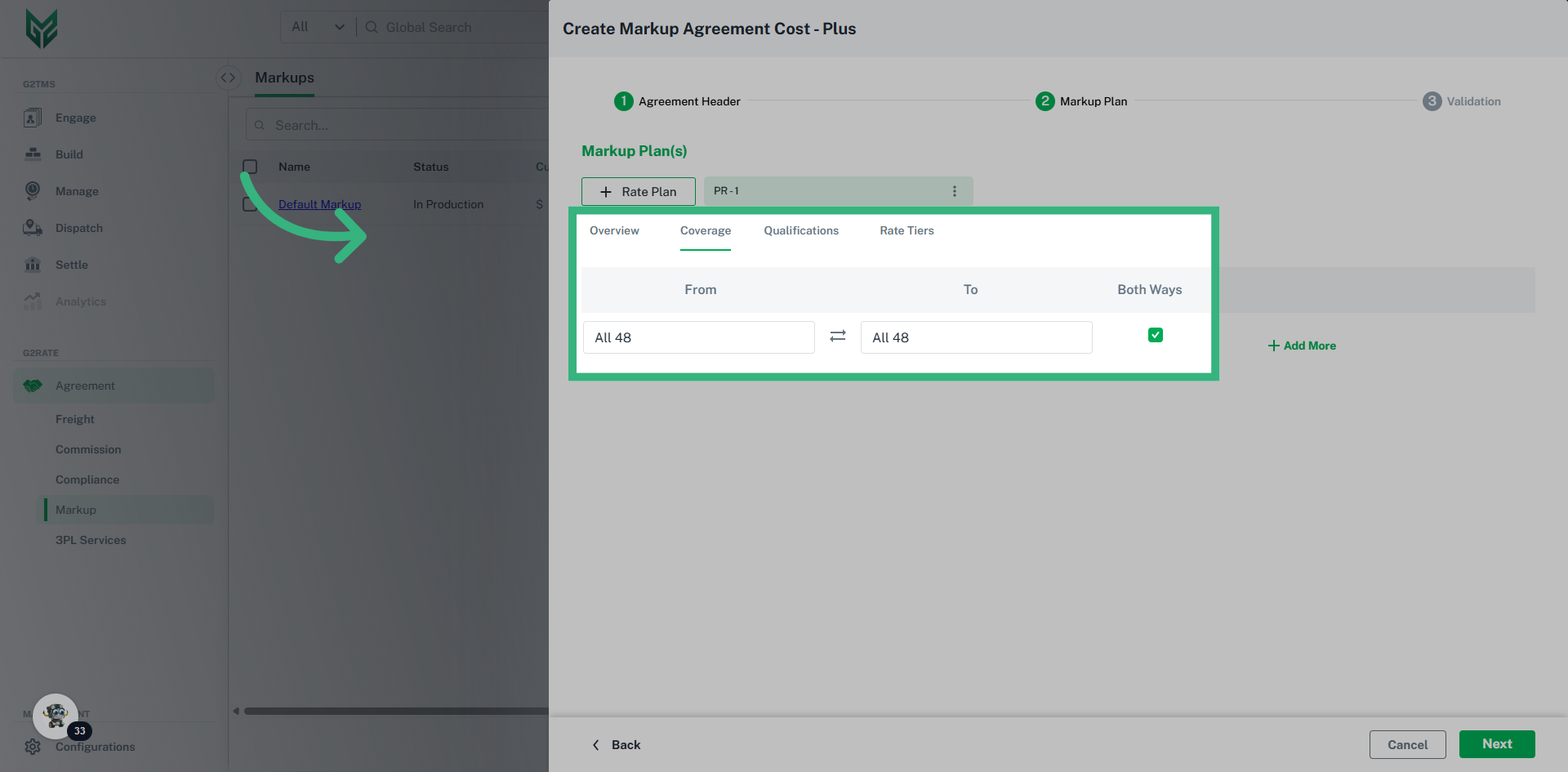
Markup Plan Coverage: A Markup Agreement can be defined by specific Coverage Area's. If that is the case, assign Areas here. Note: Coverage areas are created in the Configurations section in "Areas."
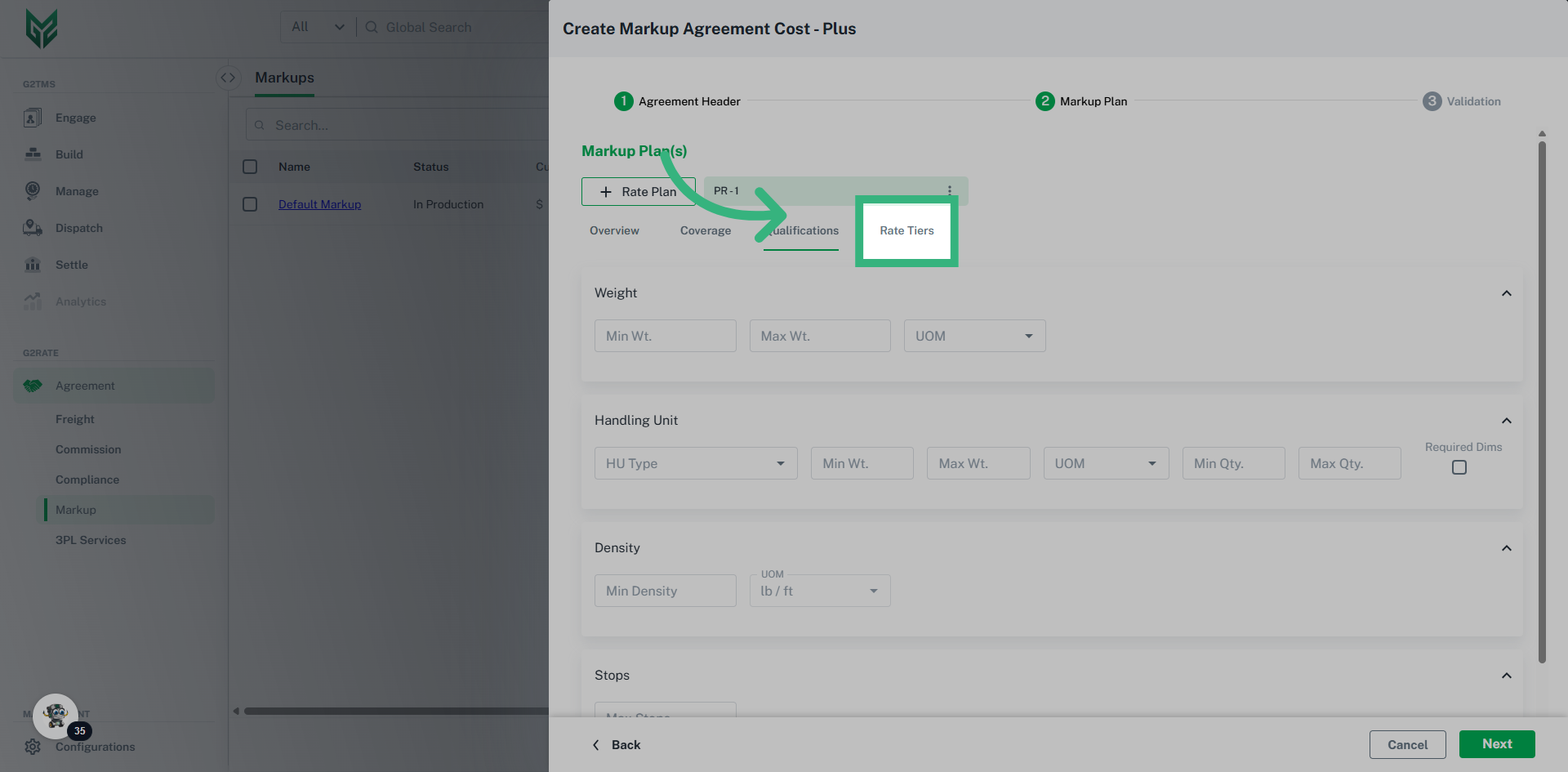
Markup Plan Qualifications: Specify qualifications based upon Weight, Handling Units, Density or number of Stops.
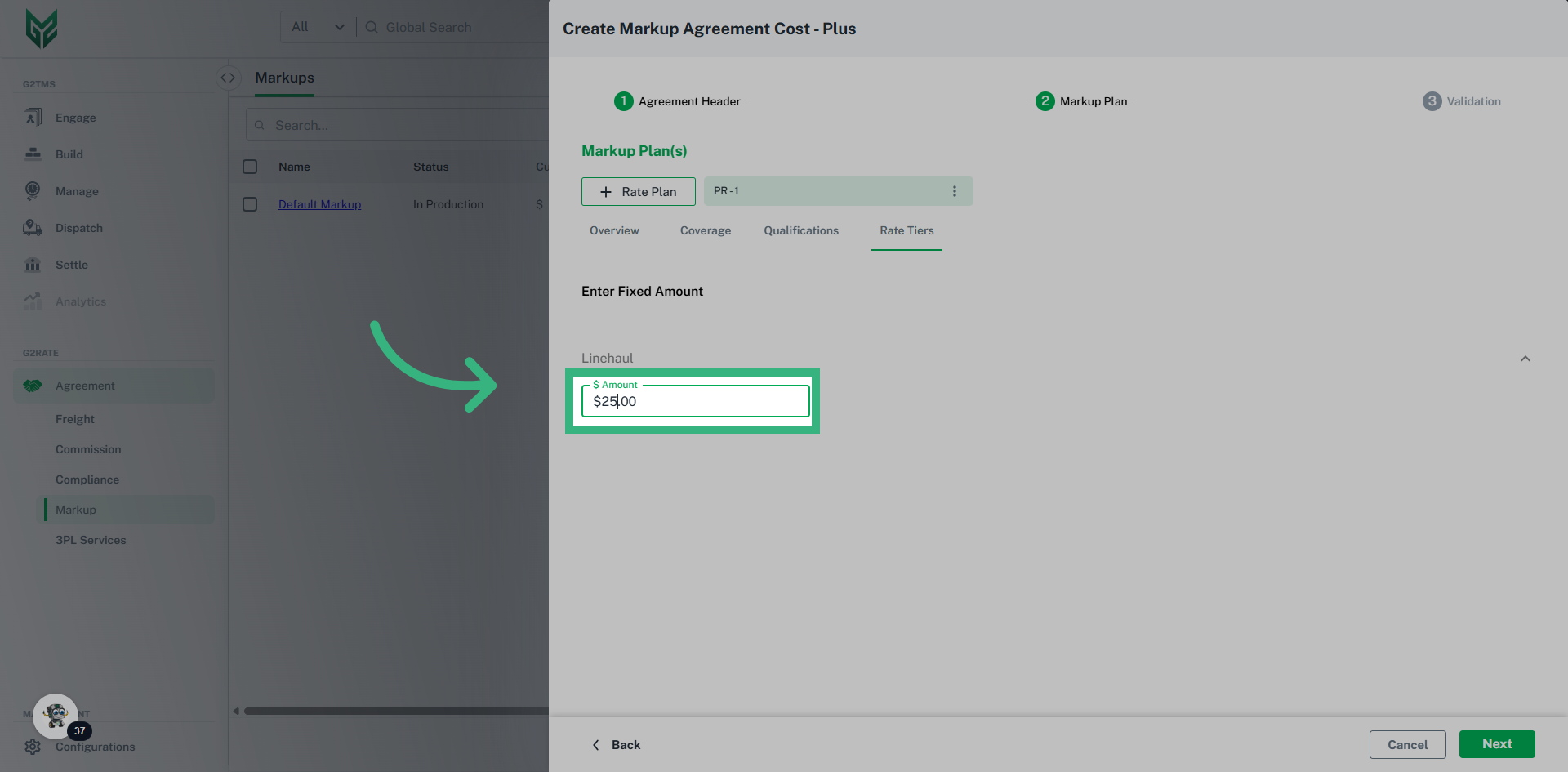
Markup Rate Tiers: If Fixed Dollar amount is selected in Overview section, enter that Amount here. If Fixed Percentage is selected in Overview, enter the percent here, as well as minimum markup amount and maximum markup amount (Min/Max does not apply to a Fixed Dollar amount).