Last Updated: May 15, 2025
Applies to:
Shippers, Brokers, Carriers, and Partners
Solution Overview:
Understand the basic navigation of the G2Mint technology, from modules, to Configurations, to the Knowledge Base articles.
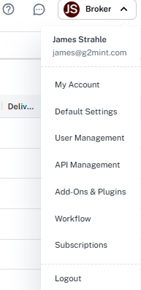
My Account: The My Account icon in the upper right provides access to information regarding the licensed account. From here, we manage internal users, Subscription information and Default Settings.
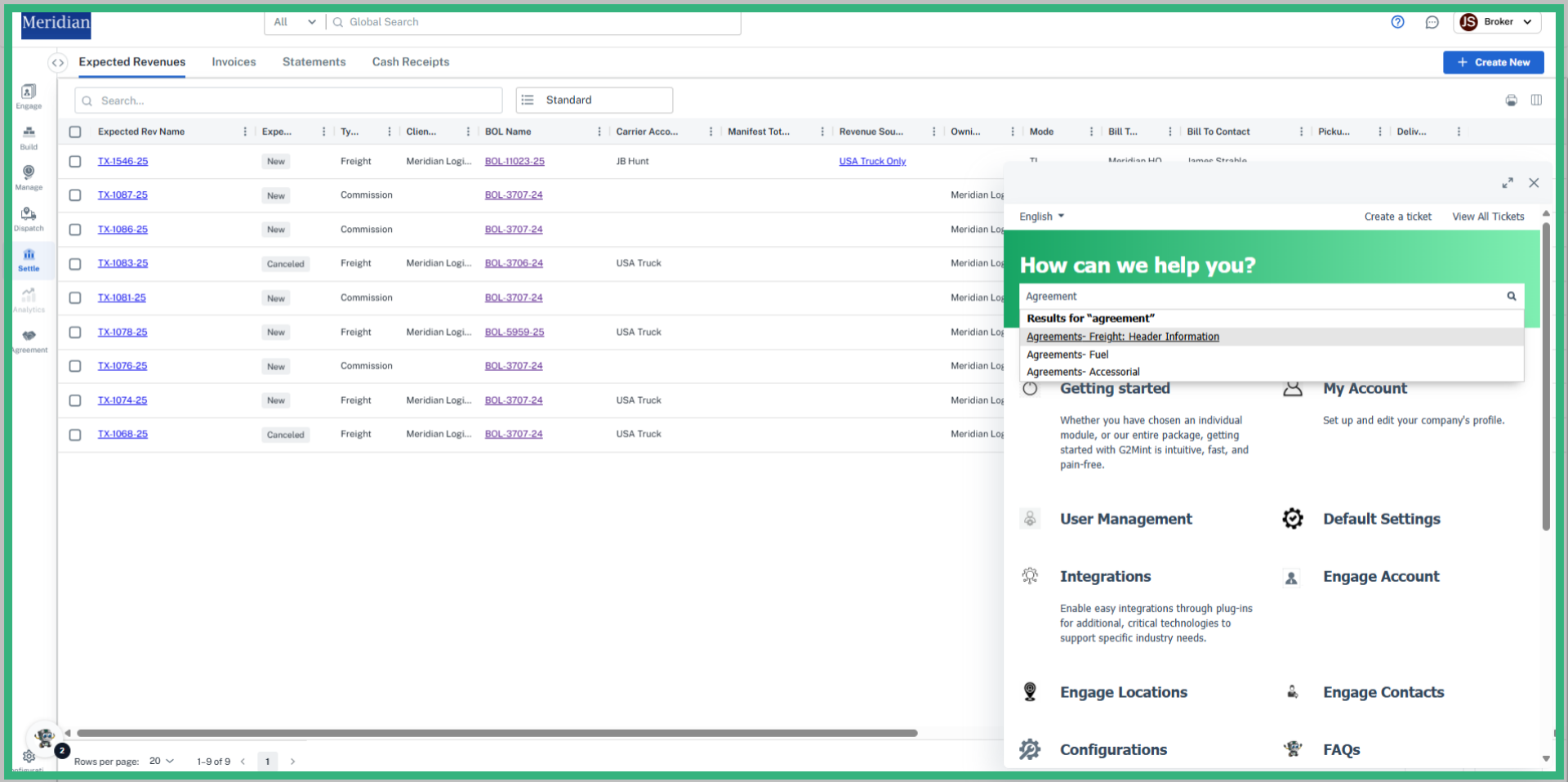
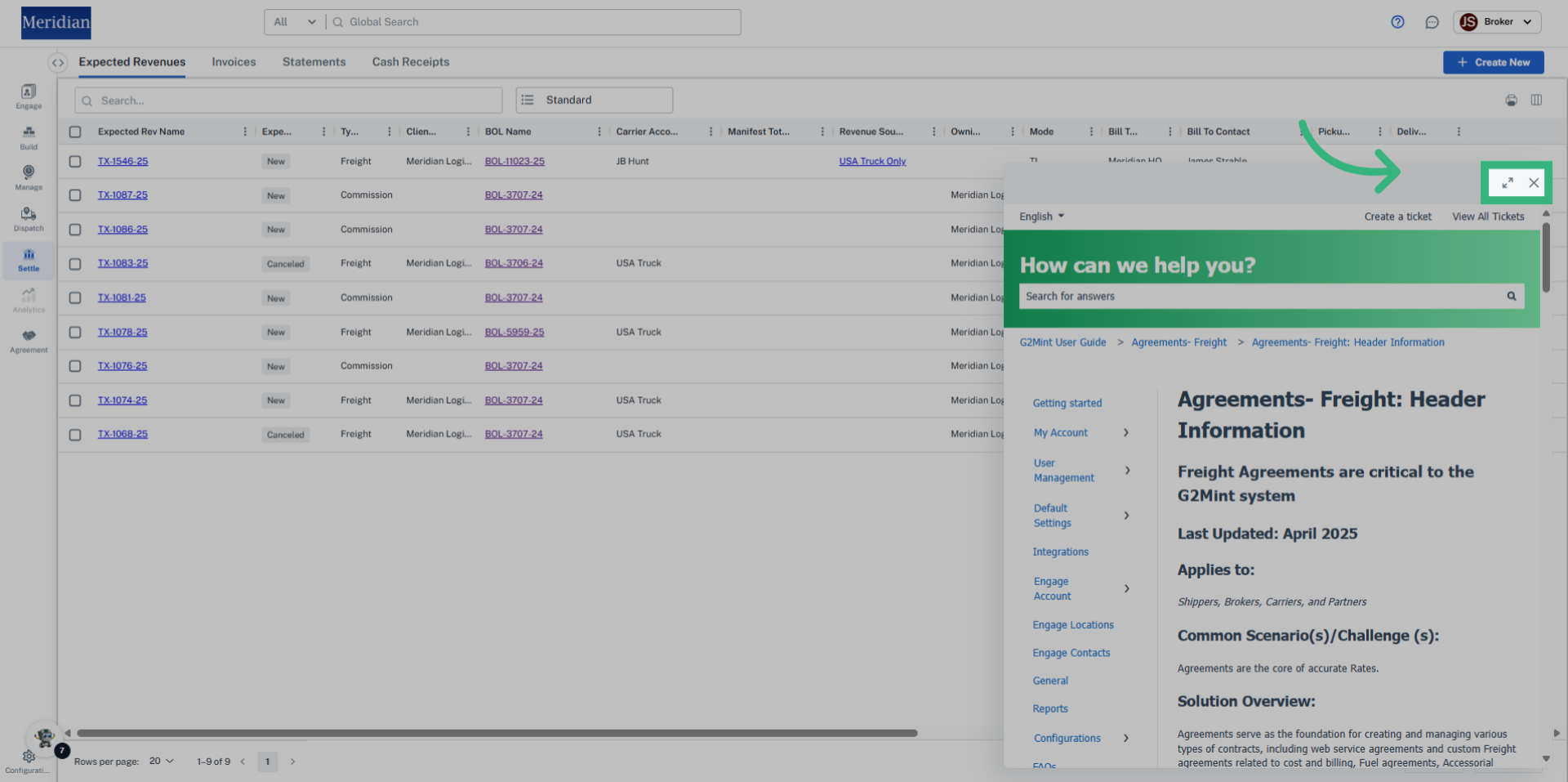
Knowledge Base: The Knowledge Base support articles cover the entire application and are available to all Users. Select the ? icon in the upper right corner and enter your question in the Search. The Knowledge Base can also be searched by Category rather than utilizing the Search bar if desired.
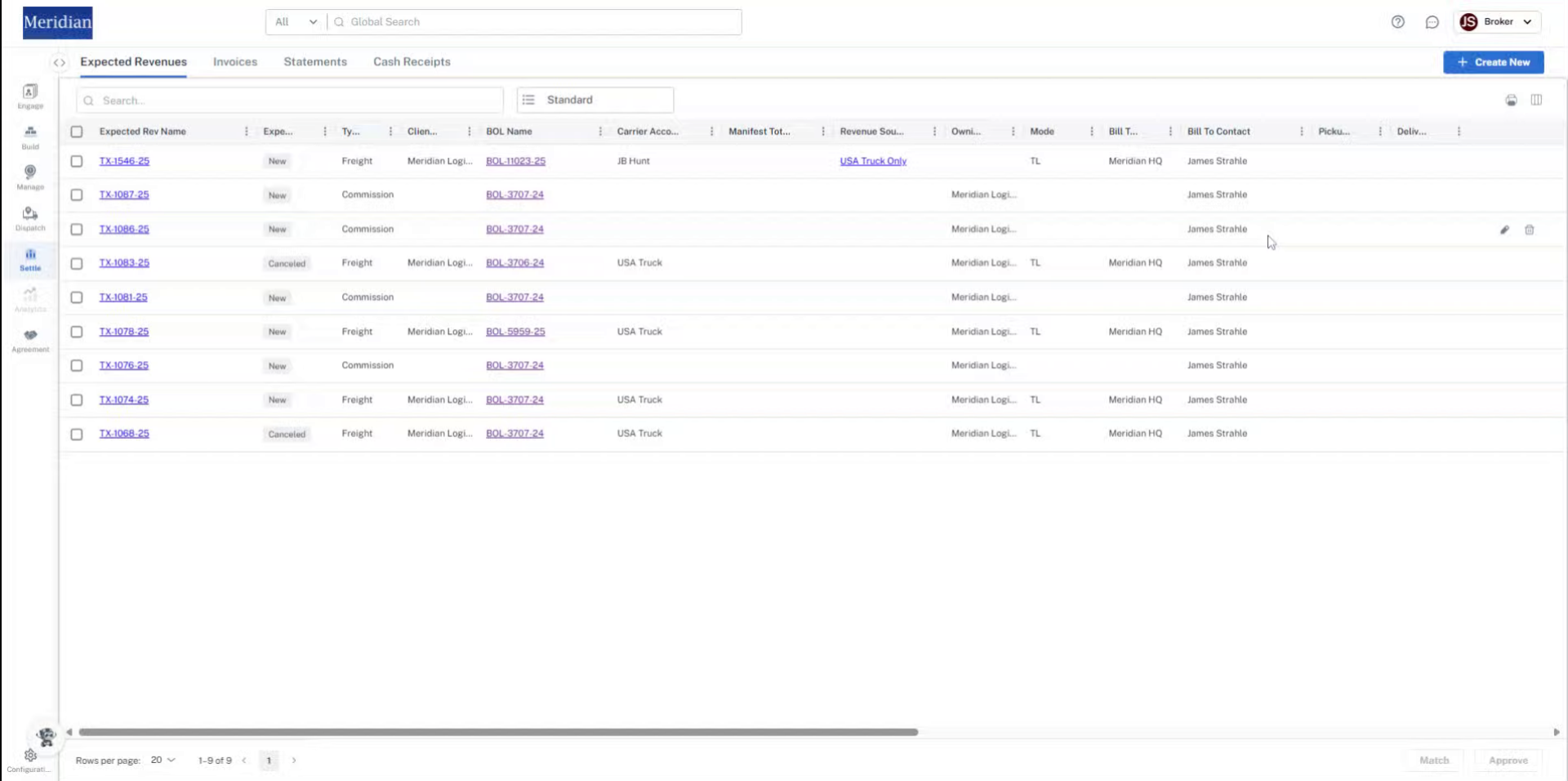
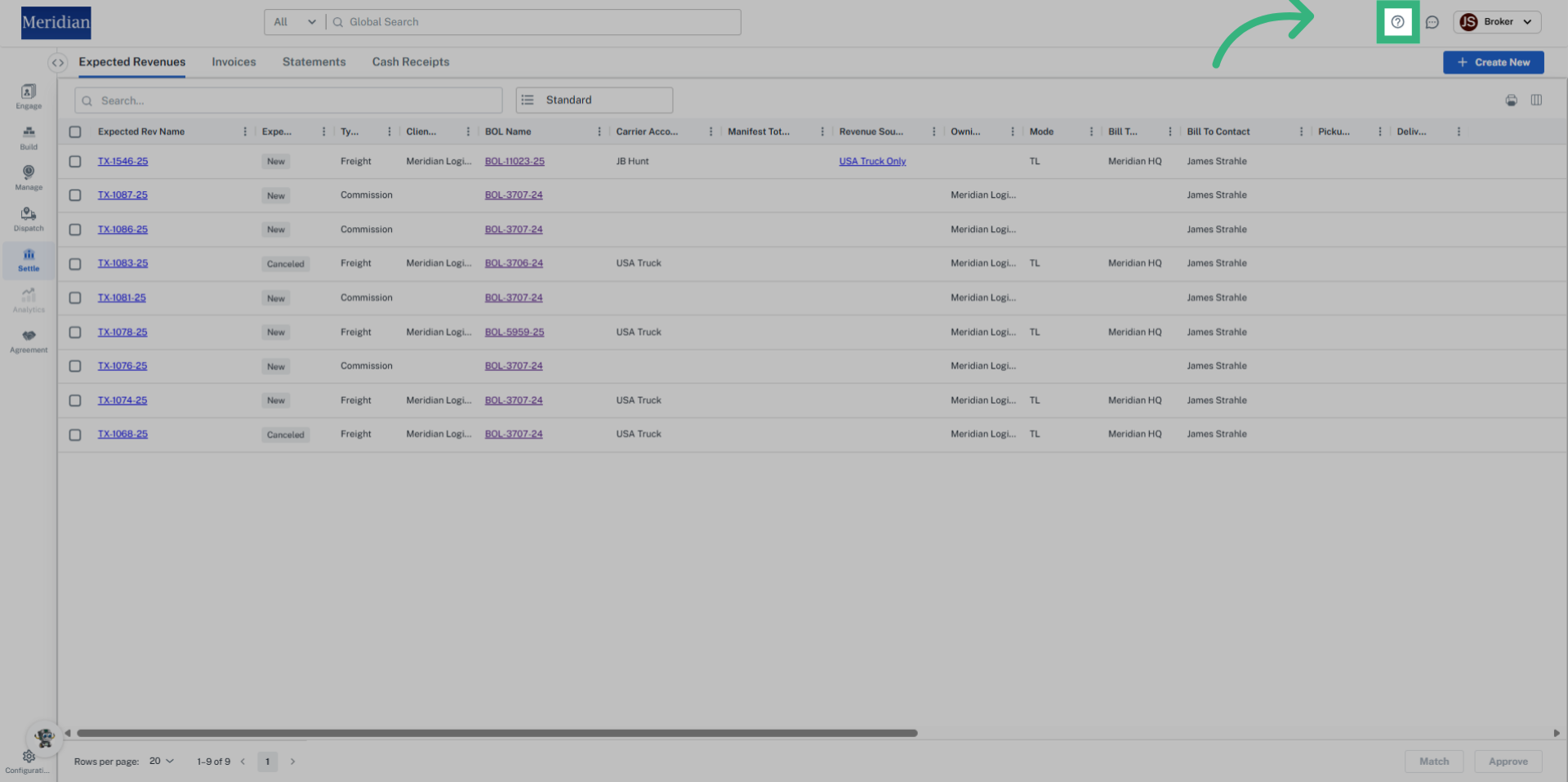
Modules: The modules, and access to the modules, will vary by Persona and Roles. Modules are located on the left hand side of the application.
- Engage: The Engage Account feature enables users to establish an entity within the Licensed Account of the TMS, representing an organization or company that will engage in various transactions within the system, such as shipments and settlements.
- Build: The Build section of our application is where we create, compile, or build a Quote, Shipment or Load. Once these transactions are built, they can be Rated from each of these statuses.
- Manage: The manage section is where the user can access and update all existing orders, quotes, shipments and loads.
- Dispatch: The Dispatch section allows the User to coordinate and potentially consolidate Shipments and Loads.
- Settle: Settle is the financial section of our TMS where the User can create, audit, approve and pay any financial records associated with transactions
- Analytics: Analytics utilizes our systems data to produce reports and dashboards that can help improve your sales, profits, and efficiency.
- Agreement: Agreements are an agreed upon contract outlining the terms and conditions for the transportation of goods, including rates, responsibilities and liabilities.

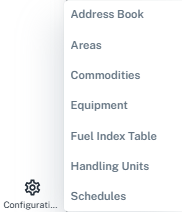
Configurations: Upon accessing the system, the picklist data fields across the application are pre-loaded with industry standard data to reduce the time and complexity of onboarding.