Skip to content
English
  • There are no suggestions because the search field is empty.

Add-Ons & Plug-ins

Utilize G2Mint add-ons and 3rd party Plug-ins to enhance your operation

Last Updated: May 14, 2025

Applies to:

Shippers, Brokers, Carriers, and Partners

Common Scenario(s)/Challenge (s):

G2Mint simplifies the process of connecting with complementary technologies tailored to your business requirements. Our pre-configured connections enable seamless integrations, enhancing your operational efficiency.

Solution Overview:

G2Mint centralizes various transportation-related needs like mileage tracking, payment processing, compliance, insurance, and load boards through integrated plug-ins. This unified platform eliminates the need to switch between different services, keeping you within the G2Mint ecosystem. These plug-ins offer enhanced features and allow clients to selectively integrate additional technologies best suited for their operations, negating the necessity for extensive tech stack replacements, with G2Mint providing the connection.

Add-Ons provide a chance to leverage the modular nature of our application, allowing you to enhance functionality according to your business needs. Expand your subscription with additional modules like advanced Analytics, Commissions, Compliance, and 3PL Services. For further information on any add-on to your subscription, contact us at sales@g2mint.com.

Connect a supported Plug-in: 
This guide will walk you through connecting to a supported plugin in G2mint. Our network of plugin partners is constantly expanding, so please check in frequently, or reach out to our support team with specific inquiries.

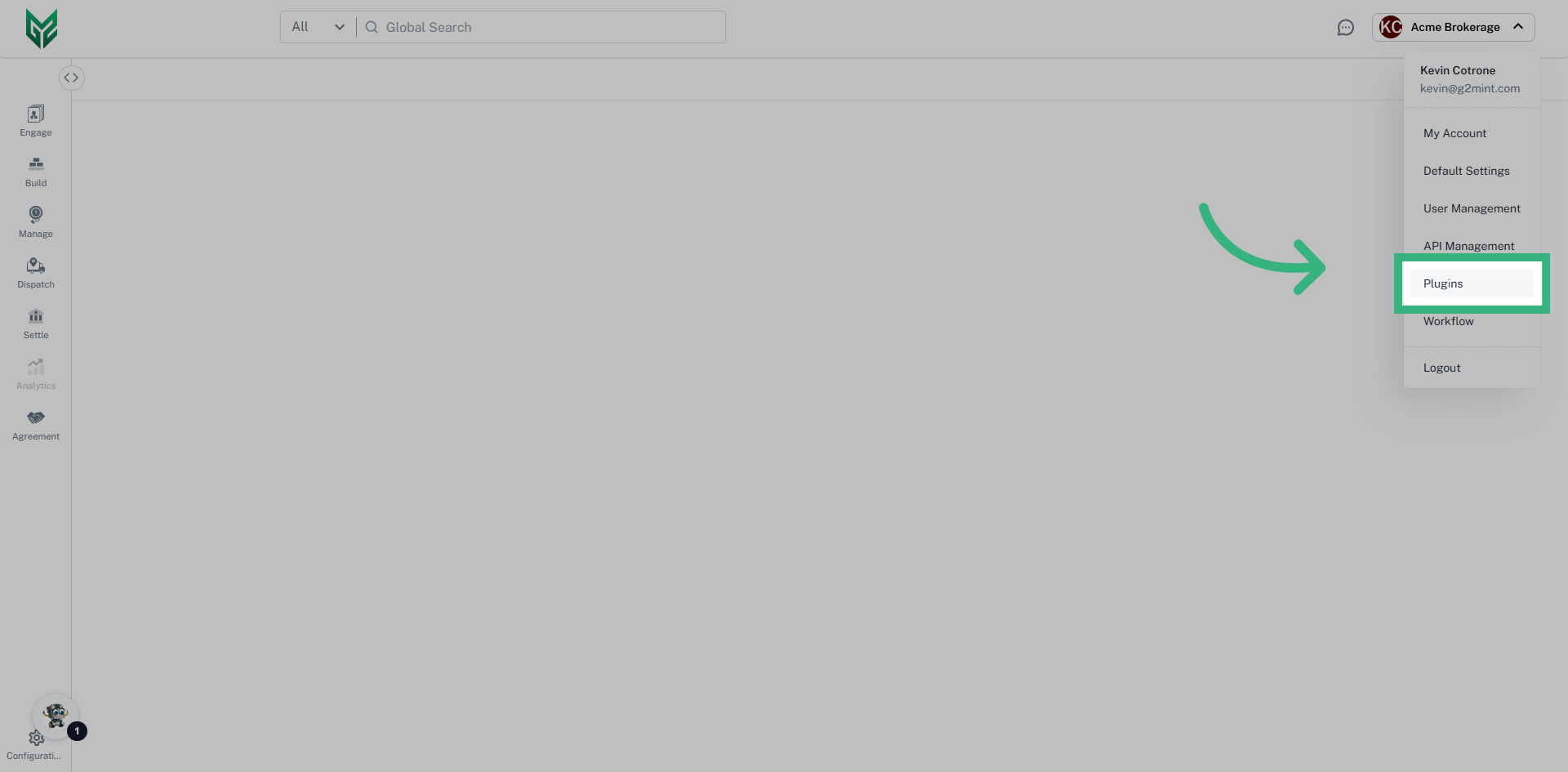
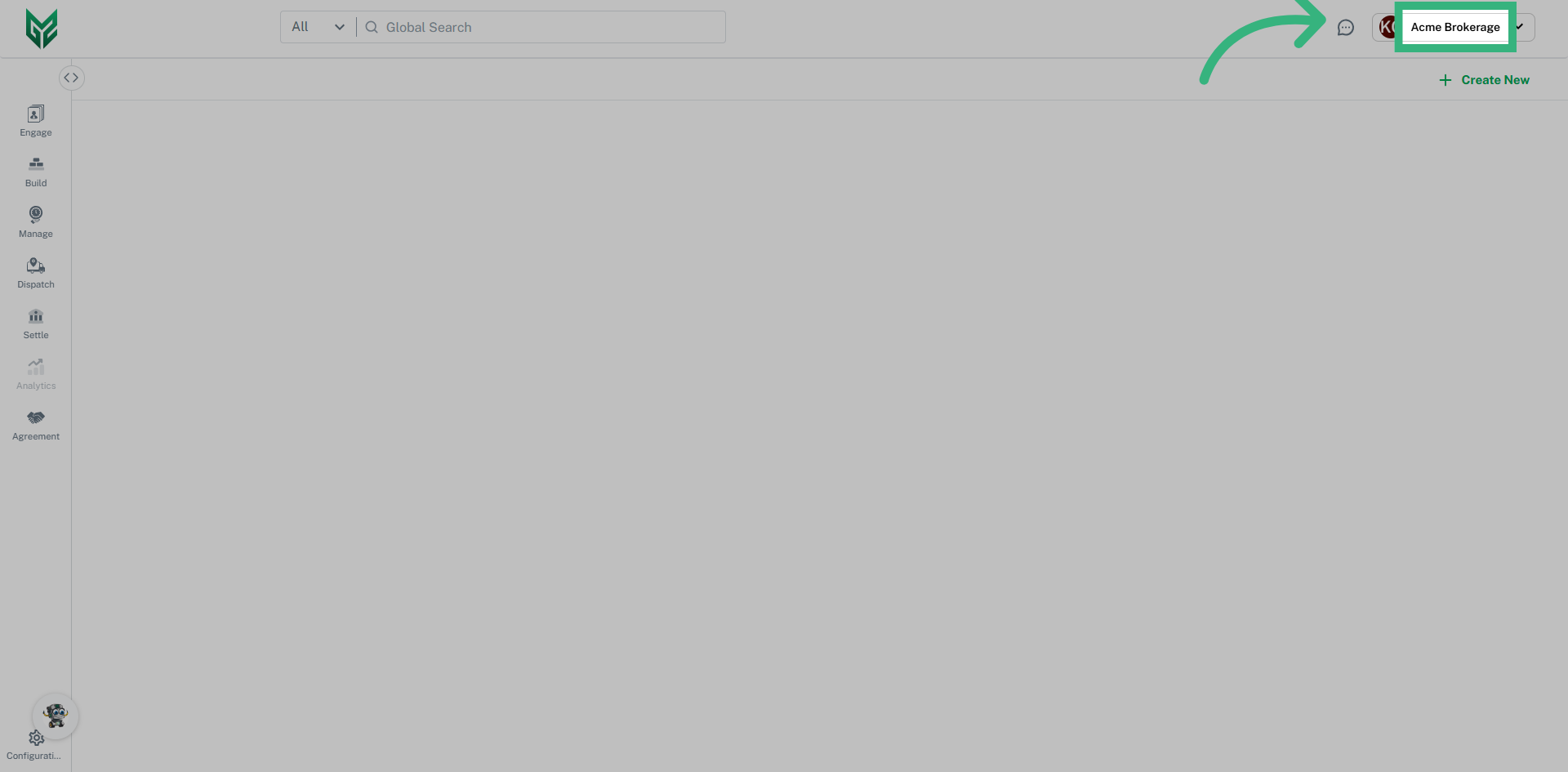
1. Click on your account name

Click on your account name in the top right side of the application.
Click on your account name

2. Click "Plugins"

Navigate to the Plugins section.
Click 'Plugins'

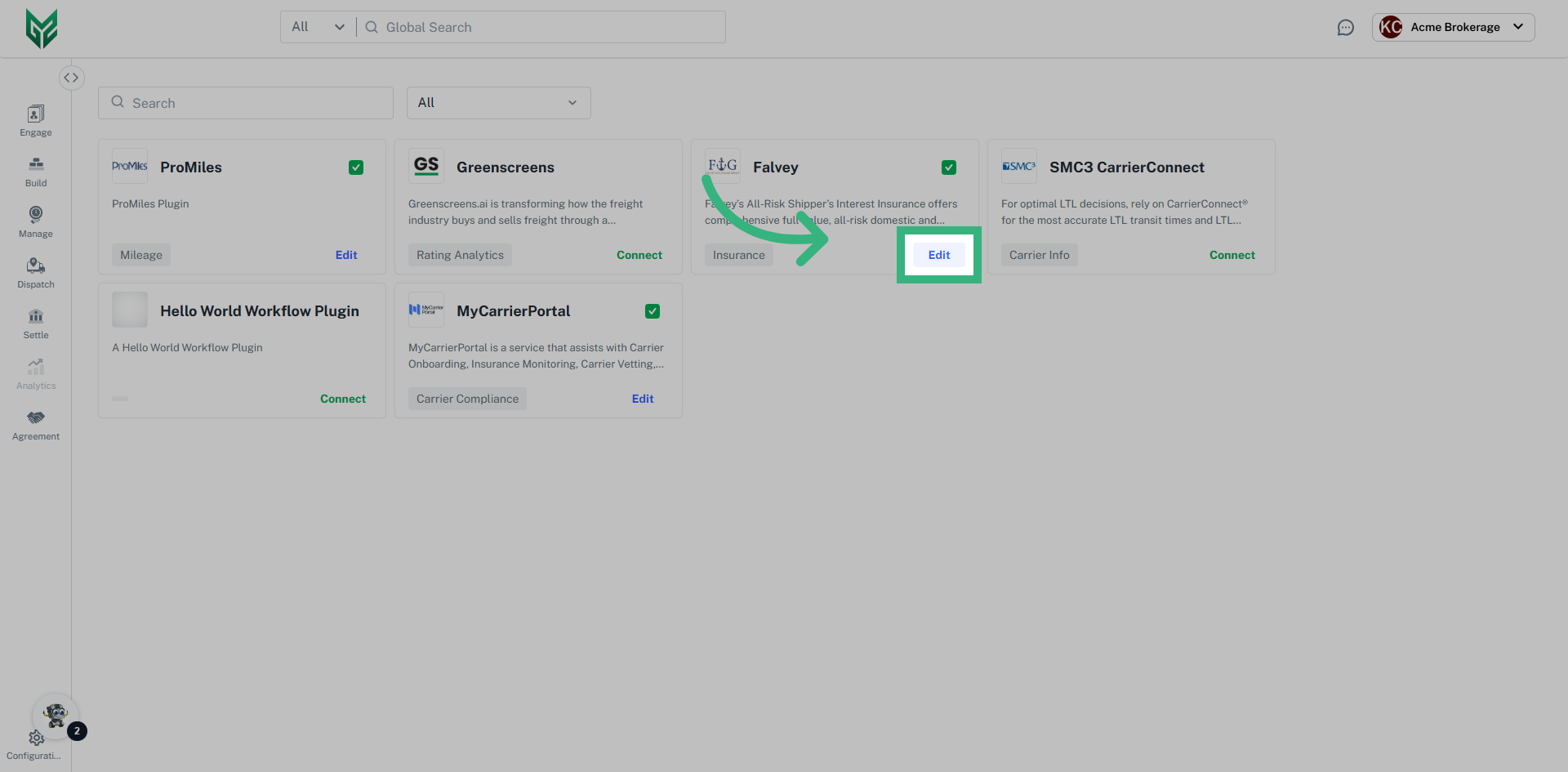
3. Select your plugin

Select the plugin by clicking "Connect" or "Edit" for a previously connected plugin.
Select your plugin

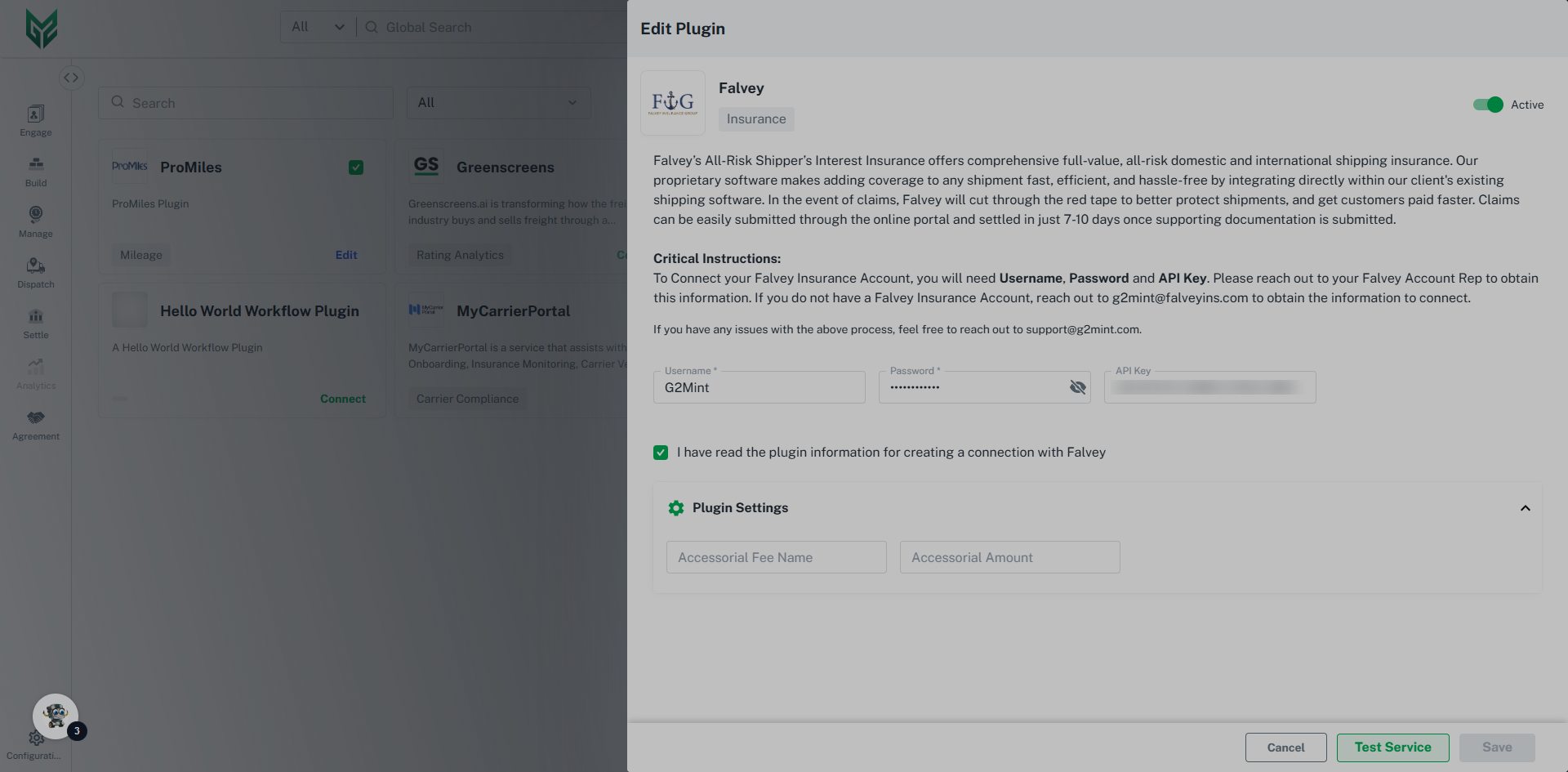
4. Fill in critical information, then click "Test Service"

Fill in critical information, then click "Test Service". Please reference the critical instructions as they will provide the step by step process to obtain credentials for each unique plugin. Be sure to click any required check boxes to confirm you have read the plugin information.
Fill in critical information, then click 'Test Service'

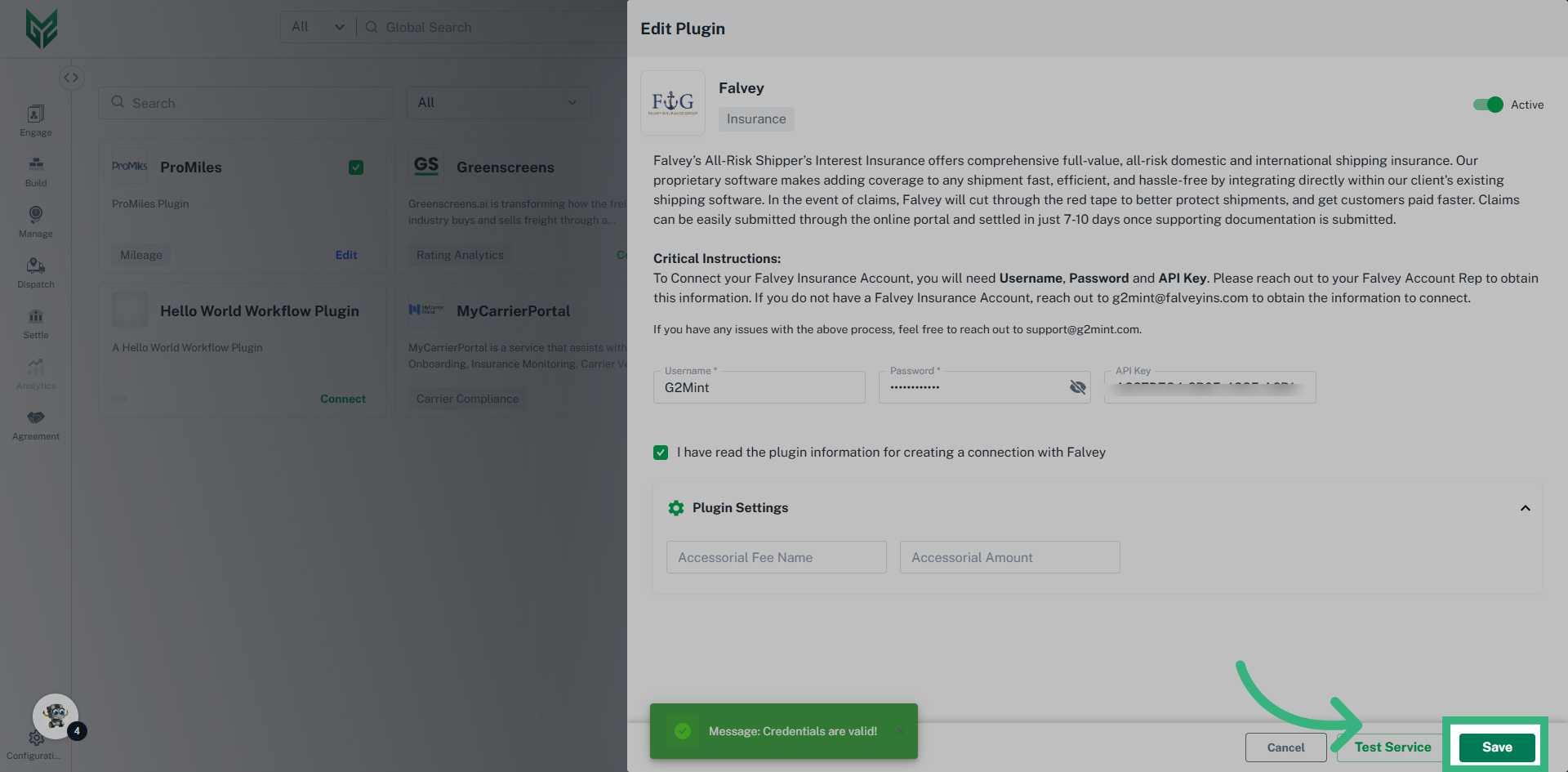
5. Click "Save"

Save your changes. Please note you can activate or deactivate any plugins by utilizing the active toggle in the top right-hand side of the plugin editor.
Click 'Save'