Last Updated: May 6, 2025
Applies to:
Shippers, Brokers, Carriers
Solution Overview:
Schedules can be created for "Hours of Operation" templates, which can be utilized in various system functionalities, such as Locations and Quotes/Shipments. Schedules allow you to attach regular operating hours to a Location (and holiday schedule hours). This helps plan pickups and deliveries to the locations, as times will be displayed on the shipment builder screen and will auto-populate on the BOL.
Schedules Step by Step:
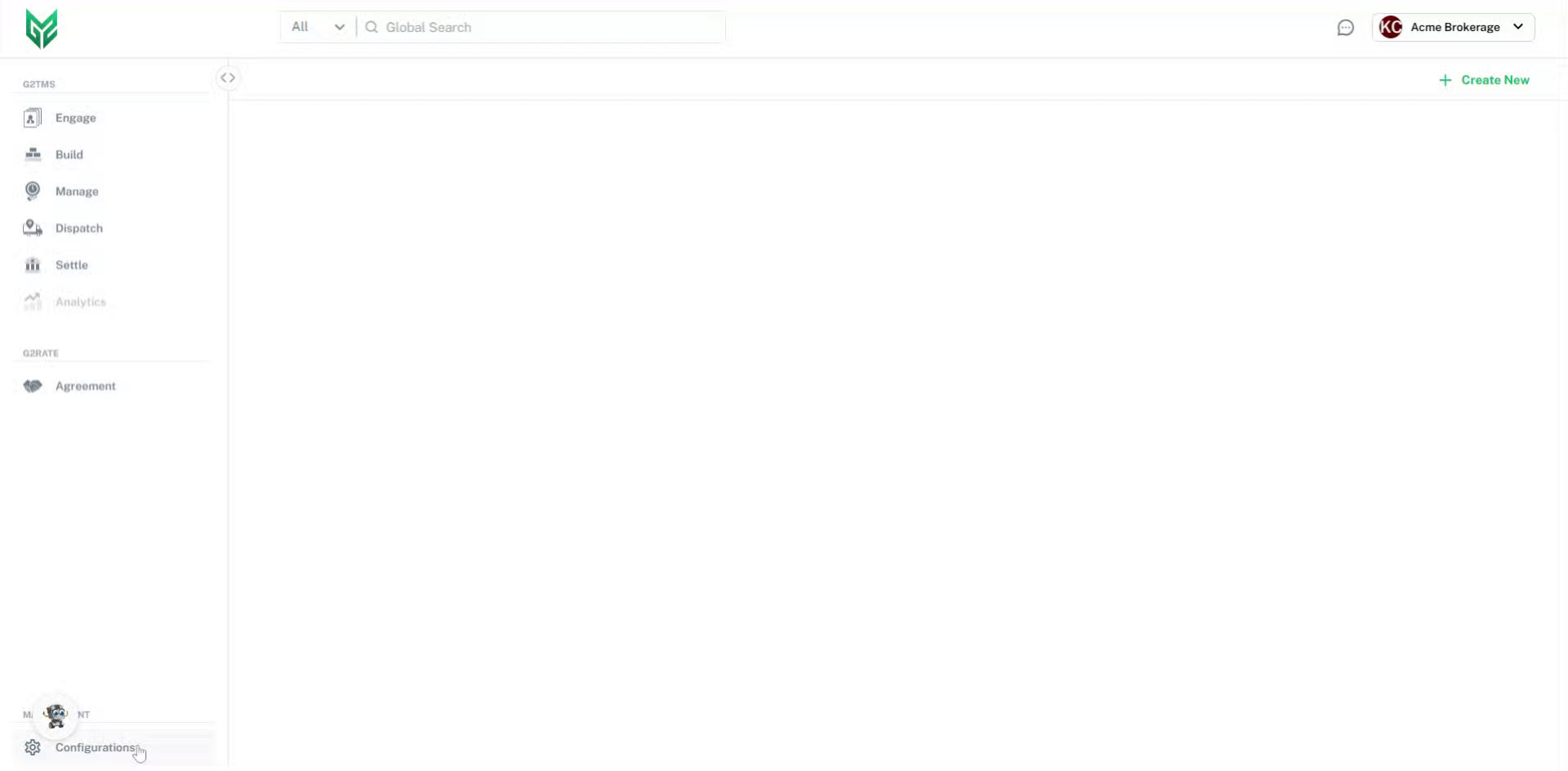
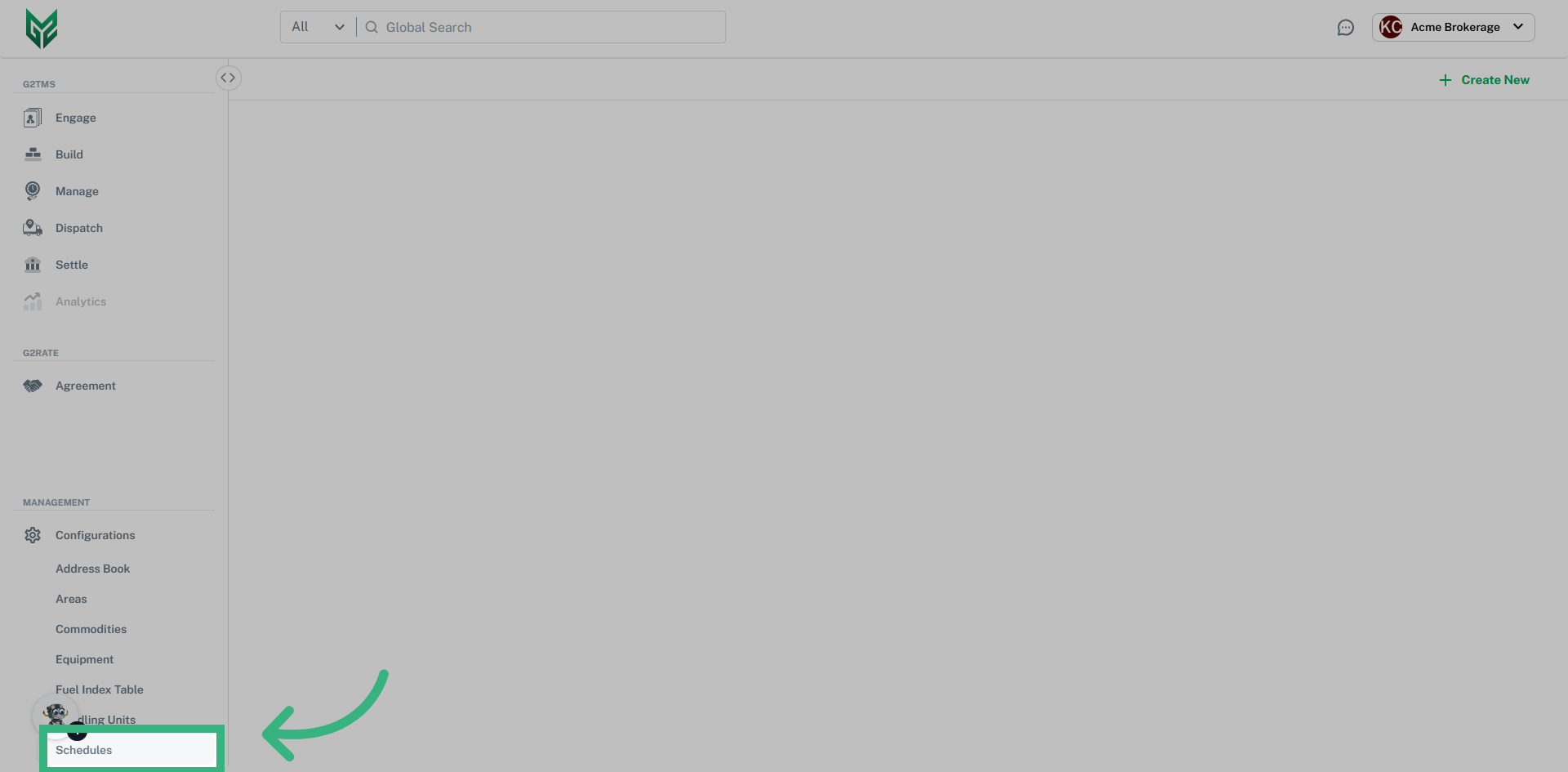
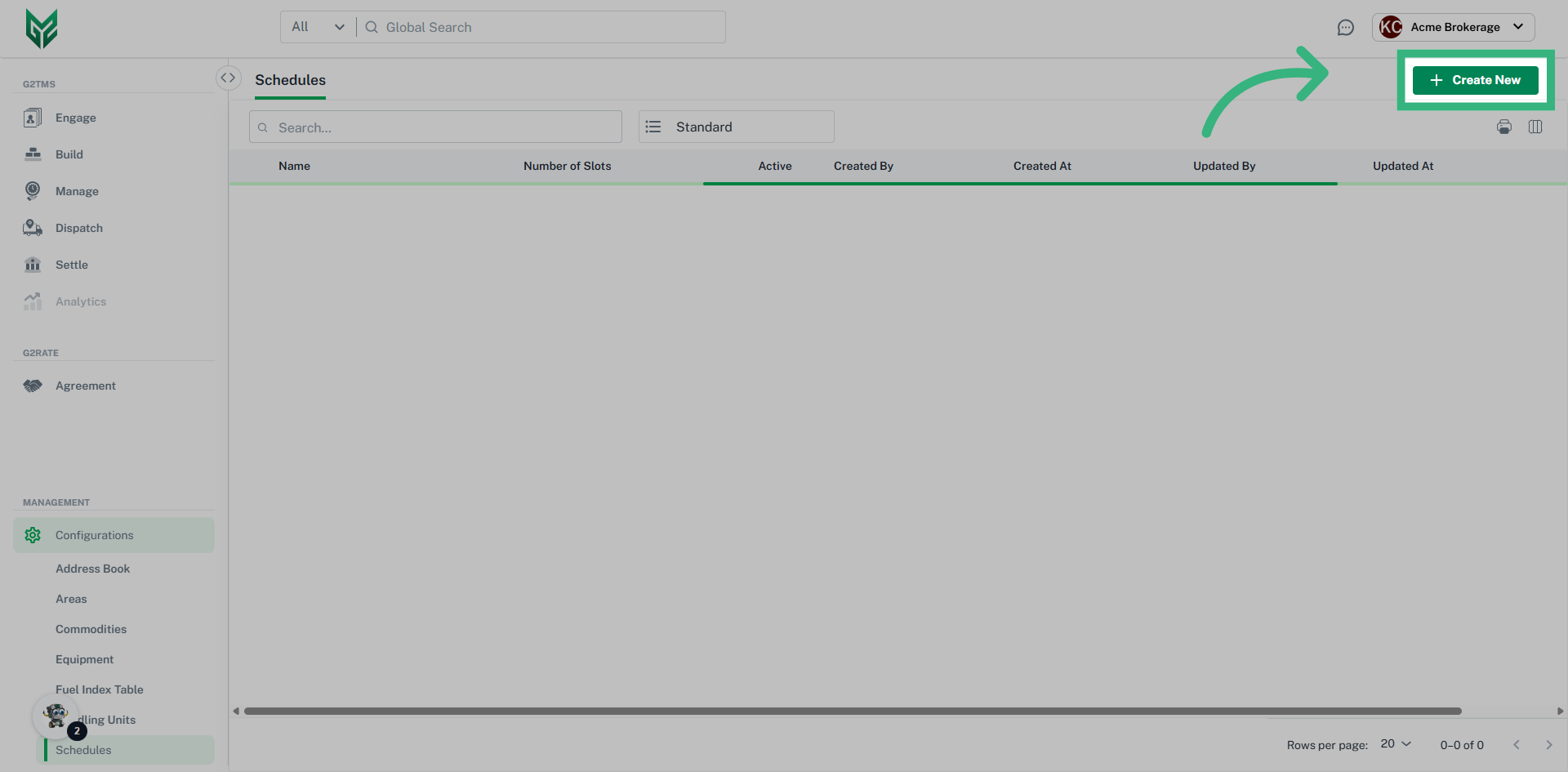
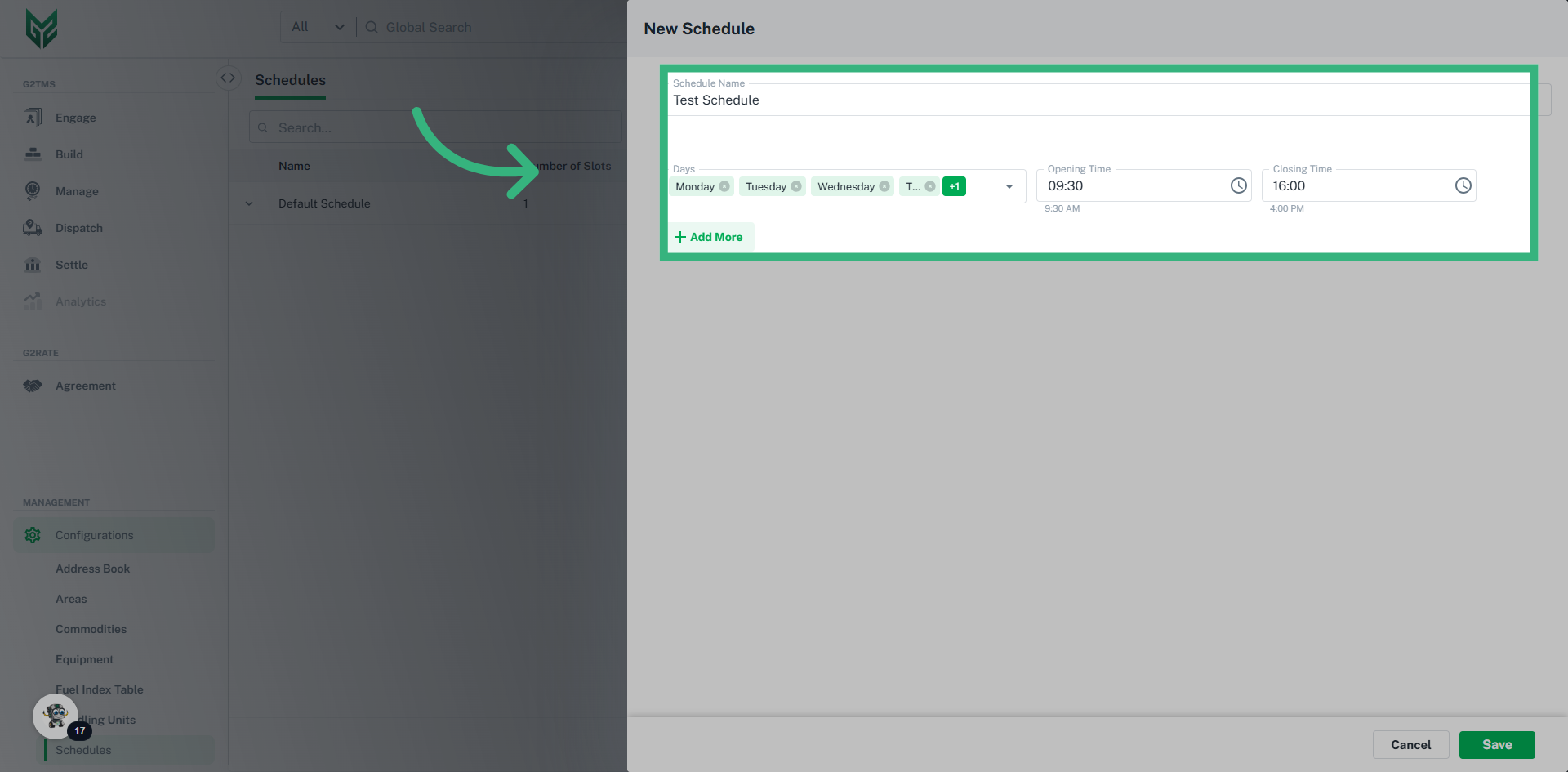
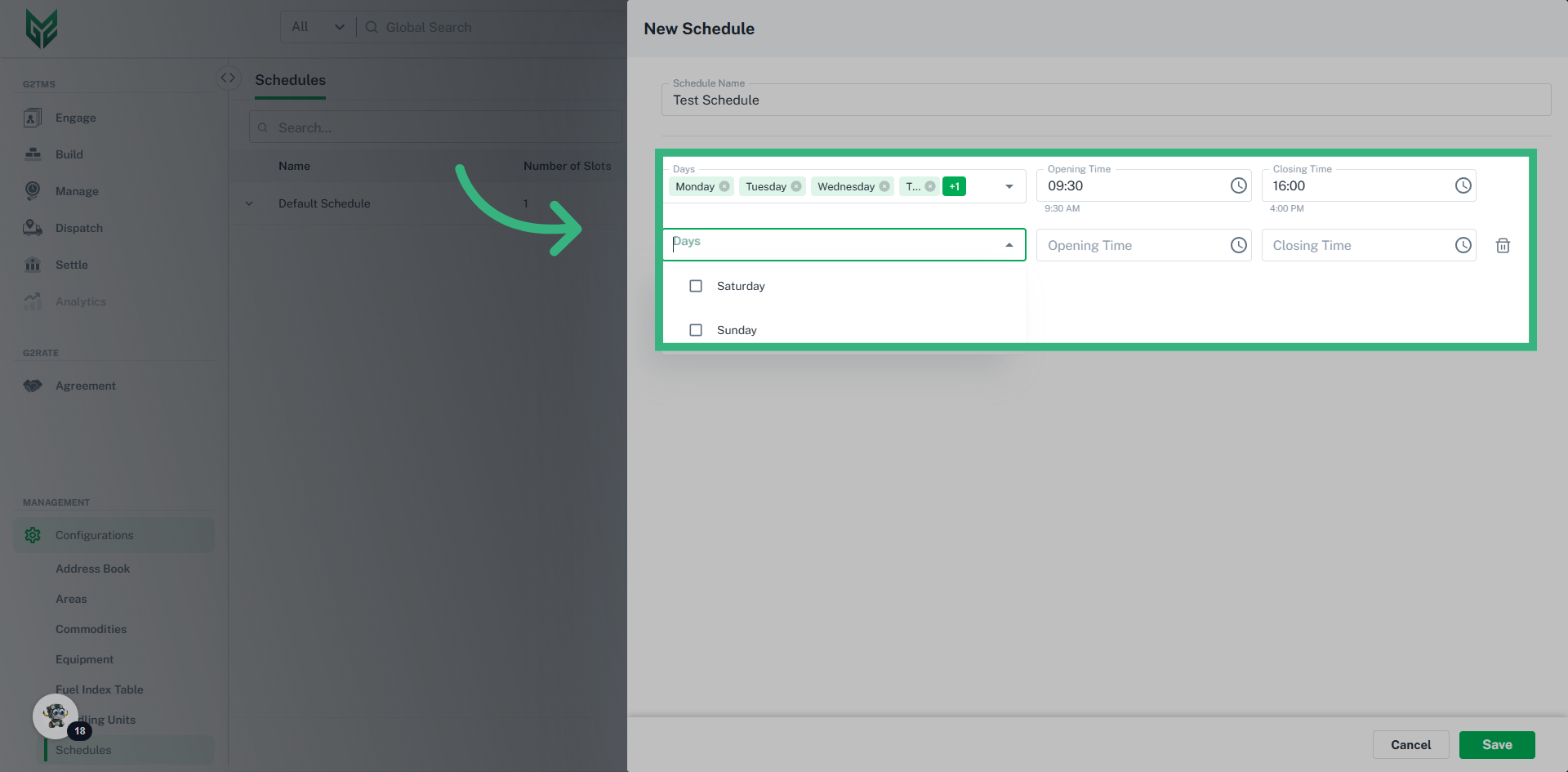
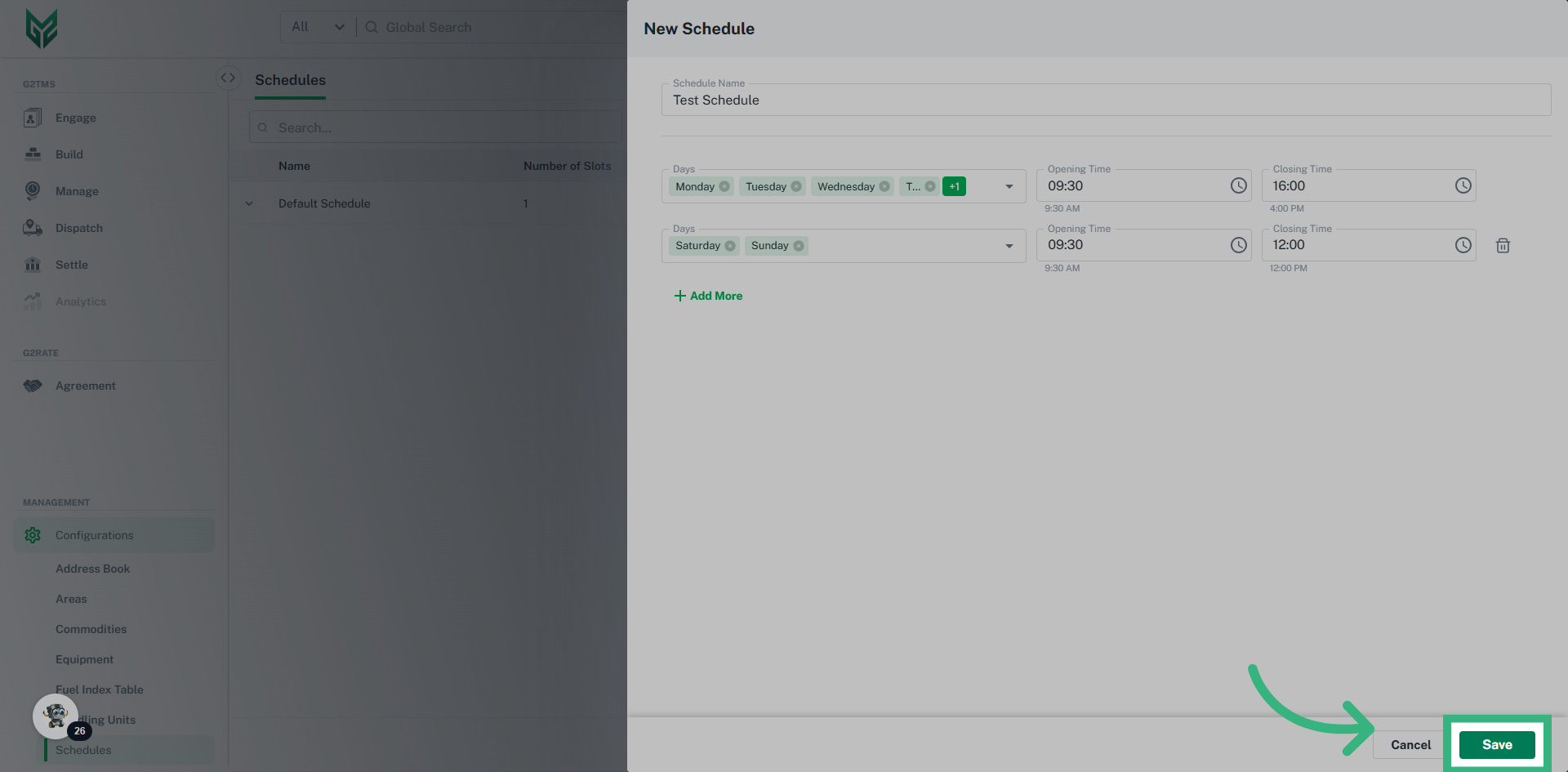
Schedule Information:
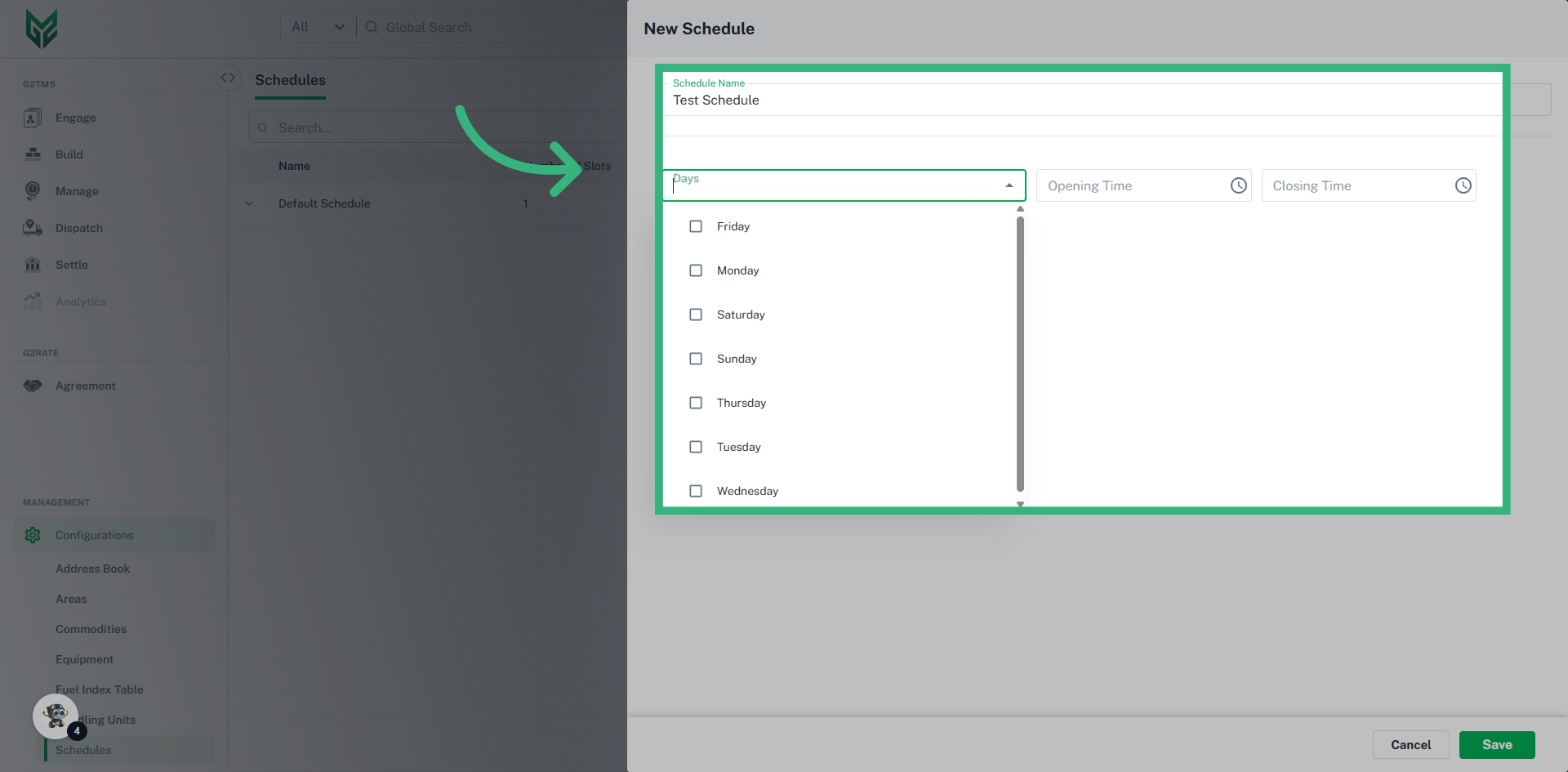
- Assign a specific “Schedule Name” to your newly created schedule
- From "Days" you can assign one of the seven days of the week to that schedule
- You can assign “Opening Time” and “Closing Time” associated with the account
- Using the '+ Add New' option, you can add additional days and times associated with holiday schedules, etc.

- Schedules created in Configurations allow you to notify your customers of your regular operating hours and holiday schedule hours by selecting one in the location sub-tab of an account. This helps customers plan pickups and deliveries to your locations. The times will be displayed on the shipment builder screen and will auto-populate on your BOL (move to top)