Last Updated: October 2025
Applies to:
Brokers
Common Scenario(s)/Challenge (s):
For Brokers looking to generate an invoice for their clients
Solution Overview:
This step by step starts with the key steps needed to ensure the appropriate amount is updated on your charge record before you finalize and generate the client invoice. Once that part is complete you are ready to then follow the additional steps to generate your client invoice.
For Brokers who wait for the carrier bill before invoicing their customers: Prior to generating your client invoice, make sure your expected cost record is marked approved first as a best practice.
Reference this article on approving carrier bills and generating accounts payable records
Step by Step:
How to approve a charge and generate a client invoice?
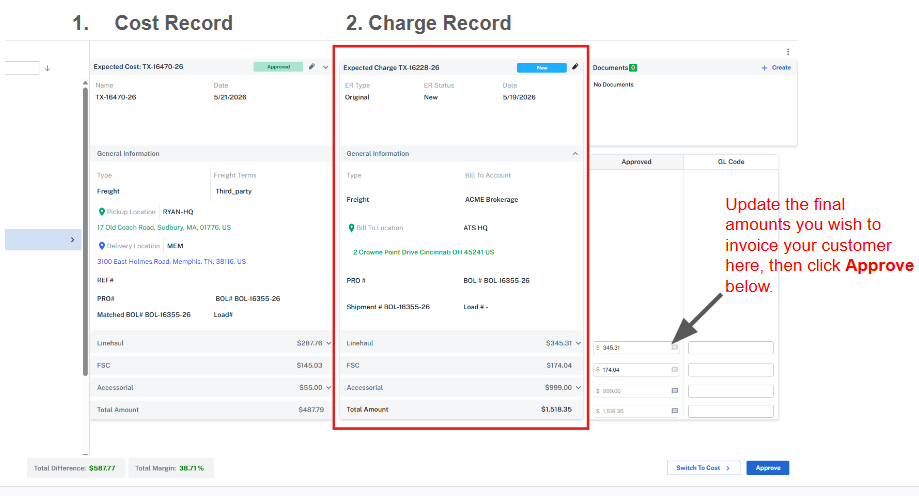
- Go to the Settle>Invoices section to view the Expected Charge grid. All charge records will be in 'New' status. These need to be approved in order to generate a client invoice.
- Click on the Expected Charge record in the grid, you can approve as is by clicking the 'Approve' button, or update the dollar values you wish to invoice then click 'Approve'. If you need to make any other necessary edits, such as adding a note or updating the invoice date click the edit pencil (see step 3), otherwise skip to step 4.
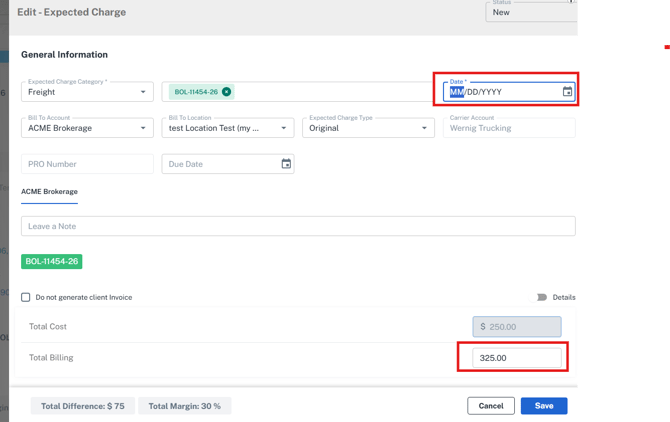
- While in the Edit screen of the Expected charge, update the date field (this will be the Invoice Date) and the total amount you wish to charge (if you wish it to be different than the original amount). Once your edits are done, click Save.
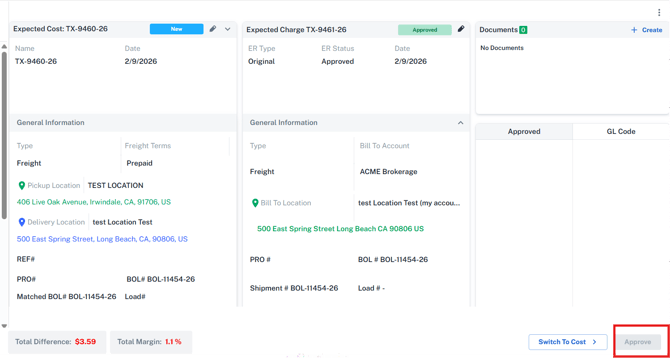
- After clicking the 'Save' button in the edit Charge screen, this will bring you back to the Charge page where you can now click the 'Approve' button to generate the invoice record.
- Next, you can go to the Invoice grid, locate the Invoice you just approved, select the record, and click the print invoice to send off to our client.
- After sending the Invoice to your client, you can click the Invoice record and update the status from Approved to Billed.
- Once the invoice has been paid you can return to the invoice screen and mark the invoice as paid along with any necessary reference information.
Related Articles:
How to update the 'Bill To' contact on my client invoice?
Still Need Help?
If you need further assistance from our support team please email support@g2mint.com