Last Updated: May 12, 2025
Applies to:
Shippers, Brokers, Carriers
Solution Overview:
The Manage Shipments feature allows users to access comprehensive details about an existing shipment. This includes information on related orders, quotes, tracking updates, financial records, relevant documents, and the shipment's complete history. Additionally, users have the ability to tender the shipment to a carrier, convert it into a load, or assign an exception as needed.
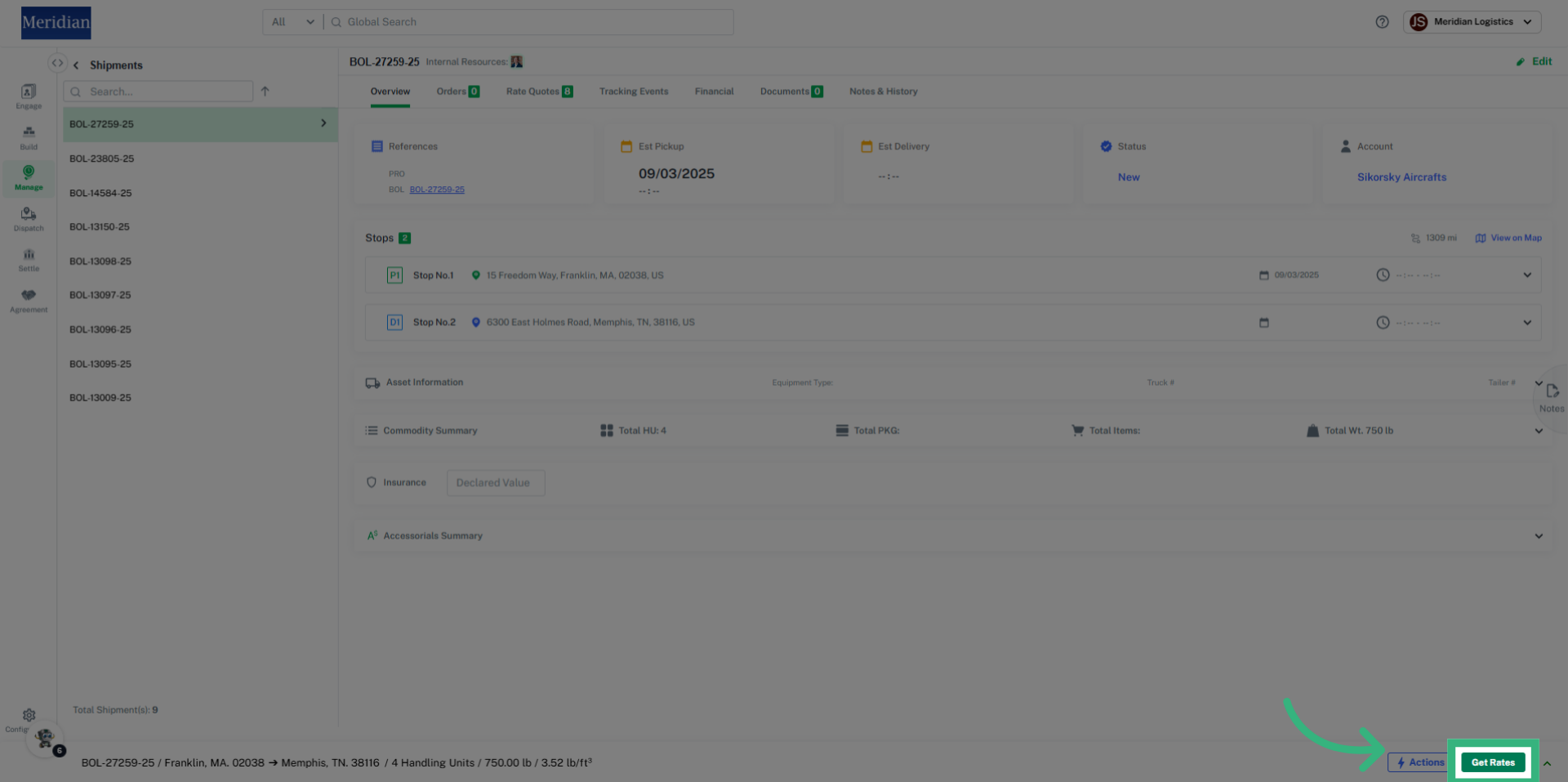
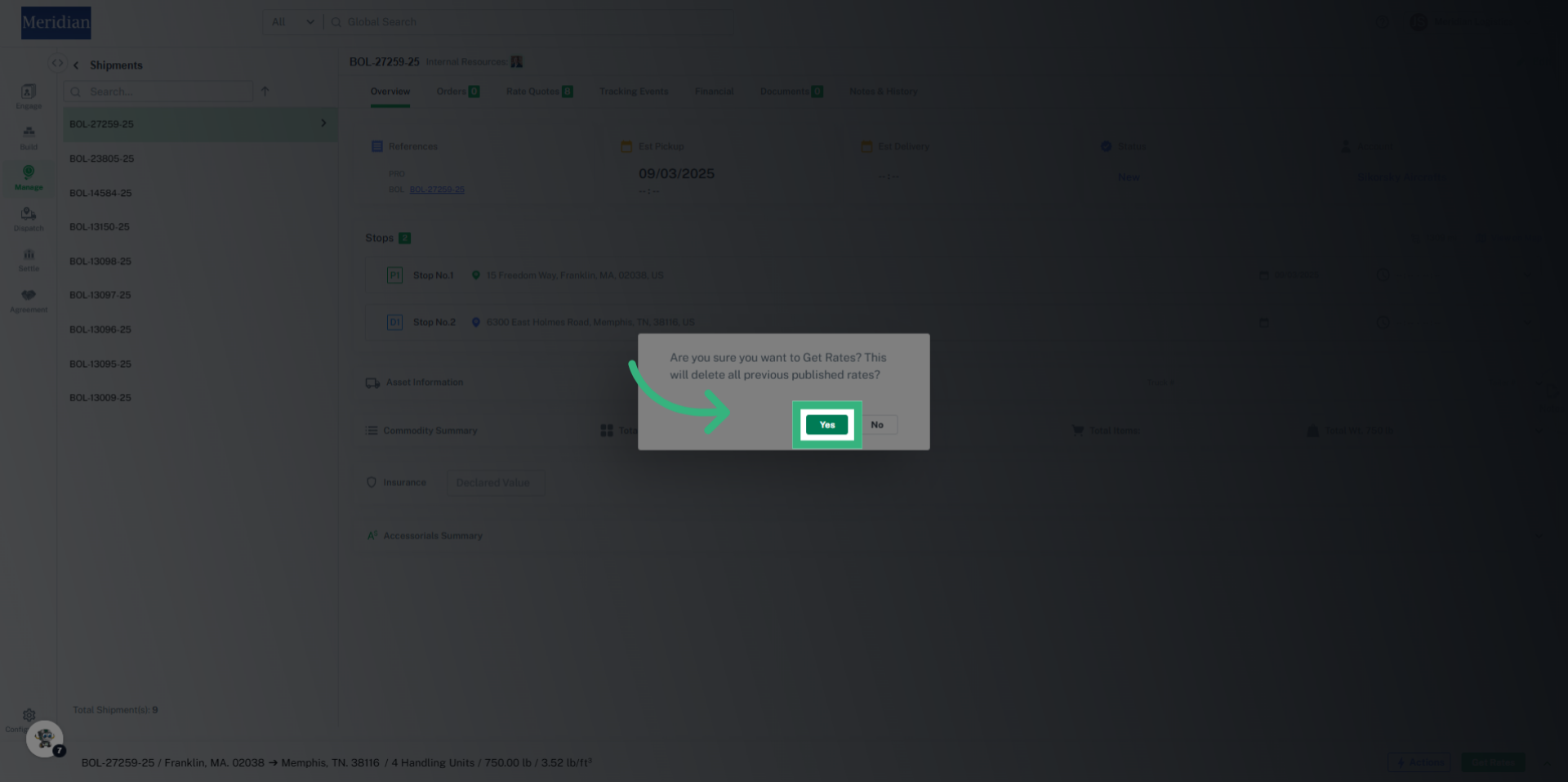
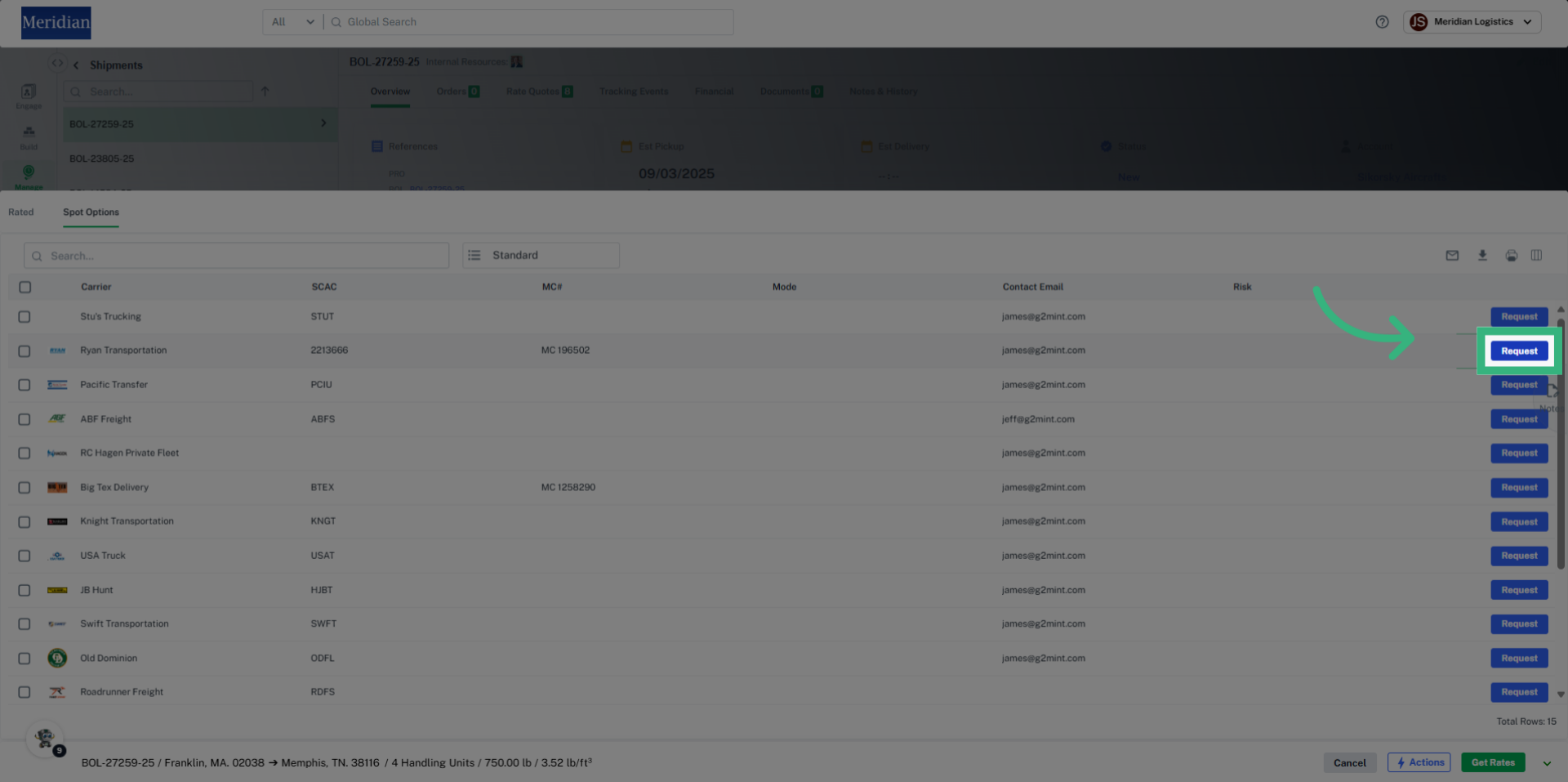
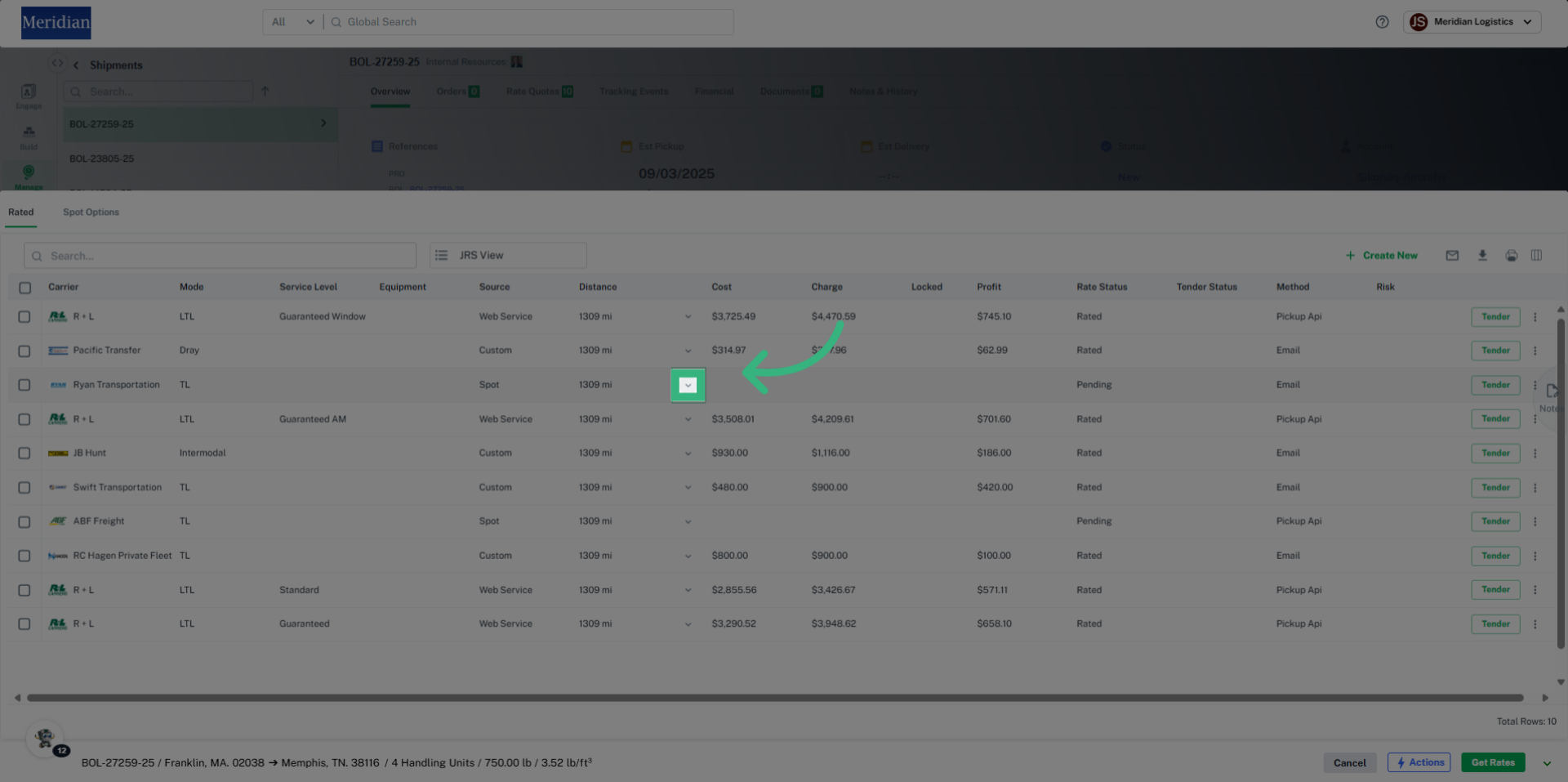
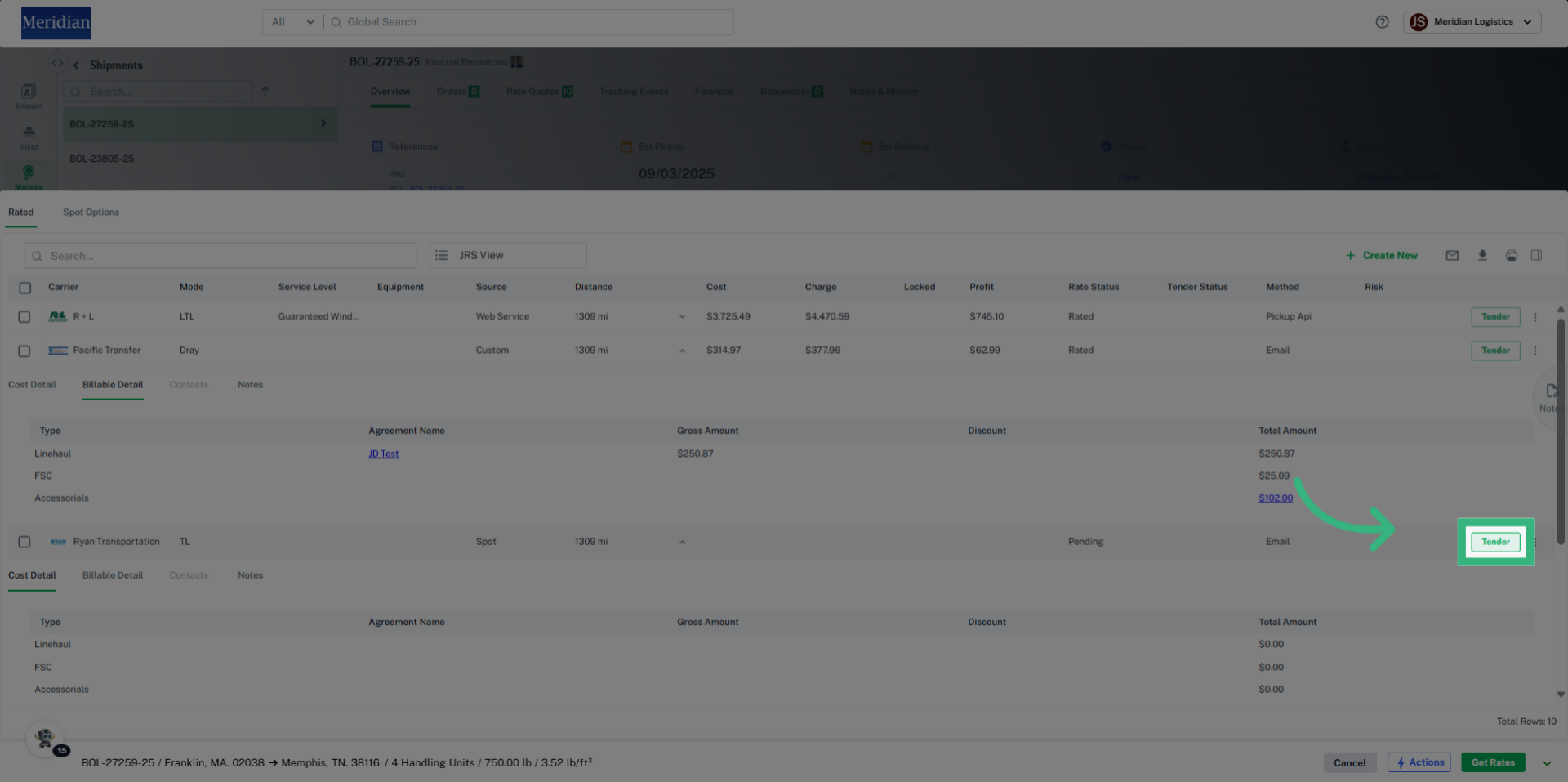
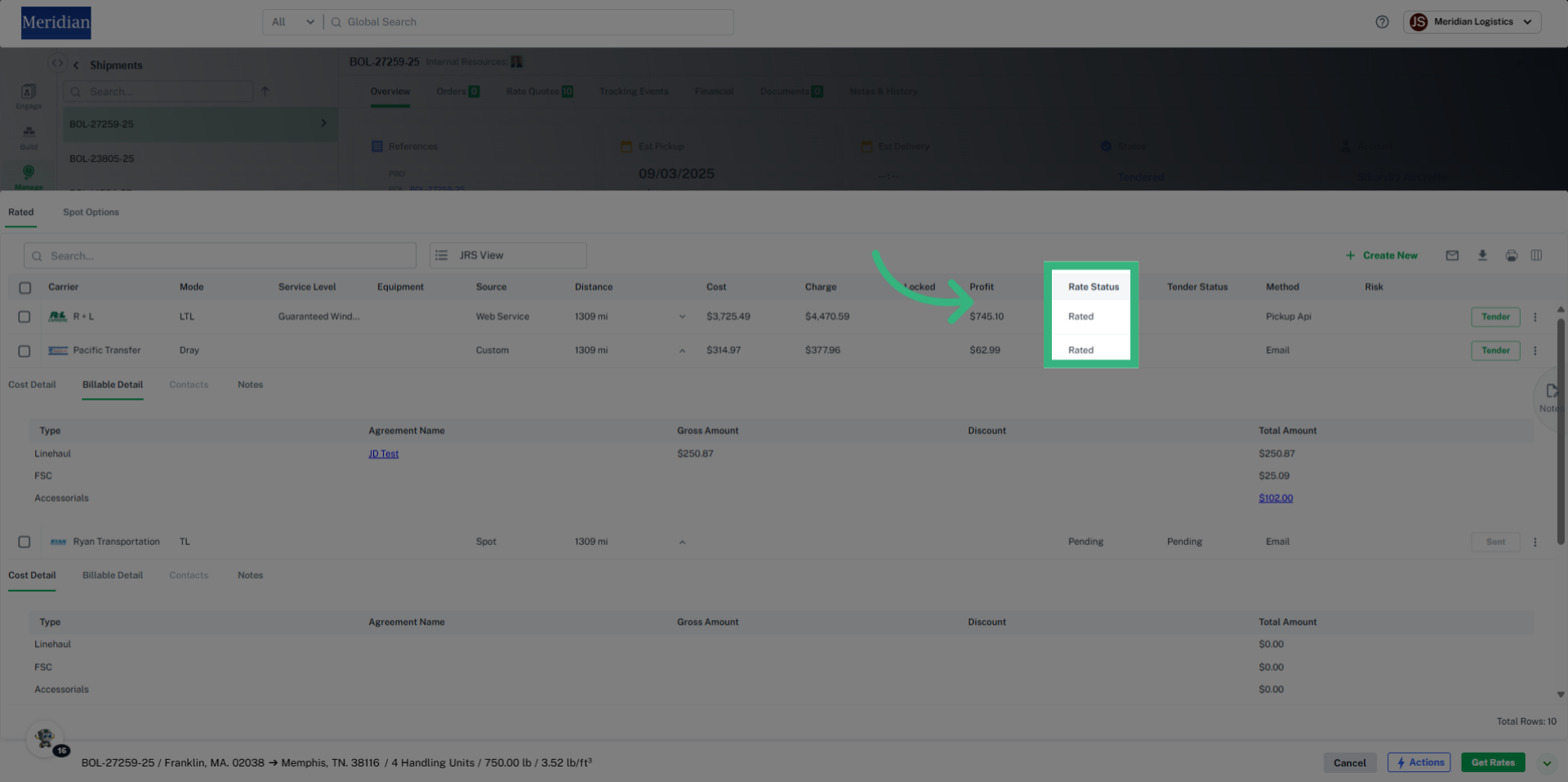
Manage Shipments: Rate Quotes provides a view of all saved Rates associated. If Edits are made, select "Get Rates" to update Rates. Additionally, you can view Rate Details, Assign a Rate, Tender, Request a Spot, access a Rate Document, search for nearby Capacity Match and create a custom rate (from a verbal or known lane).

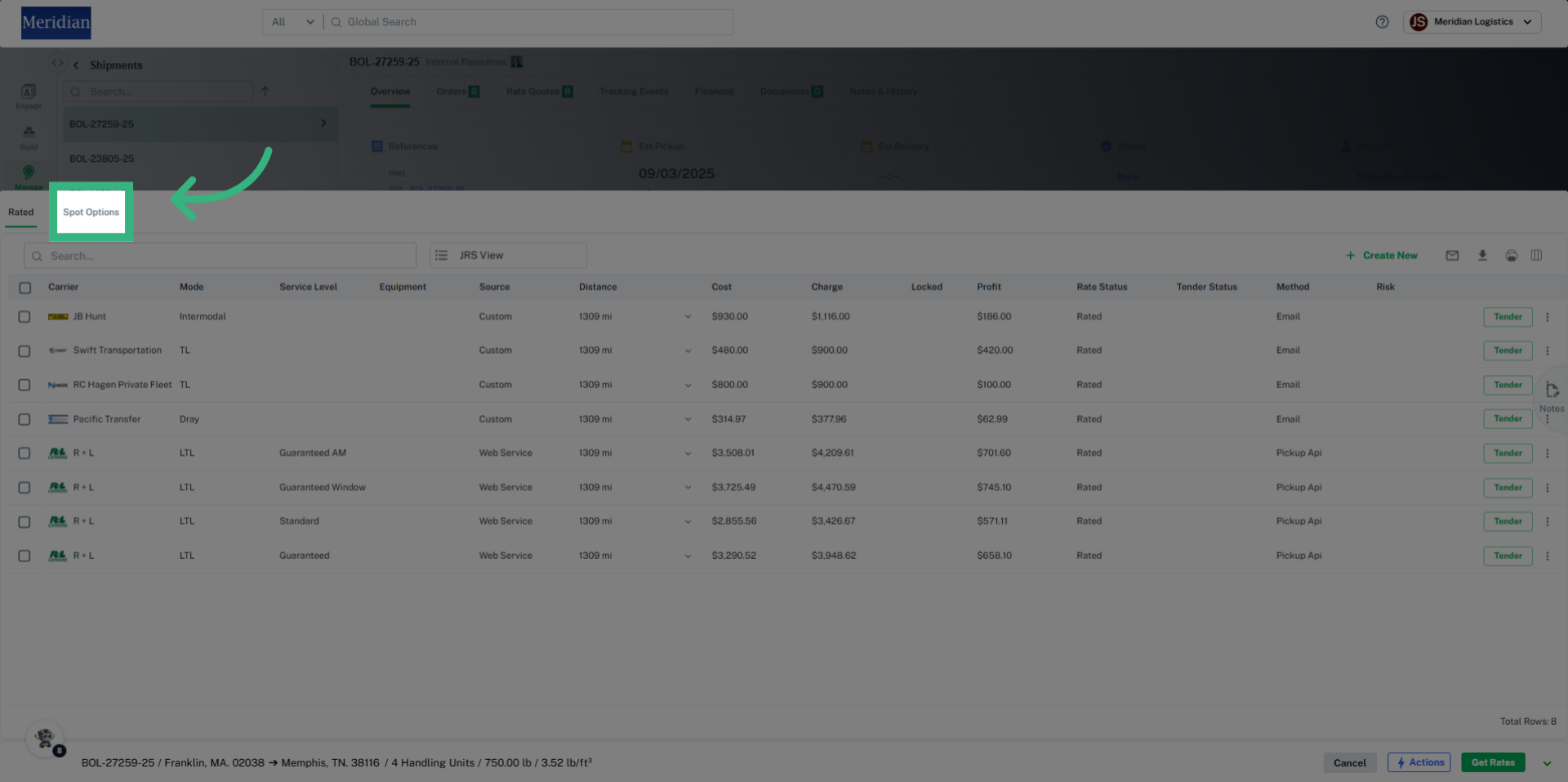
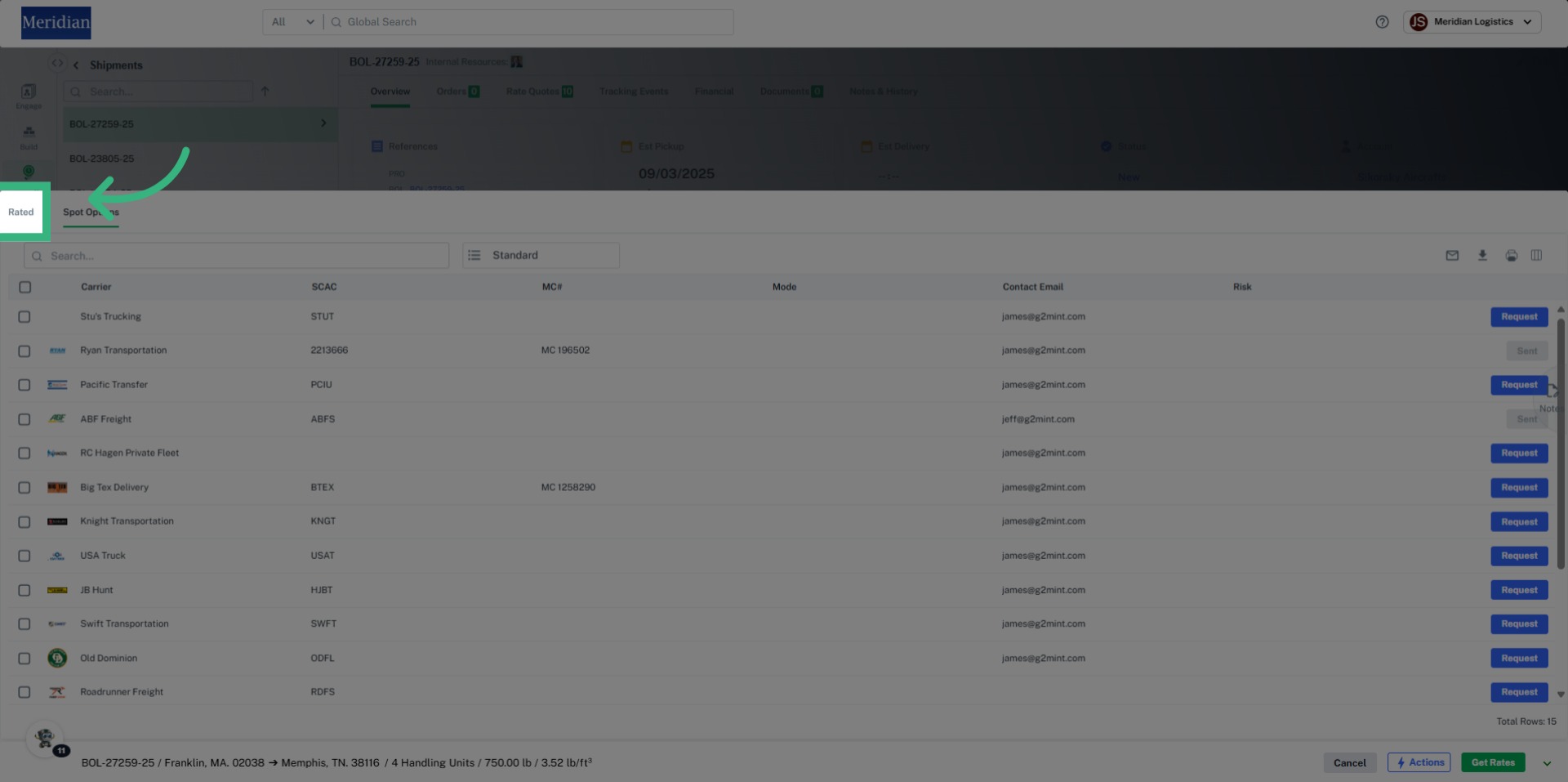
- The Rated tab provides a full view of the Rates that have been associated to the Shipment. The view will differ dependent upon status. Select Get Rates in bottom right corner to update rates.
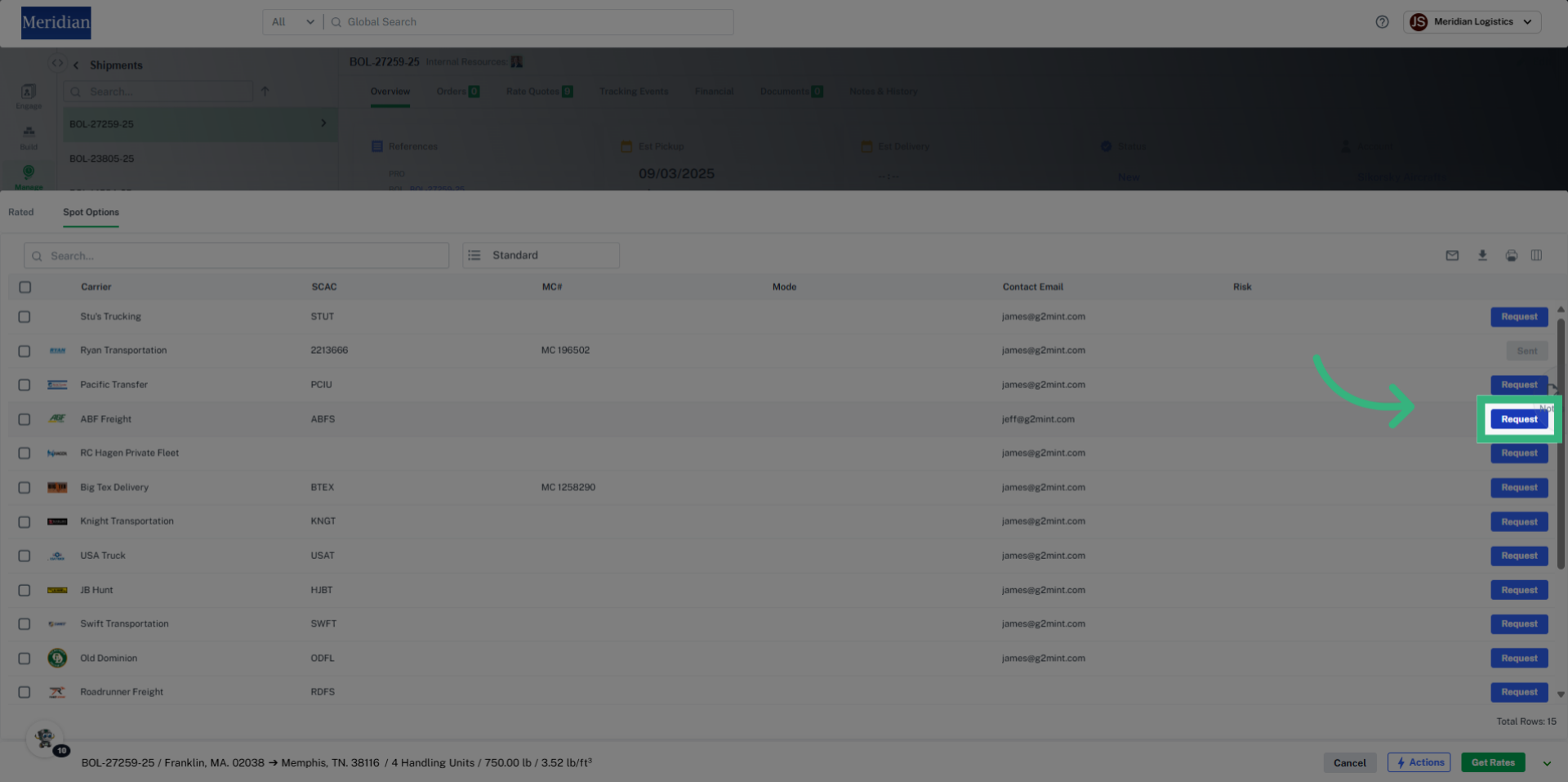
- Spot Options tab offers a list of Carriers who are eligible to bid on this Shipment. Select Request to allow the Carrier to bid.
- Nearby Capacity Match can be linked to a plug-in account
- + Create New is designed to accommodate a custom Rate, whether it is assigned to a specific Carrier or not. For example, if a Broker quotes a Shipper $2500 for a truckload, and plans on finding a Carrier after acceptance, that would be entered here.
- Assign or Edit a Rate through the ellipsis (three dots on the right-hand side of the Rate Drawer). Assigning a Rate will update the status to Assigned but is not the same as Tendering.
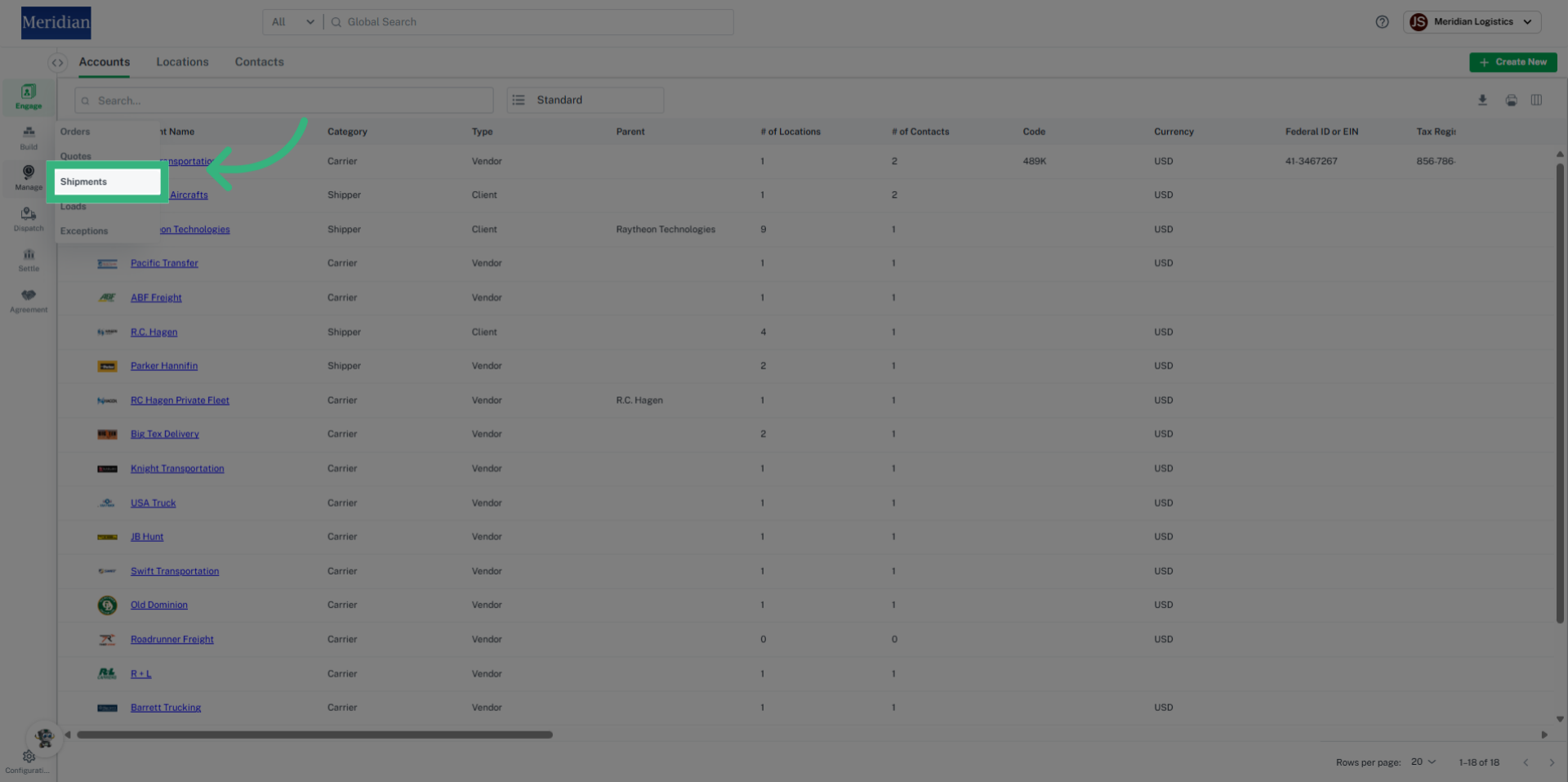
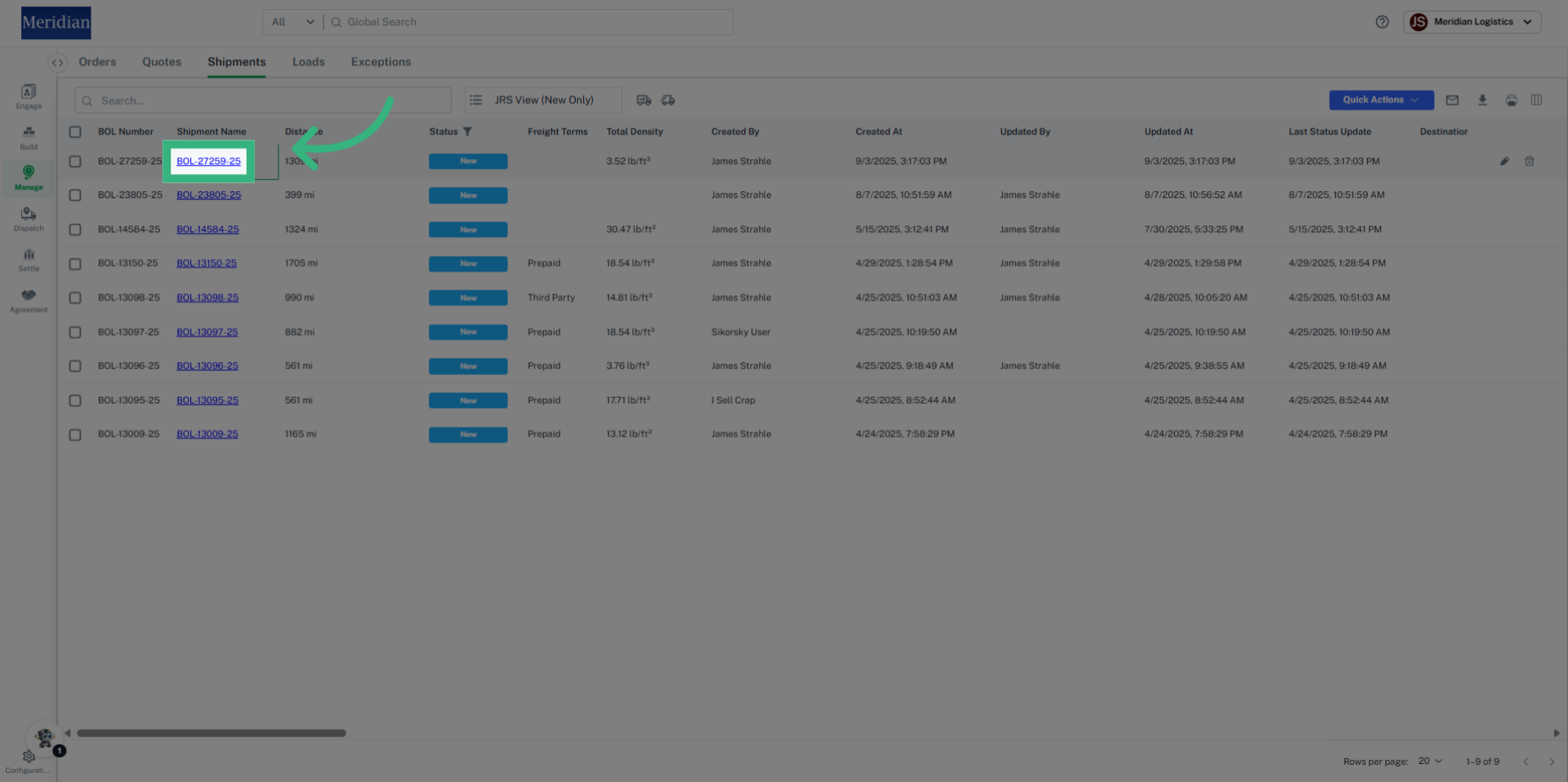
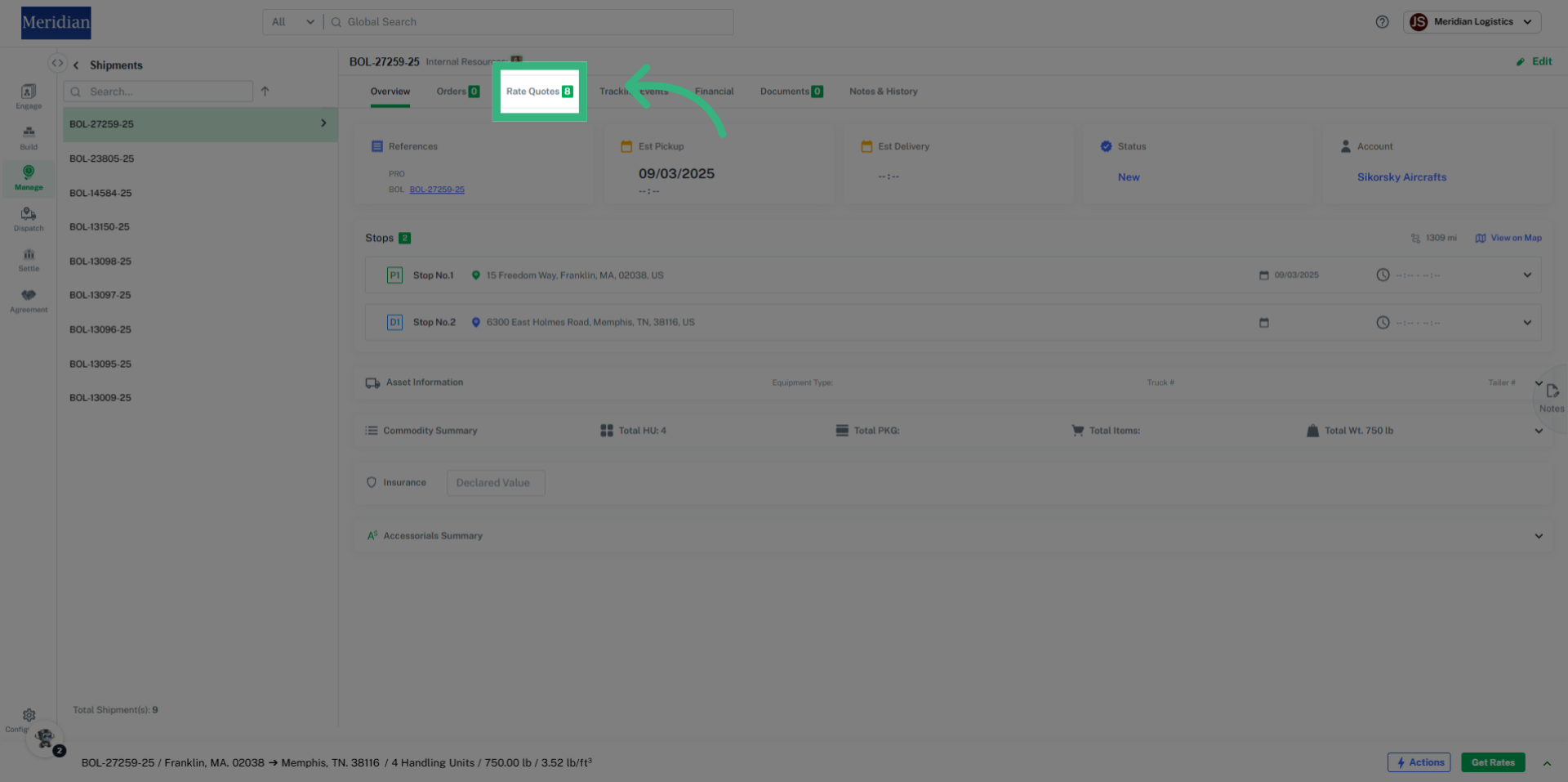
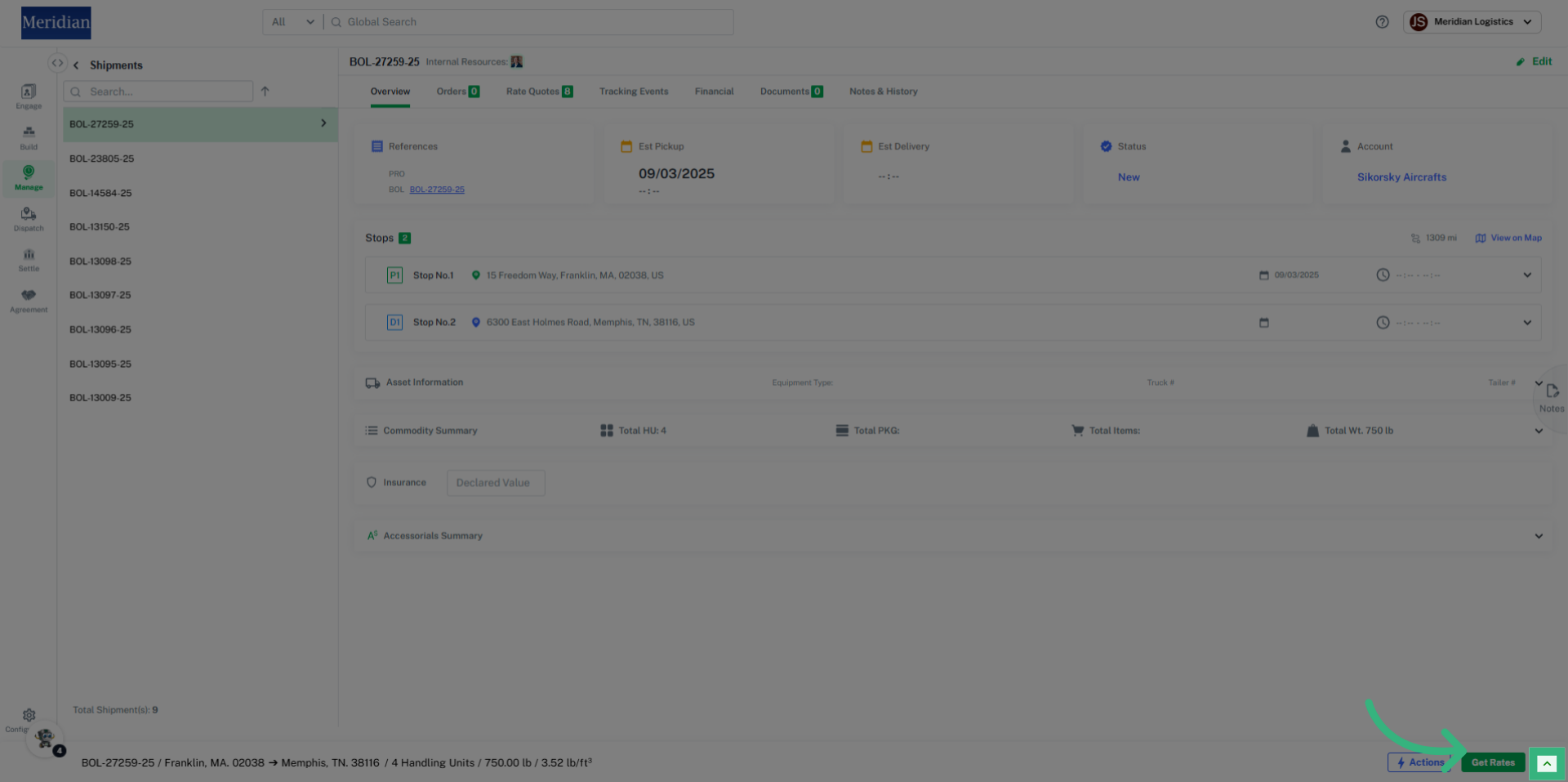
View Shipment Details
- Select Manage from left Nav Bar
- Select Shipment from dropdown
- Select Shipment Name hyperlink
- Select tabs across top of screen to view desired information
Edit a Shipment
- Select Manage from left Nav Bar
- Select Shipment from dropdown
- Select Edit icon from the grid
- Make necessary edits
- Select Get Rates to view updated Rates
Convert an existing Shipment into a Load
- Select Manage from left Nav Bar
- Select Shipment from dropdown
- Select Edit icon from the grid
- Select Build Load