Last Updated: Jan 2026
Applies to:
Shippers, Brokers
Common Scenario(s)/Challenge (s):
Carrier bill integrations streamline how you audit and pay your carriers. When you configure your carriers to send invoices directly to G2Mint, manual data entry is removed from the process, reducing errors and further optimizing your carrier audit and bill pay workflow.
Solution Overview:
When a shipment is created, an expected cost record is automatically created. Bills submitted through an integration are found in the Bills tab and the system tries to match the bills to these expected cost records. If a bill is matched, it is reviewed for any variances, then audited and approved, creating a payable record. If there are issues or multiple possible matches, user intervention may be needed to select the proper match or review discrepancies. Once approved, payables are tracked and remitted through the payment process.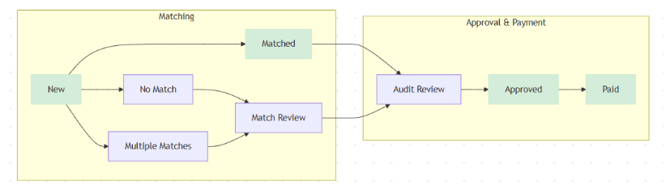
Carrier bills received via EDI in G2Mint automatically attempt to match to expected cost records using the BOL number (Bill of Lading) and Pro Number.
Under Default settings, you can set an audit threshold amount by Mode and carrier. This tells the system to automatically approve your payables if the carrier bill is within the set threshold.

How it works?
When a carrier bill is received via the integration (whether it be EDI, API, or another method), the G2Mint application will perform the following actions:-
Attempt to match the bill to an associated shipment or load in G2Mint.
-
If a match is found, the bill status moves to 'Match' status and the system will perform an Audit Review by comparing the amounts on the bill to the Expected Cost (the carrier quote originally booked).
-
If the total amounts match, the bill status updates from Matched status to Audit Complete. This enables G2Mint users to quickly see which of their expected cost records can be marked approved because the associated matched bill aligns with the total costs.
-
If the total amounts do not match, the bill status updates from Matched status to Audit Review. Signaling these bills need to be manually reviewed and approved.
-
- If No match is found, then the Bill status will update to Match Review or Multiple Matches, signaling manual intervention is required.
How to use (Step by Step of your feature here)
-
Initial Set up:
- (Optional)Set up your desired Audit Threshold: This is optional, currently a threshold of at least $.01 must be set if you want your matched bills to automatically approve your expected cost records and create a payable. Thresholds can be set by mode or carrier, they can be a % or fixed dollar amount.
-
To set up a threshold, go to Default settings located under your profile name in the top right of the screen.
-
- (Optional)Set up your desired Audit Threshold: This is optional, currently a threshold of at least $.01 must be set if you want your matched bills to automatically approve your expected cost records and create a payable. Thresholds can be set by mode or carrier, they can be a % or fixed dollar amount.
Below are the different bill types and how they work:
G2Mint includes built-in logic to correctly identify and process Corrected Invoices and Supplemental Invoices, without treating them as duplicates. This is important because carriers often send multiple bills with the same PRO number but different amounts.
Corrected Invoice: The PRO and BOL numbers match a previous bill, but one or more amounts are different. A past due invoice might end up getting flagged as corrected in this scenario.
Duplicate Bills: A bill is only considered a duplicate if it matches the same TYPE and TOTAL AMOUNT as a previous bill. These bills can still be matched to an Expected Cost, and the bill type is displayed with a “duplicate” status accordingly.
If a carrier indicates a Corrected Invoice or Supplemental Invoice type in the EDI 210 transmission or enters it manually, G2Mint will display the correct “TYPE” on the Bill record.
Duplicate Bills can still be matched to an Expected Cost.
Note: It is important to pay attention to the reasons your bills are not automatically finding a match as these usually indicate process gaps or breakdowns.