Last Updated: April 22, 2025
Applies to:
Shippers, Brokers, Carriers, and Partners
Common Scenario(s)/Challenge (s):
Build your company profile. Provide information about your company that will save time by removing manual entry.
Solution Overview:
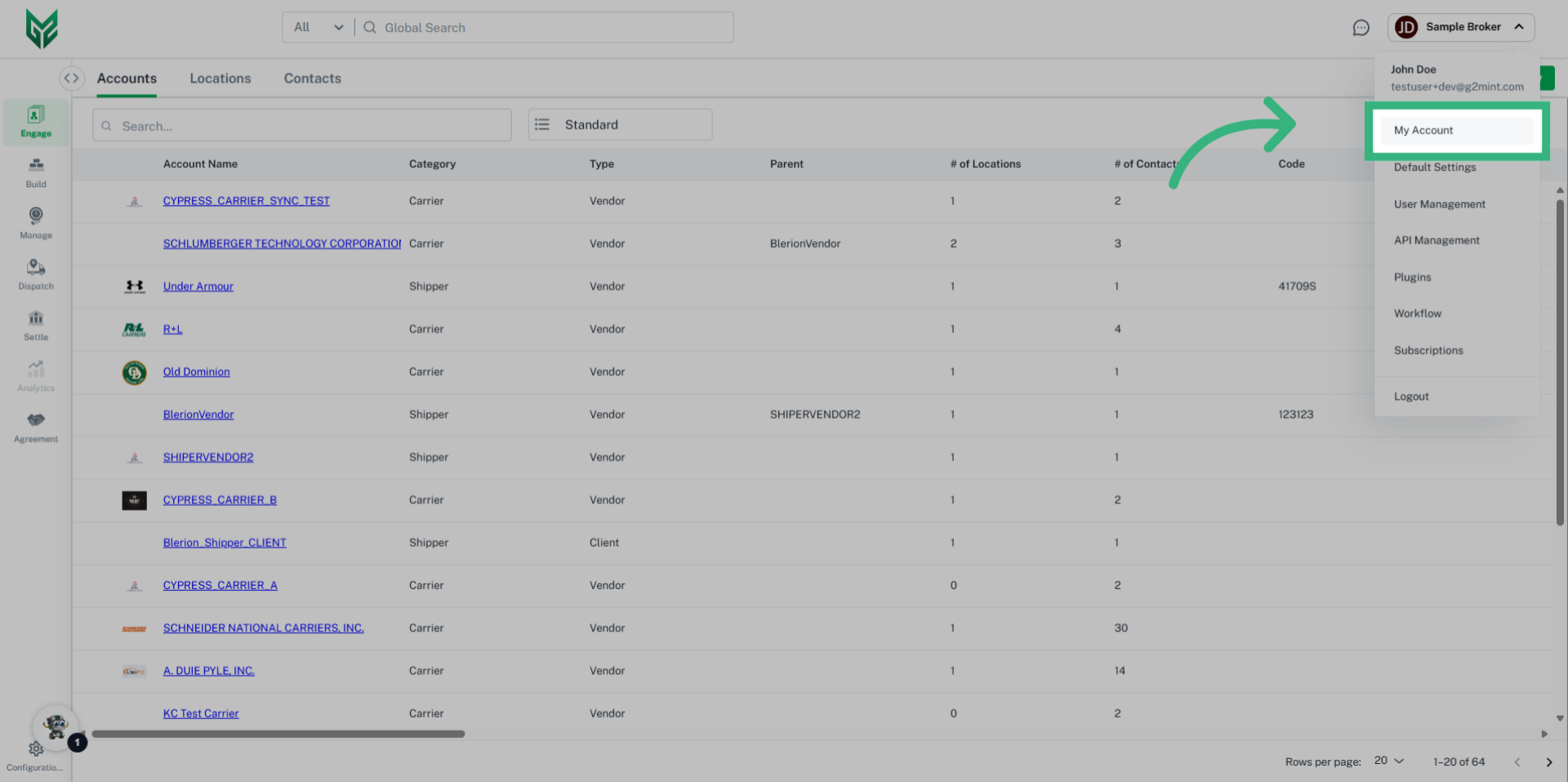
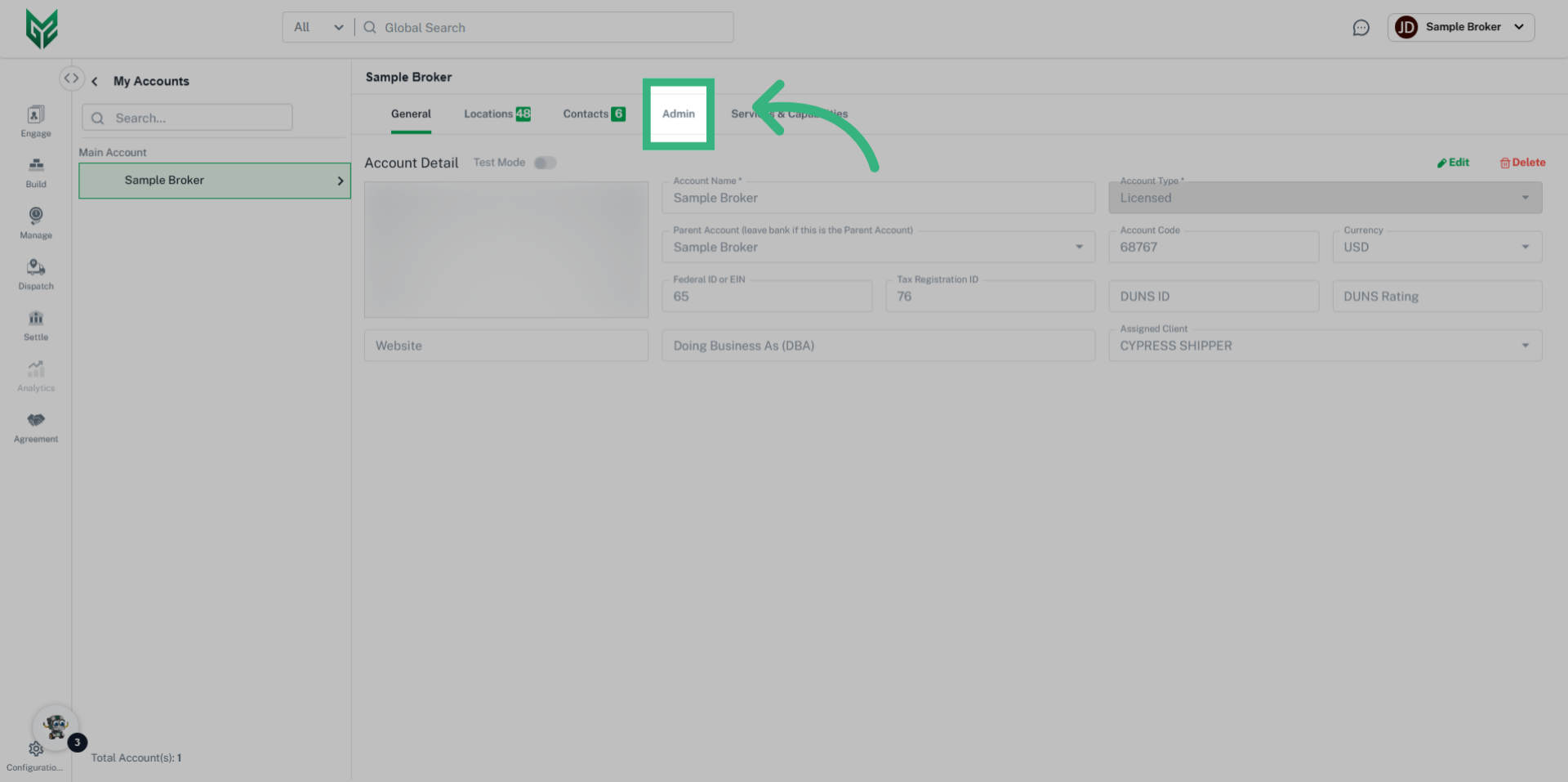
Admin in My Account allows licensed users of all personas to manage, identify, and select alternate payments or invoicing (3rd party payment solutions). In addition, if your primary Account license is a Carrier the Admin section of My Account is where you enter your Safety & Compliance information (Assessment Source and Score), as well as insurance information, including coverage limit.
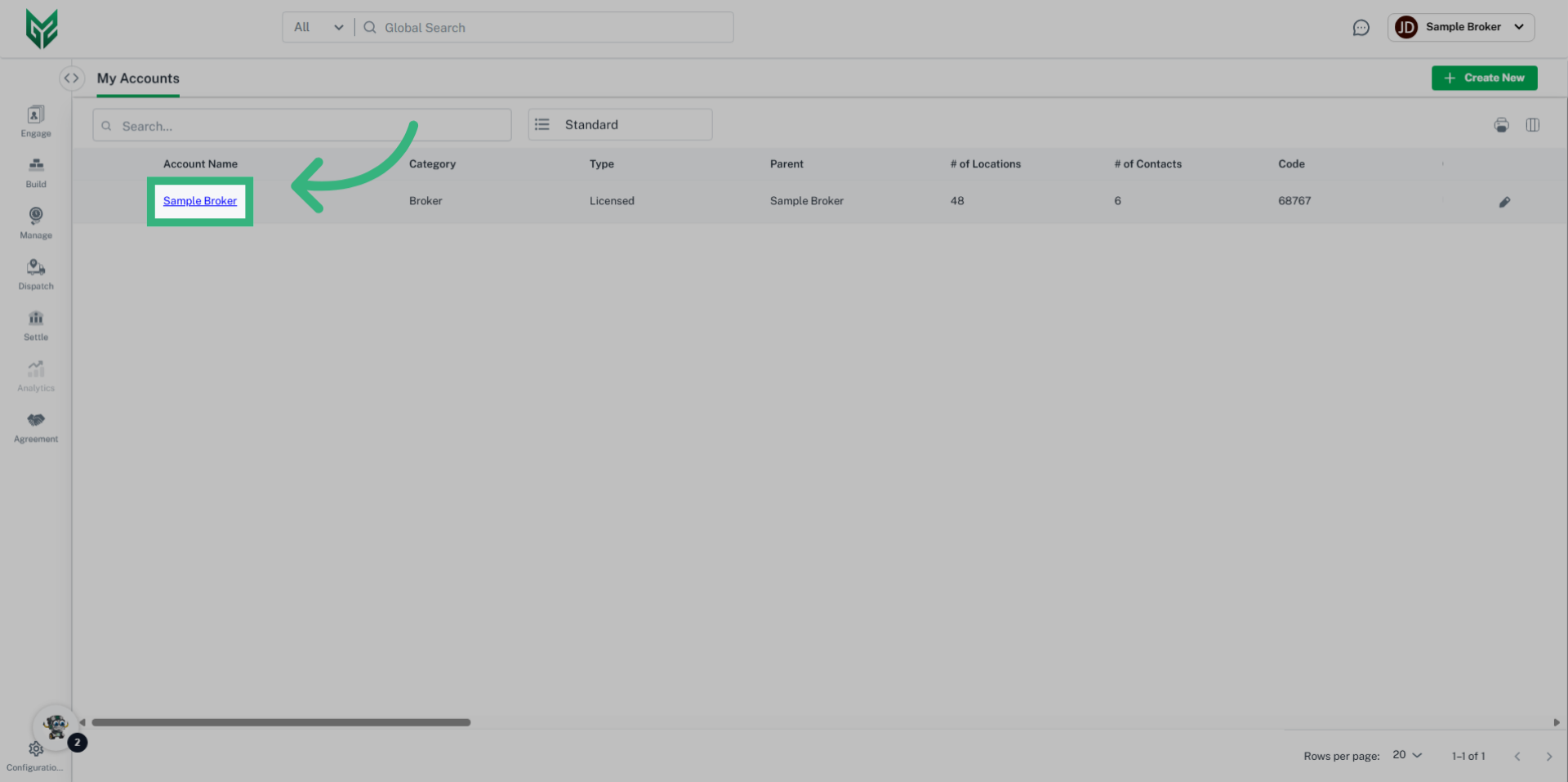
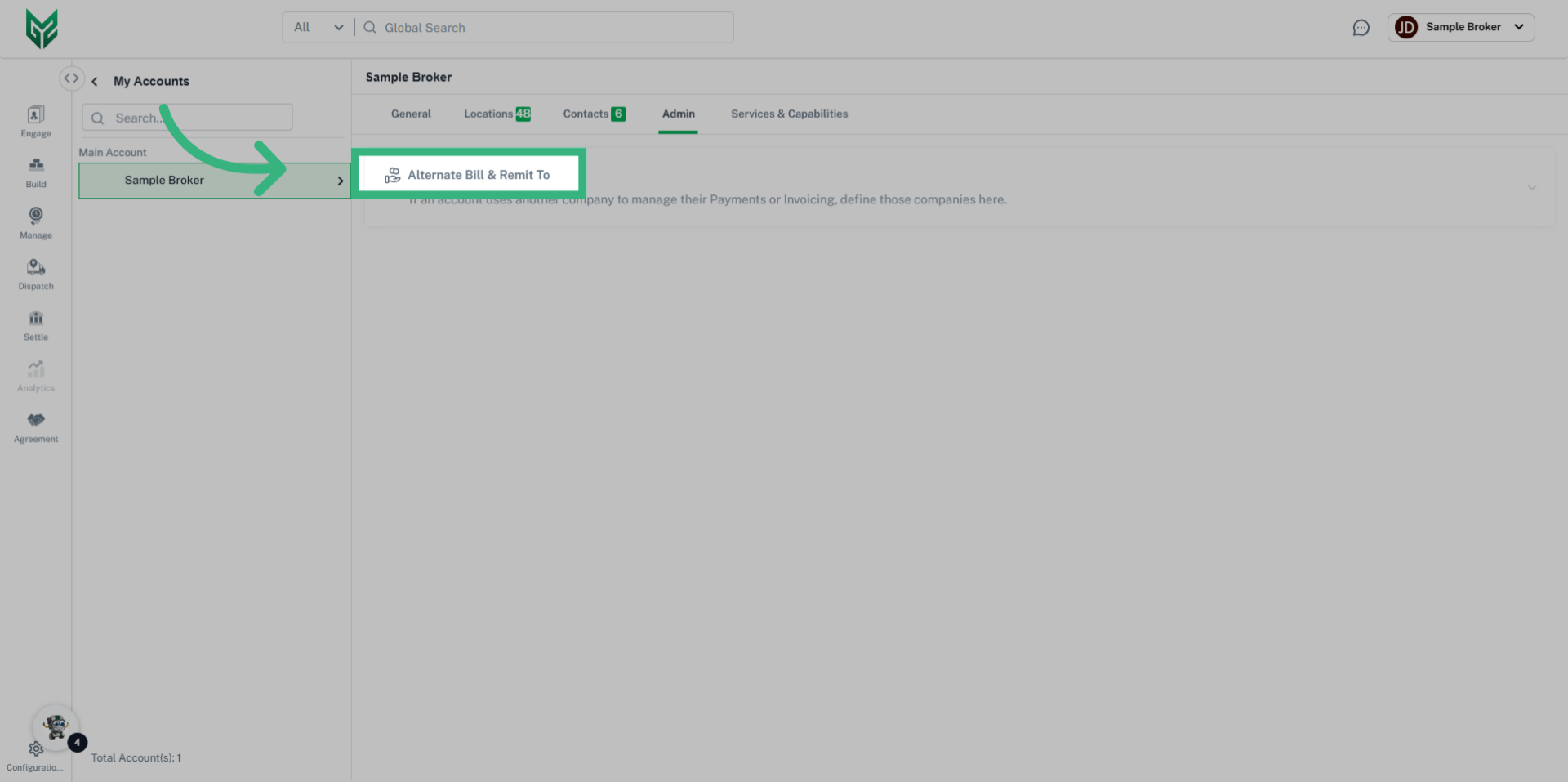
How to Assign an alternate "Bill & Remit To" to My Account
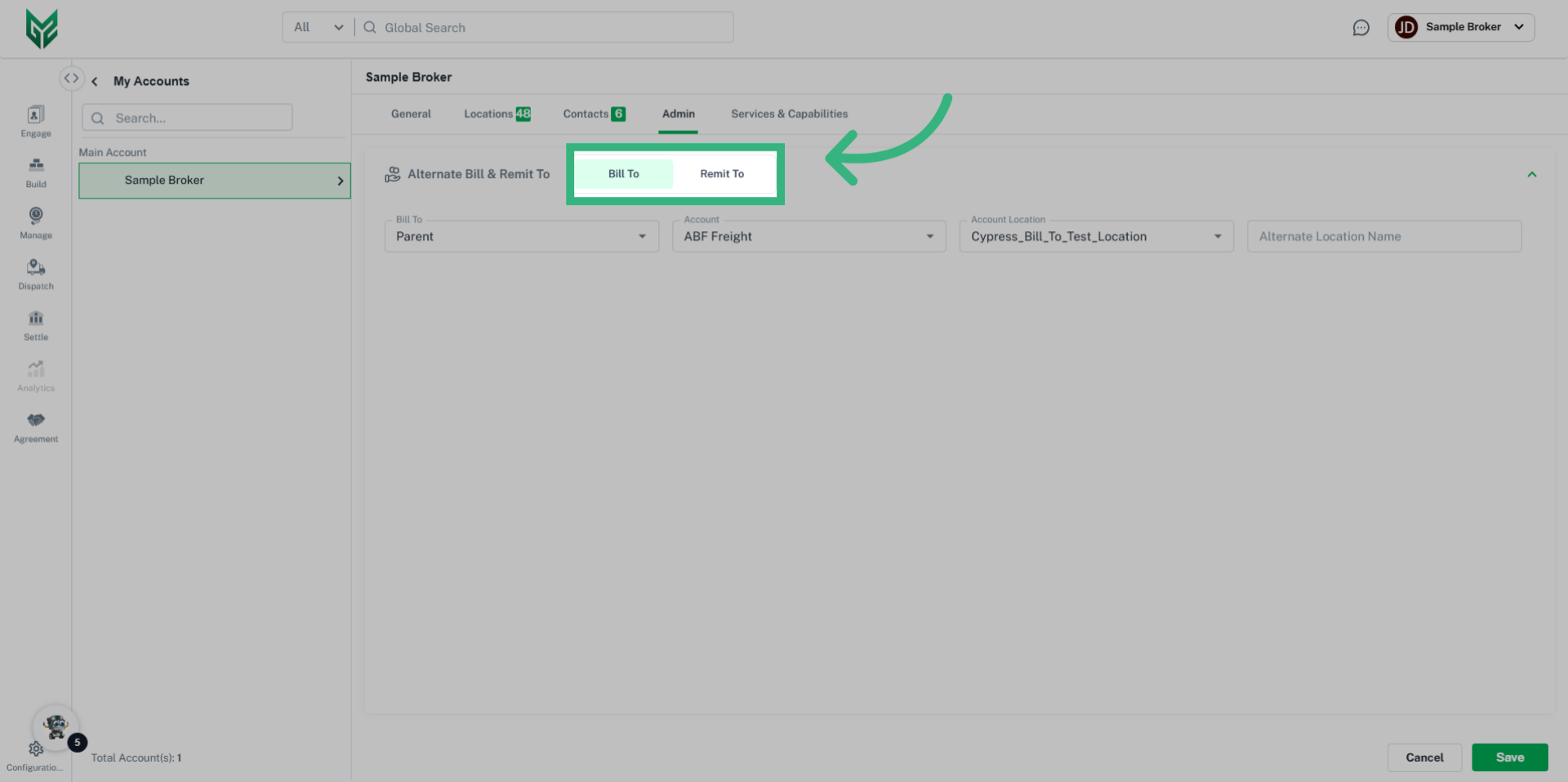
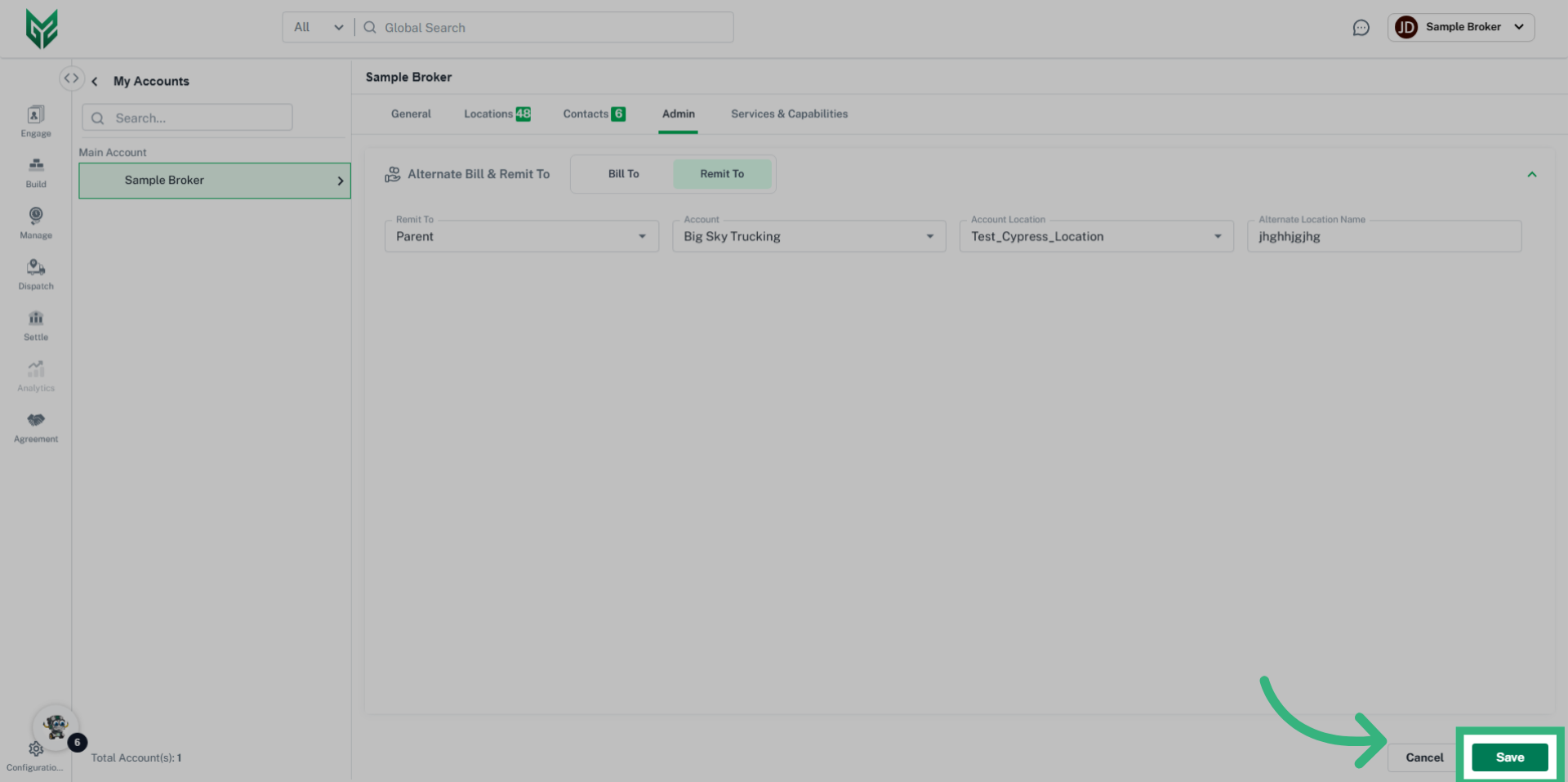
Admin Fields:
Alternate Bill & Remit To:
- Bill To/Remit To: This field will default to "account", meaning your primary licensed account, without options, unless there is division. In that case, the system will allow you to bill to the parent company or keep it at the division level.
- Account: If Parent is selected, select the Parent account
- Account Location:
- Alternate Location Name:
Safety and Compliance (Carrier accounts only):
- Safety/Ins. Source-Ins.: Select source of Assessment score from dropdown options.
- Overall Risk Assessment: Enter overall score
- Last Update: Enter date of last assessment
- W9 Complete: Select checkbox if complete
- Bypass Validation: Select here to bypass using Assessment Score
Insurance: Carrier Only (Carrier accounts only):
- Insurance Type: Select from dropdown select the type of Insurance to enter. To add multiple, select + Add More.
- Account Name
- Policy Number
- Expiration Date
- Coverage Limit: Coverage limit does link to other aspects of the application. You will be notified if cargo exceeds your limit.