This document confirms the client charge rate and shipment details as entered into our Transportation Management System (TMS). The rates shown reflect the amount billed to the client and do not represent the carrier cost.
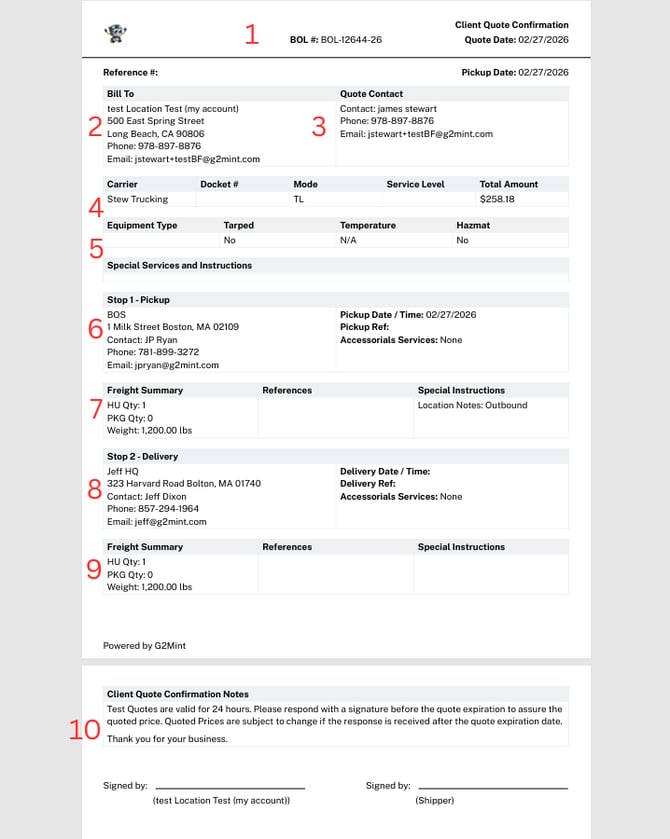
#1. Quote Confirmation Header
- Logo- The Licensed Account logo provided in Default Settings>App Customization>Logo>Documents Logo
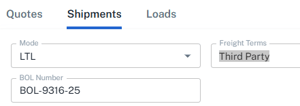
- BOL#- auto-assigned BOL number, or self-created through Edit page
- Quote Date: Date rate was created
- Freight Charge Terms- Can be Collect, Prepaid or Third Party
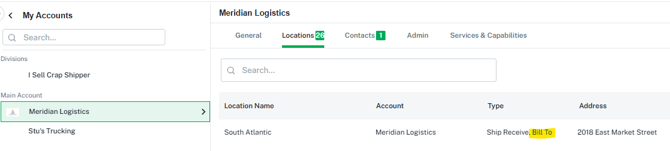
#2. Bill To
- This address is set in My Account>Locations>Bill To (as a Location Type). If multiple Locations are selected as Bill To, the system will select one (typically the first one) and allow the User to select via dropdown in the Shipment Bill To. If no Bill To Locations are selected, it will use the Default.
#3. Quote Contact
- Similar to the Bill To above, this is set in My Account>Contacts. Set Contact Type to Finance. If no Finance type is set, the system will use Default Contact (Note: If multiple Default Contacts are set, the system will use the Default Contact that was created first).
#4. Carrier information
- The Carrier selected, Assigned, or Tendered. MC Number can be updated inside Carrier account in Engage.
- Total Amount here is Charge only and does not include Carrier Cost.
#5. Equipment Type and Special Services
- Equipment is selected in the Builder section as shown below. The equipment details can be edited in Configurations

- Special Services and Instructions can be edited in the Shipment Locations or in the specific Shipment builder itself.
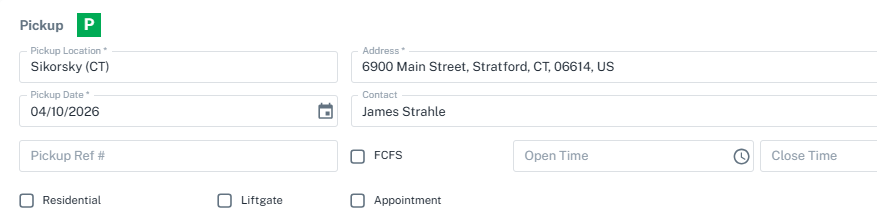
#6. Stop 1
- Origin information
#7. Freight Summary/ Special Instructions
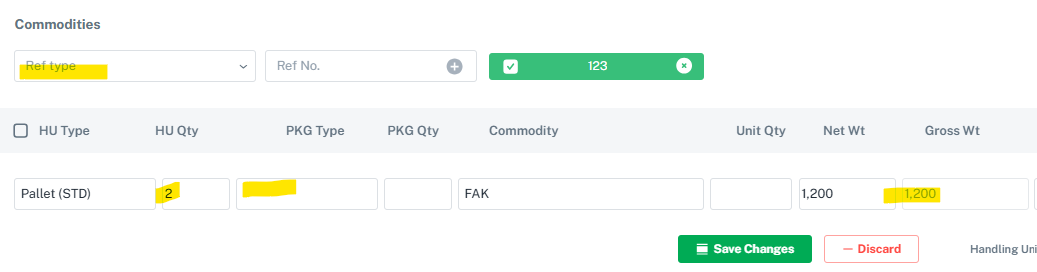
- Driven by the Commodity section in Builder
- Special Instructions are from Pickup/Delivery Notes section
#8. Stop 2 (Delivery for a Shipment with 1 Origin/Destination)
-
Destination details
#9. Freight Summary
-
Will vary from Freight Summary above only on a multistop Load
#10. Client Quote Confirmation Notes/ Signature
-
Notes can be set in the Default Settings Section
- Default Settings>Documents>Configured Documents>Client Quote Confirmation
- Signers are Licensed Account and Account Name from top right of Builder section