Last Updated: May 20, 2025
Applies to:
Shippers, Brokers, Carriers, and Partners
Common Scenario(s)/Challenge (s):
User Management acts as a centralized hub for efficiently managing all Users within your system. This feature allows you to effectively administer users within all accounts, ensuring that each individual is granted the appropriate access level according to their specific roles and responsibilities. From this hub, an administrator can manage User roles, accessibility and security restrictions.
Solution Overview:
Users are divided into two main types: Internal Users and External Users. Internal Users are employees associated with the Licensed Account, while External Users include clients or vendors who have been invited to access the account. For example, if the primary account is a Broker, and they want to provide “guest access” to a Carrier vendor, there are editable default allowances for that Carrier within the User Management section.
To enhance security, both user types must establish their accounts via an email invitation. This procedure guarantees that each user receives customized access to the system, aligned with their specific roles and information requirements. This user classification not only bolsters security by restricting access to data pertinent to each user's role but also streamlines user management, enabling more efficient processes for adding, modifying, or deactivating user accounts as necessary.
Groups within User Management allow the ability to assign a User to a "team," for example, Sales Team or Finance Team.
Create a User Management Group:
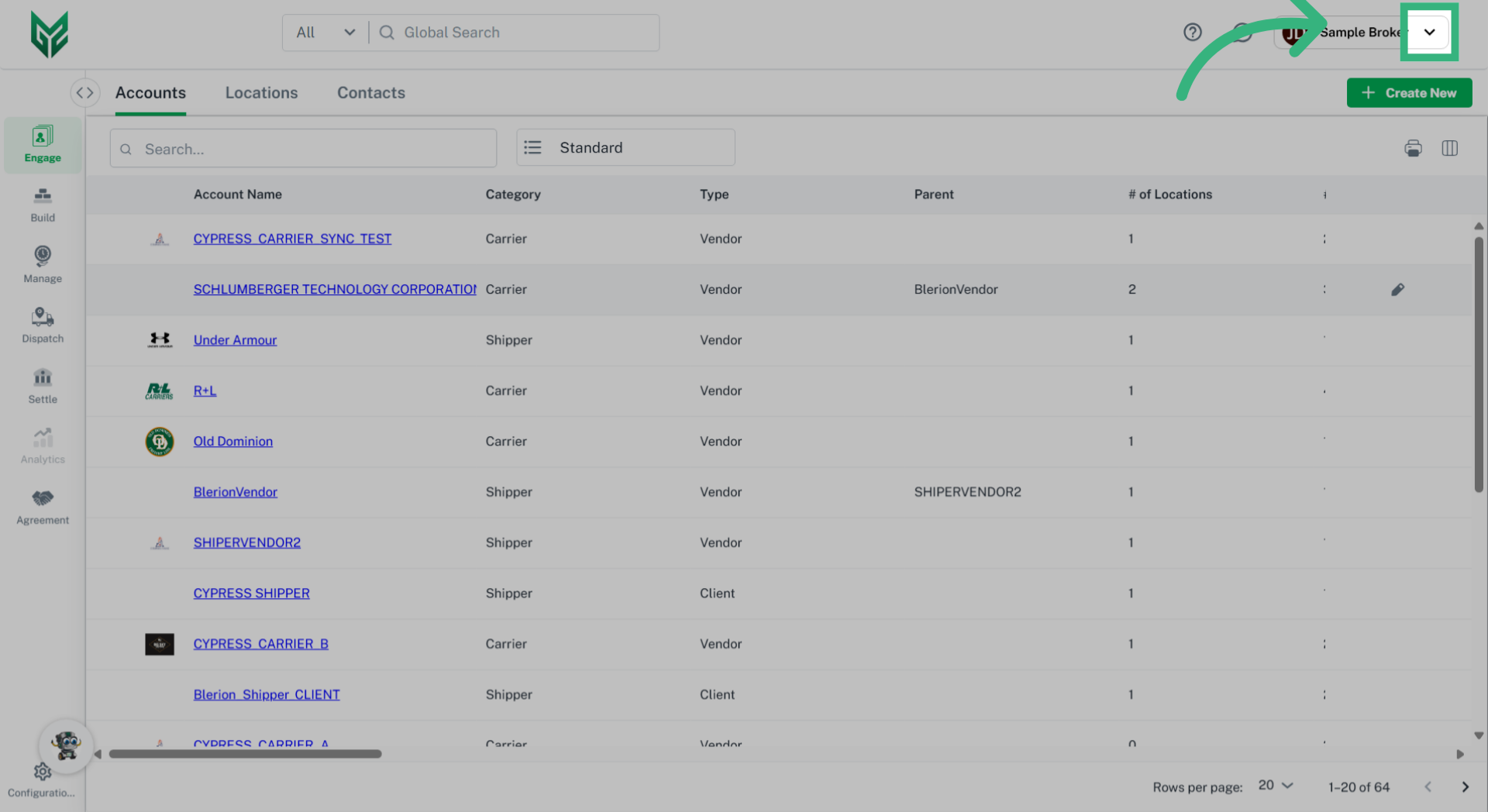
1. Select "User Name" in upper right corner.
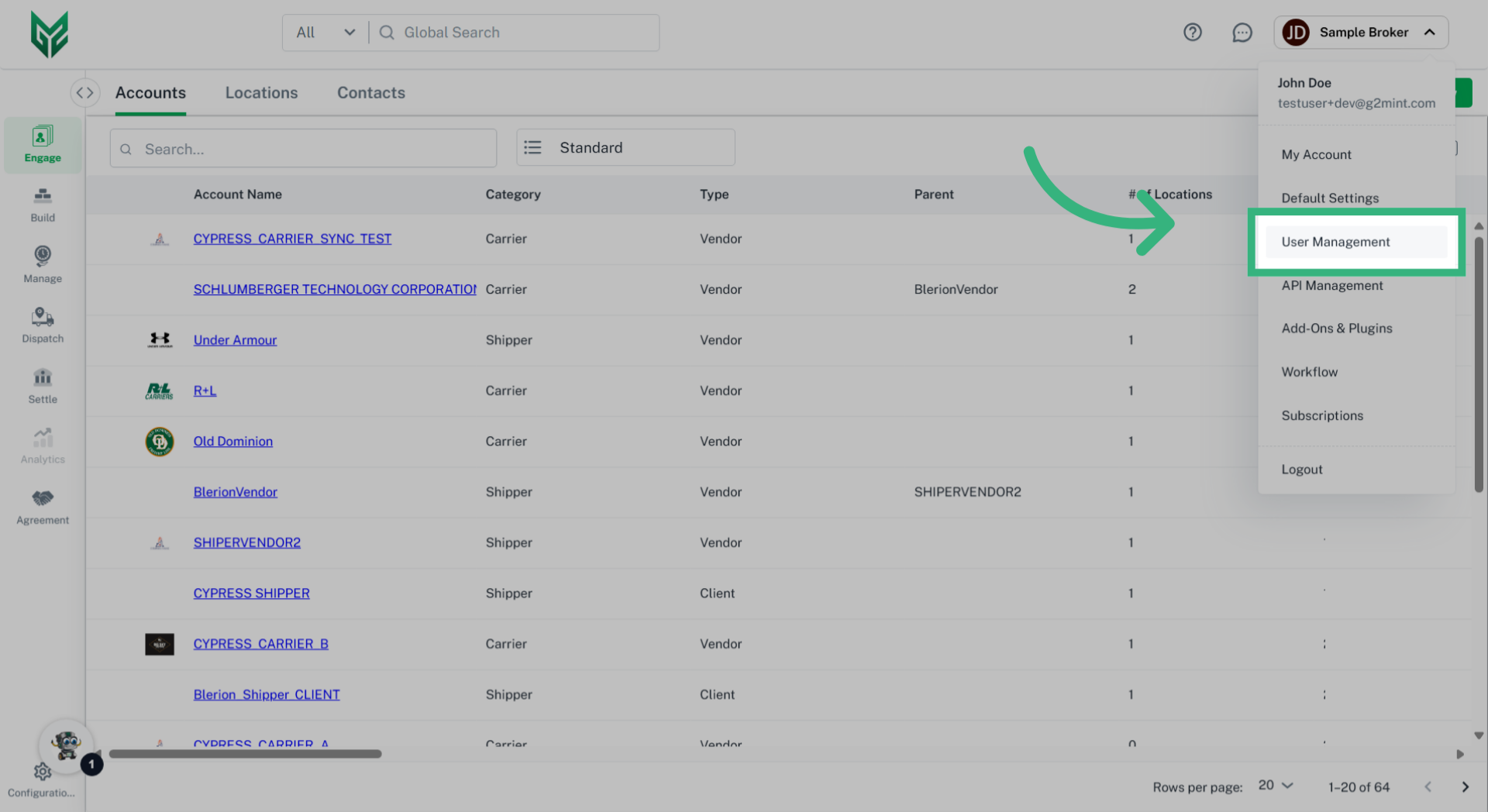
2. Navigate to "User Management" from the dropdown.
3. Select Groups from the top navigation bar.
4. Create groups and add desired Users to Groups.