Last Updated: February 23, 2026
Applies to:
Shippers, Brokers, Carriers
Common Scenario(s)/Challenge (s):
To reduce repetitive setup, and help align your team, our customizable Home Page can now be shared with other users in your organization. You can create and share custom Views in G2Mint with your internal team or with Guest Users. For example, if a Broker is the primary User, they can create one View tailored to their operations team and a separate View for their individual Shipper guests.
Key Points:
-
Default views are still specific to the User. Only the logged in user can set their default view.
- The owner/creator is the only one who can edit the View. Users can clone the shared view to edit it to fit their specific needs but they cannot change the original view unless they are the owner.
- Users can update the order and location in which a tile appears on the Home View after creation.
- Shipper Guests can now create their own home views and brokers can share their specific views with each shipper guests.
How to share your view with internal members or your shipper guests?
- Go to the Home view screen (click on the logo in the top left of the application)
- Locate the view you wish to share
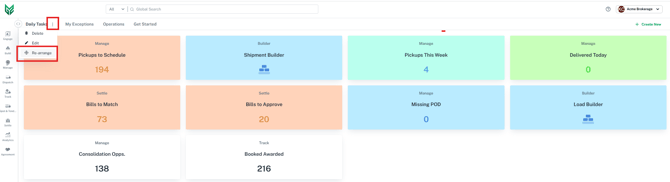
- Select the 3 dots next to the view tab to expand the options and click 'Edit'

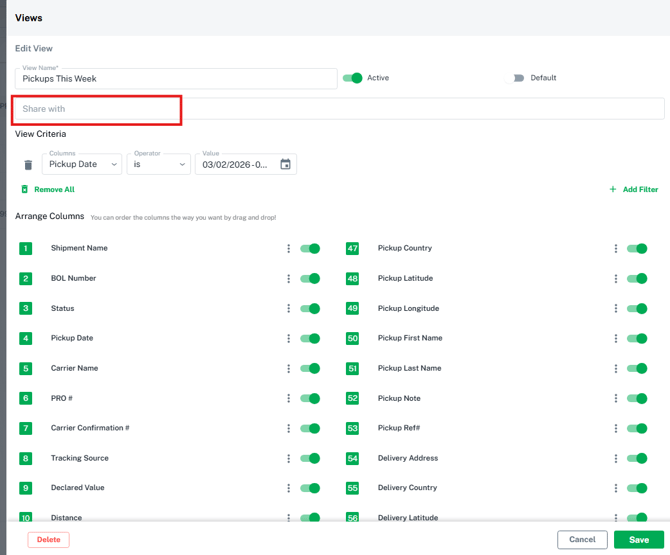
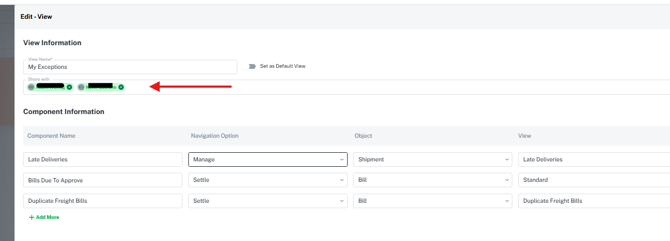
- Within the 'Share with' field, search and click on the individual users you wish to share this specific view and click 'Save'. (Note: You can always come back and add or remove users from the Share view)
How to re-arrange my existing tiles in my home screen?
- Go to the Home view screen (click on the logo in the top left of the application)
- Locate the view you wish to re-arrange the tiles
- Select the 3 dots next to the view tab to expand the options and click 'Re-arrange'
- Once in this mode, you can drag the tiles you've already created in the order you wish, then click 'Save' in the top right. (Note: Changes made to the view will impact anyone who you've shared the view with previously)
How to share a custom view from one of the grids?
- Navigate to the specific section your saved view is located (i.e. Shipments, Loads, Dispatch, Track etc..)
- Locate the view you wish to share and click the edit pencil that appears when you hover over the view.
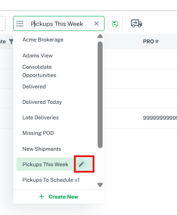
- Once in the edit view screen, click in the 'Share with' field and it will show all eligible users within your organization. Each user has to be selected individually.