Freight Agreements Overview
Freight Agreements are used to provide accurate Rates (both Cost & Charge Rates) for all modes and Agreement Types based on your contracted rates with your carriers.
Freight Agreement Overview: Freight Agreements define how rates are returned within the G2Mint platform. Depending on your persona, our Freight Agreements can return pricing for the Cost, the Charge, and the Benchmark/ Historical Rates (and we can show all of these for a Broker). In the G2Mint system, there are two primary types of Freight Agreements, Webservice & Custom.
A webservice freight agreement allows online real-time rating directly with the involved carrier. Because G2Mint has already setup the API integration with these carriers, the only real input required is your access credentials provided by the Carrier. When entering a Carrier with API connectivity, enter directly through the Freight Agreements module, and that will create an Account in our Engage section.
A custom freight agreement allows client specific data (including manual uploads) from an existing agreement to be applied to the G2Mint Rate Engine. These agreements can be fixed amounts (ie $500 per lane) or tiered (ie $5/mile for first 100 miles, then $4.50/mile for the next 100-500 miles), and the amounts can be based off Amount, Distance, Handling Units or Volume. To create a custom freight agreement (meaning that there is no API connection), the Account must first be created in our Engage section.
Links to common Freight Agreement How To's:
Create a webservice Freight Agreement
Create a Custom Freight Agreement
Freight Agreement Header options
Freight Agreement Rate Plan Overview
How to validate a Freight Agreement
Note: When creating an Agreement, the status must be set to In Production to return rates.
Freight Agreement critical information and FAQ's:
Agreement Types
- Blanket Benchmark- Provides a standard/ average against rated cost. These are for comparison purposes only, and are non-tenderable
- Blanket Billing- Create Rates to Bill any client (For a Broker, rates will include the Mark-up)
- Blanket Cost- These are the basic shipper/carrier service agreements. The majority of carrier contracts will fall in this category
- Blanket Rate Index- An index is an industry average that can only be used if a plugin is activated. A Blanket Index is assigned to any non-specific client
- Client Benchmark- Custom agreements only. Target rates for a specific client, otherwise same as Blanket Benchmark
- Client Billing- Custom agreements only. Client specific billing agreement where amounts will be used to invoice the client
- Client Cost- A client-specific expense agreement, ex. Shipper/ Broker creating for a Carrier
- Client Rate Index- Similar to the Blanket Index, except assigned to a specific Client
The Owning Account will always default to the primary Account Holder. This only provides options when the primary account has Divisions.
A specified Client only needs to be selected on Client-specific Agreements. This can be left blank on Blanket Agreements.
To add a specific Accessorial Table (Agreement), the agreement must first be created in Agreement>Accessorials, and assigned to that Carrier.
The Billing Location selected on a webservice Freight Agreement pulls from My Account Locations on a Blanket Agreement. If the Agreement is Client specific, the Bill To options are coming from the Clients Engage Locations OR the My Account Locations. Any location to select here must be created prior to entering an Agreement and chosen as a Bill To (or Ship/Receive location).
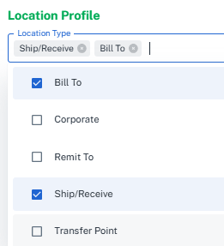
A Shipping Location must be within that Carriers service area to be validated on a webservice agreement.
Each Carrier has different credentials required to connect via API. The system will guide you through that information and provide instructions on how to get any missing account information.
API Supported Services in Freight Agreement>Rate Plans will detail which API services that Carrier offers.
Coverage Area and Qualifications is not required, but, if left blank, are all-encompassing (if no Coverage Area is created, the plan will apply to all areas serviceable by the Carrier).
00:00: Learn how to add a new web service carrier with anagreement in G2mint
00:05: This guide will walk you through each essential action to successfully set
00:09: up your carrier agreement.
00:10: Navigate to the Freight option under the Agreement header.
00:14: Select the Web Service option from the drop down.
00:17: Enter all required information, including an agreement name, carrier agreement
00:22: type and owning account then. Click next agreement type can be blanket
00:26: or client-specific. If this is a client-specific agreement, enter the client
00:30: in the field below.
00:32: On this step, you will be able to select the locations
00:35: you would like to apply these rates to. Once you have selected the locations, click
00:39: next.
00:40: Reference the critical instructions. As the requirements are unique to each carrier.
00:45: Once you have obtained, an entered the required credentials, click on the checkbox
00:49: to confirm, you have read the critical instructions.
00:52: Click on the Test Service button which will send a test to the carrier.
00:55: Please note, if a selected Shipping Location is outside of the Carriers
01:00: service area, the Test will fail.
01:03: Once the test is complete, click next.
01:06: Click on the status dropdown, and set the status to "In Production", then click
01:10: "Save". The agreement is now active in the system and rates will be returned
01:14: for the selected locations. If you would like to hide the rates from being displayed, you
01:18: can update the status to "On Hold".
01:21: This guide covered the process of adding a new Web Service carrier agreement
01:25: in G2 mitt.
00:00: Learn how to create a custom, Freight agreement in G2 mint with
00:04: this comprehensive guide.
00:06: Navigate to the freight tab by first clicking on the agreement header.
00:10: Click "Create New" then select custom from the dropdown menu.
00:15: Enter the Agreement Type, Agreement Name, Carrier Name, and owning account
00:19: then click "Next".
00:22: In this example, we will use fixed amount to represent a contract full truckload
00:26: lane with a static price.
00:28: Specify the coverage.
00:31: Enter your coverage information. Coverage information can be used to filter
00:35: your agreements further, but are not required.
00:37: Areas can be created in the Areas configuration.
00:40: Next, click on the qualifications tab.
00:44: Enter any additional information such as weight, handling unit, or stops in
00:48: the qualifications tab then click "Rate Tiers".
00:52: Enter the agreement amount in this case, we will enter 2100 dollars for
00:56: this Lane.
00:57: Proceed to the next step.
00:59: Update the contract status to "In Production". This will activate the agreement,
01:03: if you want to deactivate this agreement later, you can update the status to "On
01:08: Hold".
01:09: Save the custom freight agreement.
00:00: Explore. The various agreement header options in G2.
00:03: Mint with this guide.
00:05: Each step will provide you with additional information on every section of the Agreements
00:09: section including Freight, Commission, Compliance, and Markup
00:14: agreements.
00:15: Navigate to the "Agreement" header to expand the drop down menu.
00:19: Proceed to the "Freight" section. This is where you will add new carrier agreements, or
00:24: manage your existing carrier agreements.
00:27: Select the commission tab. This is where you will be able to create or modify
00:31: commissions plans. Allowing you to automatically assign a variety of different plans,
00:35: including percentage-based fixed dollars, Revenue based activity
00:40: based or trickle-down commission plans.
00:43: Go to the compliance module, compliance agreements, help to simplify violation
00:47: compliance for specific clients or as a blanket agreement, for a group of clients.
00:51: They will ensure that G2 mint can easily track things such as broken
00:56: pallets or any other violation and give the accounting team the data to deduct
01:00: from invoices where necessary
01:03: Access the markup tab. This is where you will be able to assign a specific
01:07: markup or Cost Plus to your Freight.
01:09: You can create multiple agreements that can be Associated to a specific mode
01:13: account or even geographical location.
01:17: This guide walks you through accessing agreement, header options, in g2m, it
01:21: covering features, like Freight commission, compliance and markup agreements.
00:00: Discover how to toggle your locations to filter rates in G2Mint
00:10: Proceed to the Freight section by first clicking on the Agreement header.
00:14: In this case, we will update the R+L API carrier record
00:20: Select the Locations tab.
00:22: Click on the specified area.
00:25: Toggle the checkbox for the locations, you would like rates to appear.
00:28: Please note that these are shipped from locations not destination accounts
00:32: to toggle your destination accounts, you would want to create a new area in
00:36: the area configurations. Then create a filter in the rate plan section.
00:41: Clicking the "Go To Credentials Tab" will take you to a new page where you will confirm
00:45: the updates you just made.
00:47: Initiate the Test Service and Save button to save your changes. Rates
00:51: will now appear for the newly selected location. To toggle rates off,
00:55: simply follow the same steps but uncheck the location in question.
01:00: This guy provides a comprehensive walkthrough on managing agreement.
01:04: Freight locations in G2 mitt.
00:00: This guide will walk you through the process of updating a freight agreement validation
00:04: status in G2 mint.
00:06: Choose the "Freight" tab after clicking on the "Agreement" header. This will bring you to your list
00:10: of freight carrier agreements.
00:13: In this case, we will update the R+L API agreement.
00:18: Select the "Validation" tab.
00:20: Click on the "Edit" button.
00:23: In this case, I want to take an active agreement (in production) and temporarily
00:27: pause the rates by moving it to "On Hold" status.
00:31: Click on the "Save" button to save your changes. When I want rates to display again,
00:35: I can simply go back and move the status back to "In Production"
00:40: The guide covered the steps to validate a freight carrier agreement status.