Last Updated: December 2025
Applies to:
Brokers and Shippers
Common Scenario(s)/Challenge (s):
In order to ensure the proper client 'Bill To' contact is appearing on your shipments and load BOLs documents, you need to have the proper settings in place for your Account.
Solution Overview:
The contact and location type must be properly set under the 'My Account' section.
The logic in place to determine which contact appears as the Bill To contact on your BOL:
- Use the 'Finance' contact assigned to the location set as the 'Bill to'?
- If no location is set as the 'Bill to' then use the 'Finance' contact
- If there is no Finance a contact type set then use the Default contact
Note: Updates made to a contact record will only apply to shipments created after the change. Any expected shipments generated prior to the update will remain unchanged.
If a Contact type is not specified as 'Finance' then the system will use the 'Default' Contact.
Step by Step:
- Navigate to the My Account ( click on the top right of the screen where your user name is displayed).
- Click on your Account name
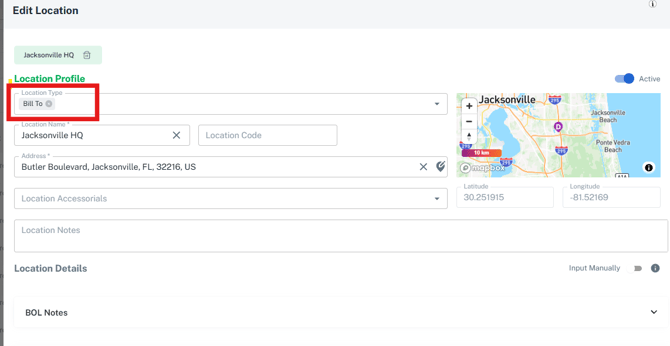
- Go to the Locations tab to set the location information.
- If you are editing an existing location then click the edit pencil icon of the location you wish to update. Otherwise click Create New and add the new location
- While in the Location, set the location type to 'Bill To' and fill out the remaining fields as needed then click 'Save'.
- Go to the Contacts Tab next
- Locate the existing contact or add a new contact you wish to appear on the BOL as the 'Bill To' for your carriers.
- Choose the Location you previously set as the 'Bill To' location
- Update the 'Contact Type' type with 'Finance' as this will ensure this contact set as the 'Finance' contact is the one who's name appears in the Bill To section of the BOL and on your Shipments and Loads.
- Locate the existing contact or add a new contact you wish to appear on the BOL as the 'Bill To' for your carriers.
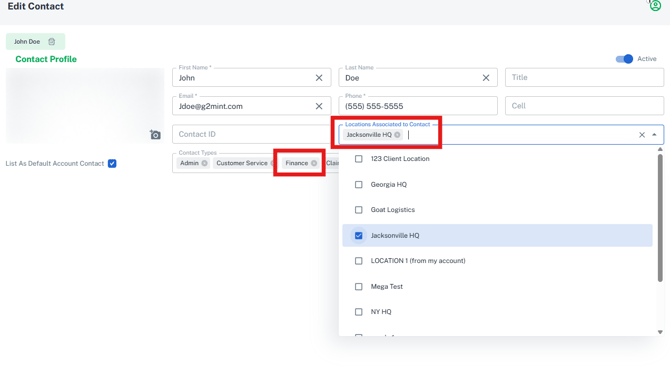
Any FUTURE shipments created after clicking save for the selected client account, the Bill to on the Shipment and BOL documentation will include the location and contact information you've updated with the above instructions.
Related Articles
Still Need Help?
If you need further assistance from our support team email us at support@G2Mint.com