Last Updated: October 2025
Applies to:
Brokers
Common Scenario(s)/Challenge (s):
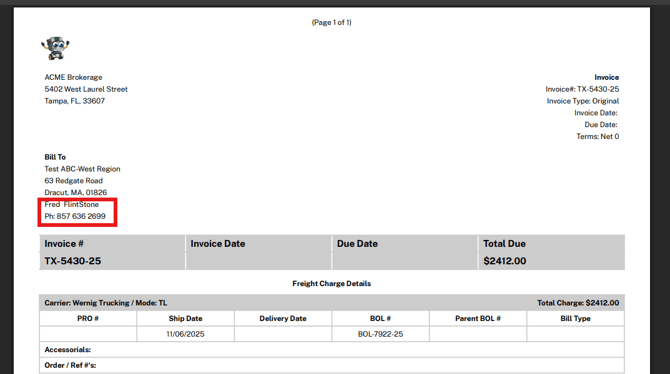
For Brokers looking to generate an invoice for their clients and they want to ensure the proper client 'Bill To' contact is appearing on the client invoice.
Solution Overview:
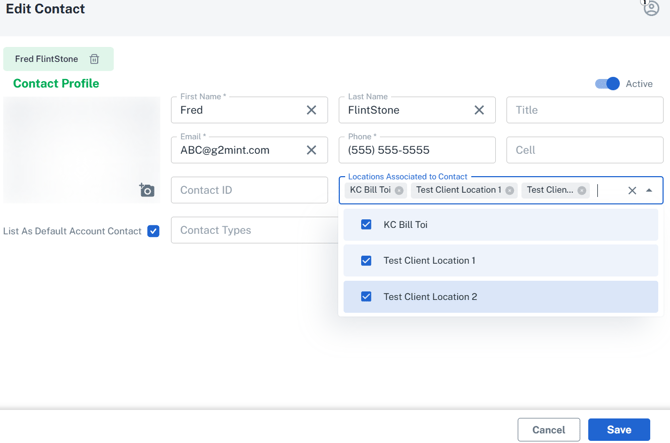
The contact on the client account record must be set as the default AND the associated locations need to be selected.
Note: Updates made to a contact record will only apply to shipments created after the change. Any expected charge records or client invoices generated prior to the update will remain unchanged.
Step by Step:
- Navigate to the Engage>Accounts. Locate the Client Shipper account you wish to update and select the record.
- Once in the Client Shipper account, click on the 'Contacts' tab
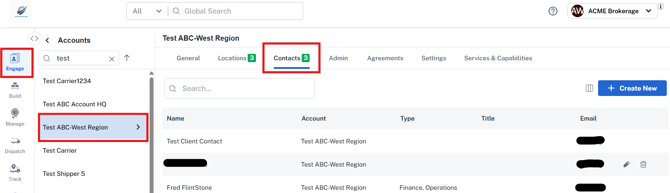
- Click the 'pencil' icon to edit the contact record you wish to update, set the contact as the 'Default' AND within the 'Locations Associated to Contact' field, select all the locations and click save.
Any FUTURE shipments created after clicking save for the selected client account, the client invoice will display the appropriate contact as the Bill To.
Related Articles
How to Generate a Client Invoice?
Still Need Help?
If you need further assistance from our support team email us at support@G2Mint.com