Last Updated: October 2025
Applies to:
Brokers
Common Scenario(s)/Challenge (s):
For Brokers looking to send and update their client invoices
Solution Overview:
This step by step starts with the key steps needed to send and update the status of a client invoice
For Brokers who wait for the carrier bill before invoicing their customers: Prior to generating your client invoice, make sure your expected cost record is marked approved first as a best practice.
Reference this article on approving carrier bills and generating accounts payable records
Step by Step:
(This assumes you've already approved your Expected Charge and created an invoice)
How to send and update a client invoice
- Go to the Settle>Invoices and click on the Invoices tab. All Invoice records that require action will be in 'Approved' status.
- Search by your shipment ID to locate the appropriate Invoice record in the grid.
- There are 2 ways to send a client invoice. You can either print and download the invoice OR you can email an attachment of the invoice directly from the grid.
- To print and download: Select the Invoice Record, and click on the Print Icon
 located in the top right of the grid.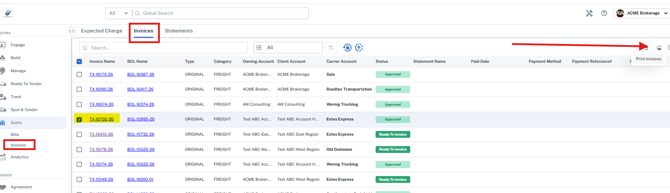
- To send directly via email: Select the invoice record, and click on the 'Transmit' button located at the bottom right of the screen.
- This will open up an email window. Type in the email address you wish to send to and hit return to ensure it registers in the screen. You can update the email text as needed.
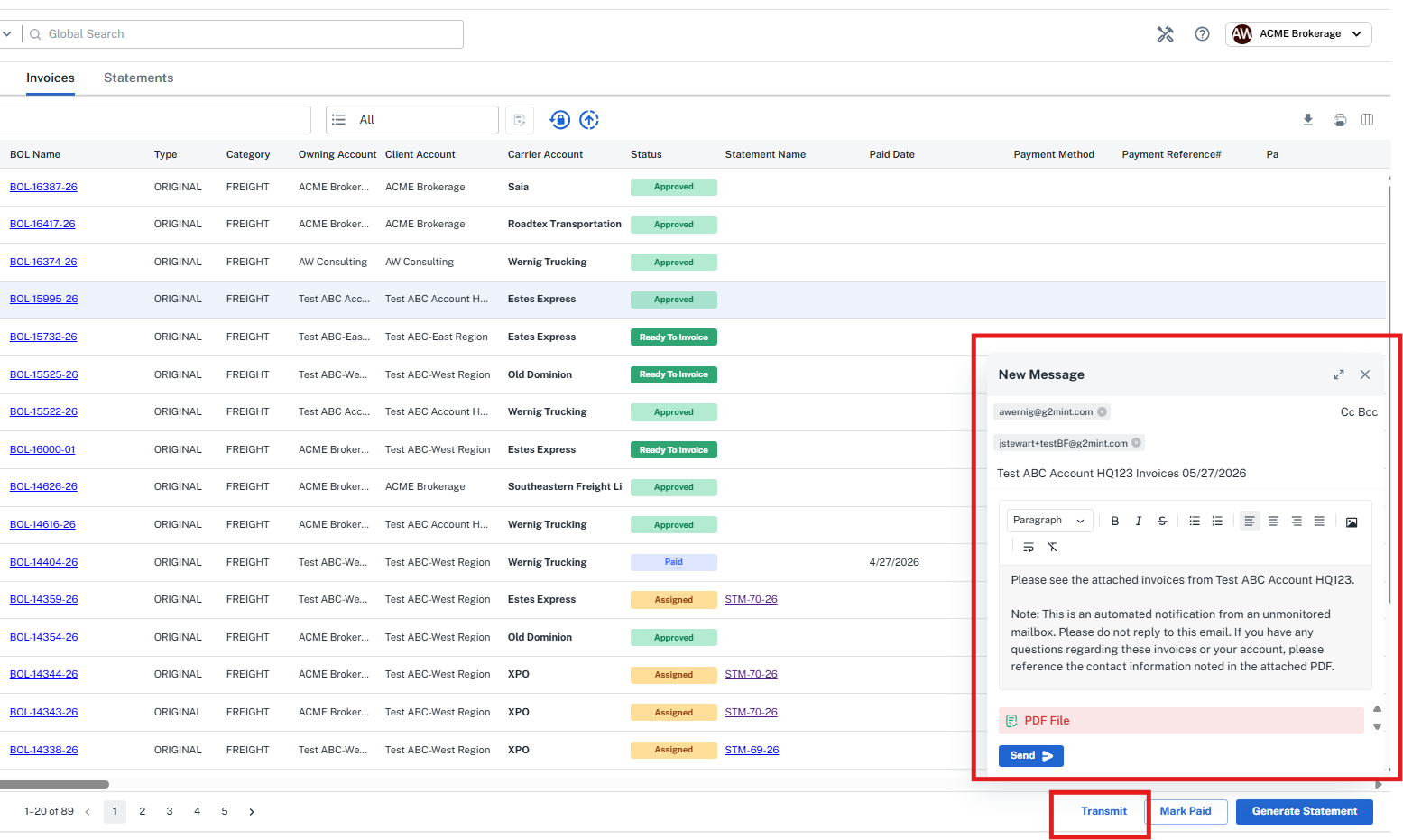
- This will open up an email window. Type in the email address you wish to send to and hit return to ensure it registers in the screen. You can update the email text as needed.
- After sending the Invoice to your client, you can click the Invoice record in the grid, select the 'Update Status icon'
 and update the status from Approved to Billed.
 - Once the invoice has been paid you can return to the invoice screen and click the 'Mark Paid' button and this will provide a screen to enter all payment information.
Related Articles:
How to update the 'Bill To' contact on my client invoice?
Still Need Help?
If you need further assistance from our support team please email support@g2mint.com